Typing is slow compared to speech at 125 to 150 words per minute. Your brain moves faster than your fingers, and by the time you've pecked out a sentence, you've lost three more ideas. AI dictation software closes that gap by converting speech to text in real time, with modern tools going further to remove filler words, add punctuation, and polish your rambling into readable prose.
This guide covers 9 voice to text apps we tested across Mac, Windows, iOS, and Android, with honest breakdowns of accuracy, AI cleanup features, pricing, and the specific workflows each one handles best.
TL;DR
- Best free option: Apple Dictation or Windows Voice Access (pre-installed, no cost, on-device processing)
- Best for professionals: Dragon by Nuance (legal, medical, and technical vocabularies with high accuracy)
- Best cross-platform: Wispr Flow (desktop and mobile with conversational AI cleanup)
- Best for writers: Google Docs Voice Typing (free, browser-based, works directly in documents)
- Best for structured output: Letterly (transforms messy speech into polished, organized text)
What's inside this guide
We tested 9 dictation apps across Mac, Windows, iOS, and Android. Each review covers accuracy, AI cleanup features, platform support, and pricing. You'll find honest breakdowns of key strengths, ideal use cases, and real limitations. The goal here is helping you pick the right voice to text app for your workflow, not just the one with the best marketing copy.
What is AI dictation software
AI dictation software converts spoken words into written text using speech recognition. The "AI" part matters because older dictation tools simply transcribed what you said word-for-word, including every "um" and awkward pause. Modern AI dictation adds intelligence after your voice hits the microphone. Instead of raw transcripts, you get automatic punctuation, filler word removal, and context-aware corrections. The difference between "I went to the store period" and the software knowing to insert a period is the AI layer at work.
How AI is improving voice recognition software
AI has changed dictation from simple transcription into something closer to writing assistance in a market projected to reach USD 23.11 billion by 2030. Here's what separates modern tools from legacy speech to text:
- AI post-processing: Automatically removes "um," "uh," and verbal tics while adding punctuation and paragraph breaks
- Contextual accuracy: Understands specialized terminology in medical, legal, and technical fields based on surrounding words
- Natural language processing: Handles conversational speech patterns, not just formal dictation style
- Learning capabilities: Some apps adapt to your voice, accent, and vocabulary over time
The practical result is less time editing transcripts. The best dictation apps now produce text that reads like you wrote it, not like you spoke it.
What makes the best dictation app
Choosing a dictation application depends on how you'll actually use it. Here are the criteria that matter most when evaluating voice to text software.
Accuracy across accents and speaking styles
Raw transcription accuracy varies significantly between free and paid options. The best apps handle regional accents, fast speech, and mumbling without constant corrections.
Accuracy also depends on audio quality and speaking clarity. A tool that works perfectly in a quiet office might struggle in a coffee shop or during a commute and fall to 65% on mobile calls.
Platform and device support
Some dictation apps work system-wide, meaning you can dictate into any text field on your device. Others only work within specific applications like Google Docs or Microsoft Word.
Cross-platform support matters if you switch between Mac, Windows, iOS, and Android throughout your day. Check whether your dictation data syncs across devices or stays siloed on each one.
Integration with productivity apps
The best dictation software connects with your existing writing tools. Some apps type directly where your cursor is, while others export transcripts you copy and paste.
Look for integrations with the apps you already use: Google Docs, Microsoft Word, Notion, or your email client. Fewer steps between speaking and finished text means more time saved.
Offline dictation capabilities
Cloud-based processing sends your audio to remote servers for transcription. On-device processing keeps your audio local, which works offline and protects privacy.
The tradeoff is often slightly lower accuracy with on-device processing, though this gap is shrinking with newer AI models.
Privacy and data security
Where your audio goes matters, especially for professionals handling sensitive information. Some apps store recordings on their servers, while others process everything locally and delete audio immediately.
For medical, legal, or financial work, look for apps with HIPAA compliance or explicit privacy certifications. Consumer-grade dictation apps rarely offer this level of protection.
Best AI dictation apps compared
# | App | Best for | Platforms | Key AI feature | Pricing | G2 rating |
|---|---|---|---|---|---|---|
1 | Apple Dictation | Apple ecosystem users | Mac, iPhone, iPad, Apple Watch | On-device processing | Free | N/A |
2 | Windows Voice Access | Windows users | Windows 11 | Full system voice control | Free | N/A |
3 | Dragon by Nuance | Legal, medical, technical professionals | Windows, Mac, iOS, Android | Specialized vocabularies | Premium (custom pricing) | 4.0/5 |
4 | Wispr Flow | Knowledge workers | Mac, Windows, iOS, Android | Conversational AI cleanup | Free tier + paid plans | 4.8/5 |
5 | Google Docs Voice Typing | Writers in Google Docs | Chrome browser | Multi-language support | Free | N/A |
6 | Gboard | Android mobile users | Android, iOS | Offline voice typing | Free | 4.5/5 |
7 | Otter.ai | Meeting transcription | Web, iOS, Android | AI summaries and speaker ID | Free tier + $16.99/mo | 4.3/5 |
8 | Speechnotes | Long-form writers | Chrome browser | Auto-save and clean interface | Free with ads | N/A |
9 | Letterly | Structured writing from speech | iOS, Android | AI writing transformation | Free tier + paid plans | 4.7/5 |
1. Apple Dictation
Apple Dictation comes pre-installed on every Mac, iPhone, iPad, and Apple Watch. You activate it with a keyboard shortcut or voice command, and it types wherever your cursor is.
The Enhanced Dictation mode processes audio entirely on your device, which means it works offline and keeps your voice data private. For Apple users who want dictation without installing anything or paying anything, this is the obvious starting point.
Best for: Apple ecosystem users who want free, private dictation with zero setup.
Key strengths
- Zero cost: Included with all Apple devices, no subscription required
- On-device processing: Enhanced Dictation mode keeps audio local for privacy and offline use
- System-wide access: Works in any text field across any app, not just Apple's own software
- Voice commands: Say "period," "new paragraph," or "caps on" naturally while dictating
Why choose Apple Dictation
Apple Dictation works well for quick notes, messages, emails, and short-form writing. The accuracy is solid for everyday use, and the privacy benefits of on-device processing matter if you're dictating anything sensitive.
The limitations show up with long-form professional dictation. You won't get specialized vocabularies for medical or legal terms, and the AI cleanup is basic compared to dedicated dictation apps.
Pricing
Free, pre-installed on all Apple devices (Mac, iPhone, iPad, Apple Watch).
2. Windows Voice Access
Windows Voice Access goes beyond basic dictation. Built into Windows 11, it lets you control your entire computer with voice commands, not just type text.
You can dictate into any application, click buttons, navigate menus, and switch between windows without touching your keyboard or mouse. Microsoft designed it primarily for accessibility, but it's useful for anyone who wants hands-free computing.
Best for: Windows users who want free dictation with robust voice commands and full system control.
Key strengths
- Free and built-in: No download required on Windows 11, just enable it in settings
- Full system control: Dictate text plus control apps, click buttons, scroll pages, and navigate menus
- Offline capable: Works without internet connection after initial setup
- Accessibility-first design: Built for hands-free computing with comprehensive voice commands
Why choose Windows Voice Access
Windows Voice Access is more powerful than basic Windows dictation. The voice command system lets you say things like "click submit" or "scroll down" while dictating, which keeps you in flow without switching to mouse and keyboard.
The dictation accuracy is competitive with other free options. Where it falls short is AI cleanup. You get raw transcription without the automatic filler word removal and formatting that paid tools provide.
Pricing
Free, included with Windows 11.
3. Dragon by Nuance
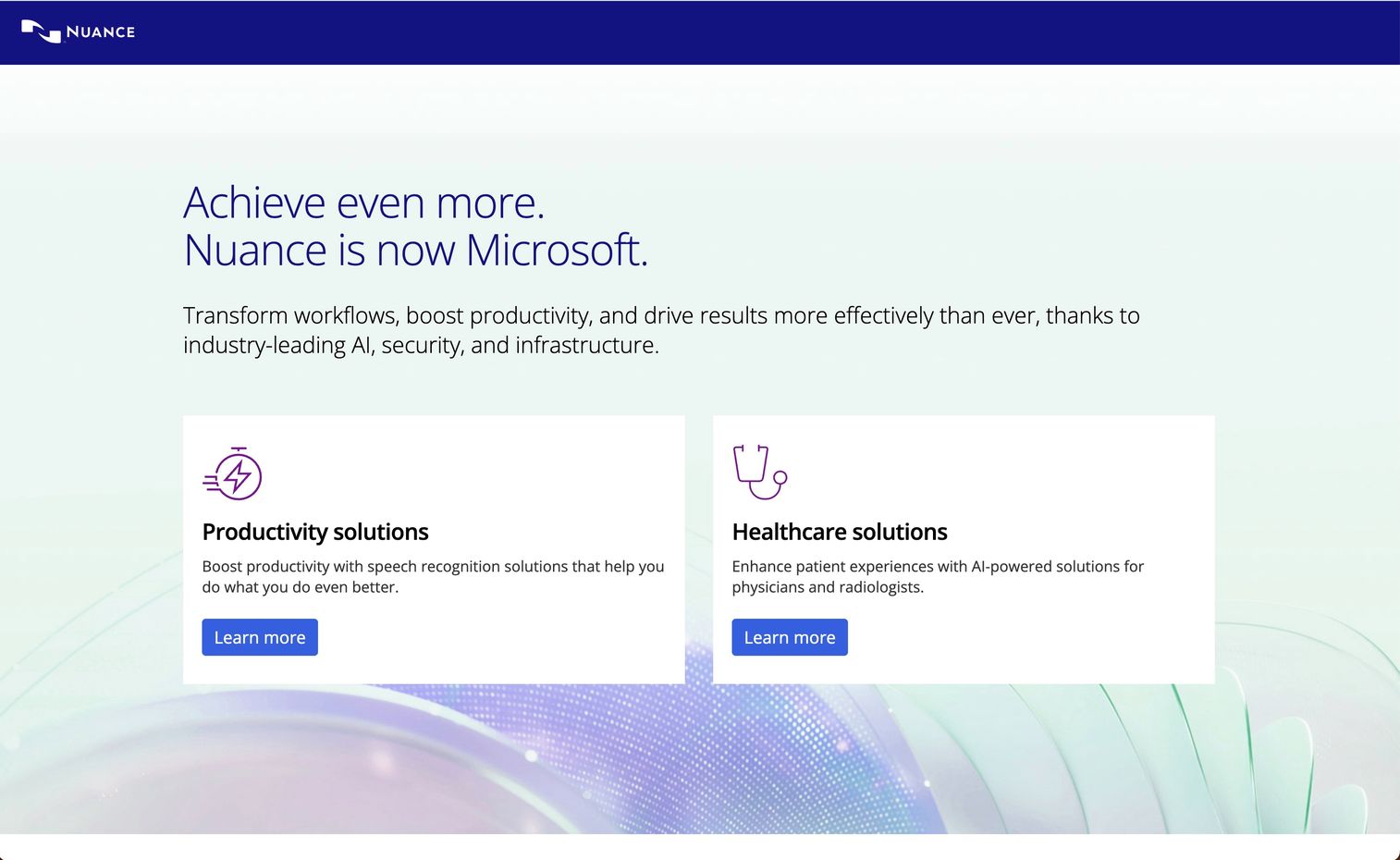
Dragon by Nuance has been the industry standard for professional dictation for over two decades. It's the tool doctors, lawyers, and technical writers reach for when accuracy matters and errors are costly.
What sets Dragon apart is specialized vocabulary. The legal edition knows case law terminology. The medical edition recognizes drug names and anatomical terms. Rather than generic dictation models trained on internet text, Dragon offers purpose-built recognition for professional use.
Best for: Professionals in legal, medical, or technical fields who require high-accuracy dictation with specialized terminology.
Key strengths
- Specialized vocabularies: Pre-built terminology for legal, medical, law enforcement, and technical fields
- Custom vocabulary training: Add industry-specific terms, client names, and acronyms the app learns over time
- High accuracy: Designed for professional transcription where errors create liability or rework
- Desktop and mobile: Dragon Anywhere extends the experience to iOS and Android
Why choose Dragon
Dragon makes sense when dictation accuracy directly impacts your work quality or compliance requirements. A doctor dictating patient notes can't afford medication name errors. A lawyer drafting contracts requires precise legal terminology. Similarly, sales professionals rely on specialized presales software tools to streamline their complex workflows and demo processes.
The cost is significantly higher than consumer dictation apps, but the productivity gains often justify it for heavy professional use.
Pricing
Dragon Professional plans use custom pricing based on features and deployment. Dragon Anywhere mobile subscription available separately. No free tier. Contact Nuance sales for current pricing.
4. Wispr Flow
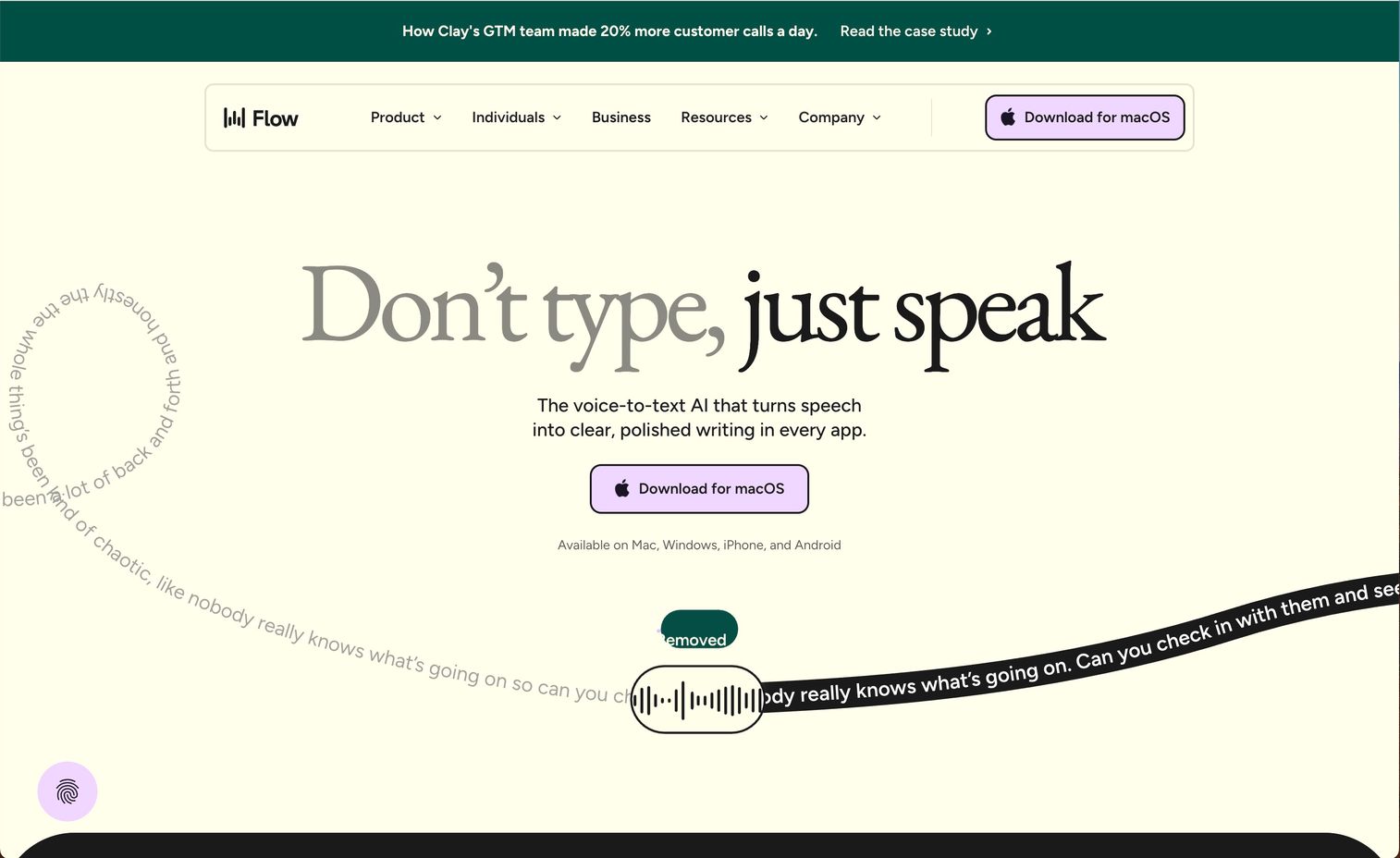
Wispr Flow represents the newer generation of AI dictation tools. Instead of just transcribing what you say, it transforms conversational speech into polished written text.
The AI cleanup is the key differentiator. You can ramble, pause, restart sentences, and speak naturally. Wispr Flow removes the verbal clutter and outputs text that reads like you wrote it carefully.
Best for: Knowledge workers who want dictation that sounds natural, not robotic, across desktop and mobile.
Key strengths
- Conversational AI cleanup: Removes filler words, fixes grammar, and formats automatically as you speak
- Cross-platform: Works on Mac, Windows, iOS, and Android with synced settings
- Fast dictation: Optimized for speed without sacrificing accuracy on longer passages
- Team features: Collaboration capabilities for professional workflows and shared vocabularies
Why choose Wispr Flow
Wispr Flow works well for emails, documents, Slack messages, and any professional writing where you want to speak naturally but get polished output. The AI doesn't just transcribe. It rewrites.
The free tier lets you test the core functionality before committing. Paid plans unlock full AI cleanup, cross-platform sync, and higher usage limits.
Pricing
Free tier available with limited features. Paid plans unlock full AI cleanup and cross-platform sync. Check Wispr Flow website for current pricing tiers.
5. Google Docs Voice Typing
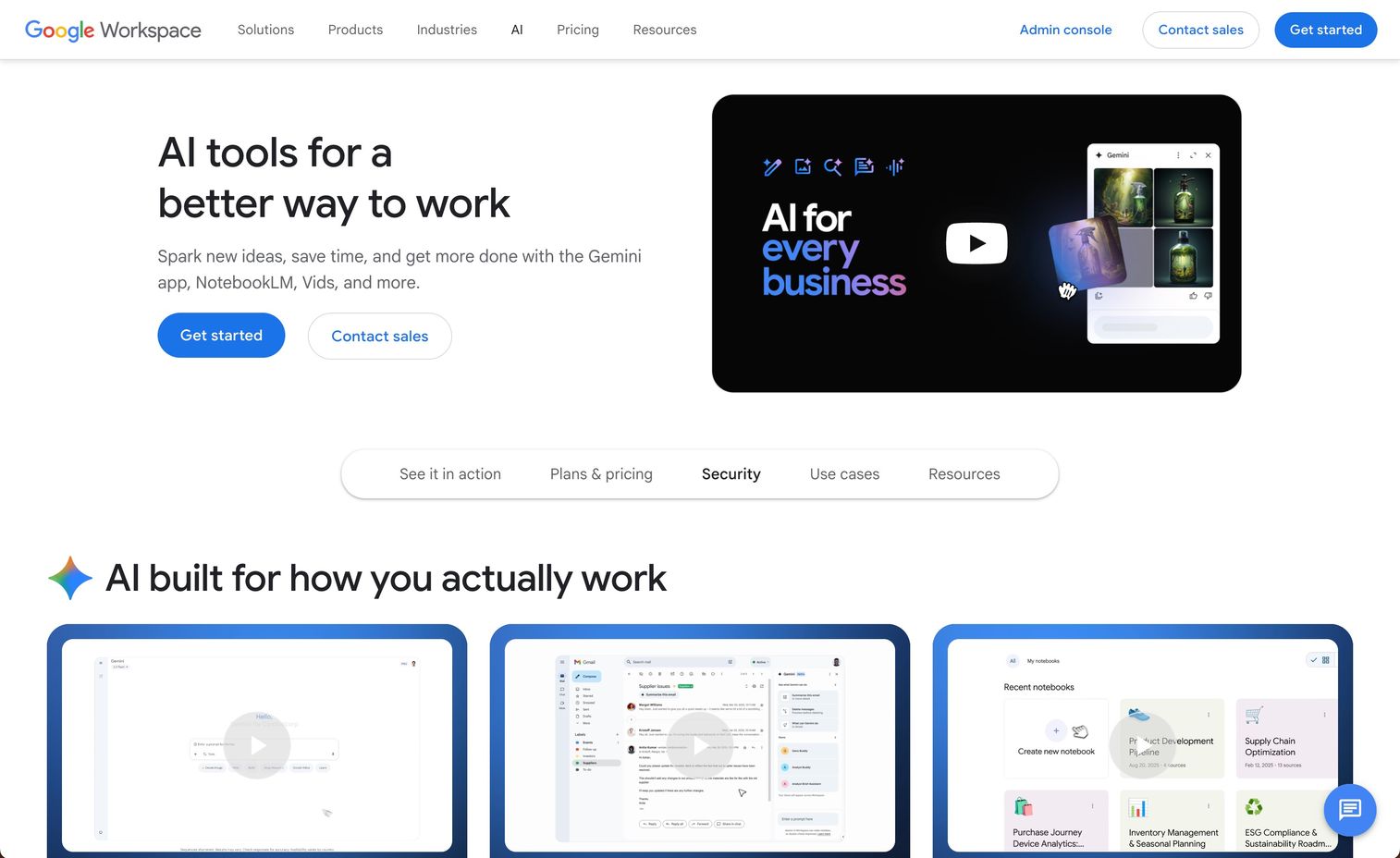
Google Docs Voice Typing is the simplest way to dictate directly into a document. Open Google Docs in Chrome, click Tools, select Voice typing, and start talking. There's nothing to install, no account to create beyond your existing Google account, and no cost. The dictation types directly into your document as you speak, with basic voice commands for punctuation and formatting.
Best for: Writers and students who work primarily in Google Docs and want free, frictionless dictation.
Key strengths
- Free and browser-based: Works in Chrome with no software to install or subscription to manage
- Direct document integration: Types directly into Google Docs as you speak, no copy-paste required
- Multi-language support: Dictate in dozens of languages with automatic language detection
- Voice commands: Basic formatting and punctuation commands like "period," "comma," and "new line"
Why choose Google Docs Voice Typing
Google Docs Voice Typing removes all friction for writers already working in Google's ecosystem. You don't leave your document, don't manage another app, and don't pay anything. The limitation is scope. It only works in Chrome and only in Google Docs. You can't dictate into other applications, your email client, or a different word processor.
Pricing
Free with a Google account.
6. Gboard
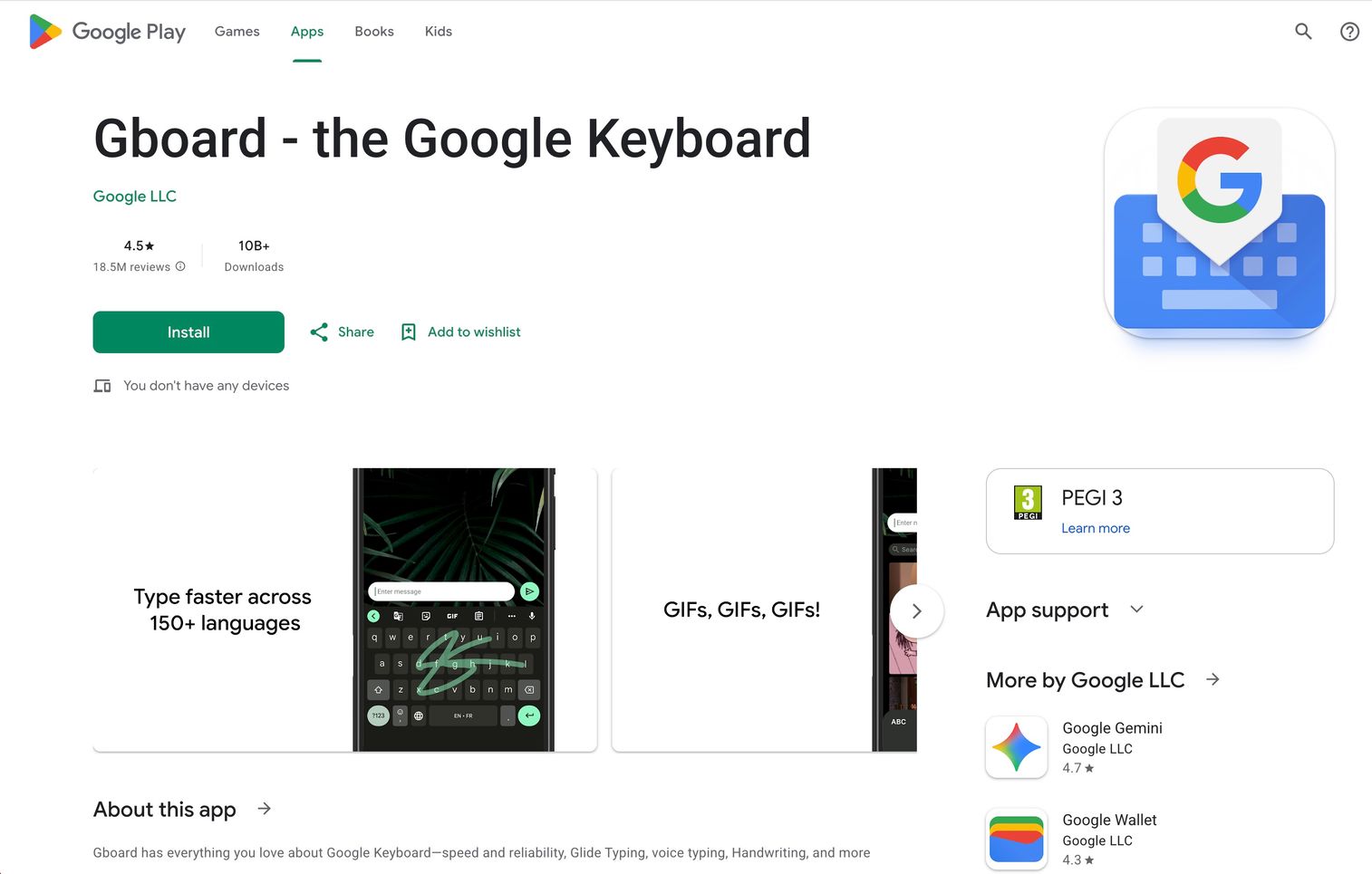
Gboard is Google's keyboard app for Android and iOS. The voice typing feature works in any app where you can type, from messaging to email to notes. What makes Gboard useful for dictation is offline capability. Download language packs to your device, and voice typing works without an internet connection.
Best for: Android users who want voice to text everywhere on their phone, including offline.
Key strengths
- System-wide mobile dictation: Works in any app on Android, not just Google's own applications
- Offline voice typing: Download language packs for offline use without internet dependency
- Multilingual support: Switch between languages mid-sentence for bilingual users
- Integrated with typing: Toggle between voice and keyboard seamlessly without switching apps
Why choose Gboard
Gboard is already installed on most Android devices, so there's nothing to set up. Tap the microphone icon on your keyboard and start talking. The dictation works in messaging apps, email, notes, social media, anywhere you can type.
The accuracy is good for mobile dictation, though not as polished as dedicated desktop tools.
Pricing
Free, available on Google Play Store and Apple App Store.
7. Otter.ai
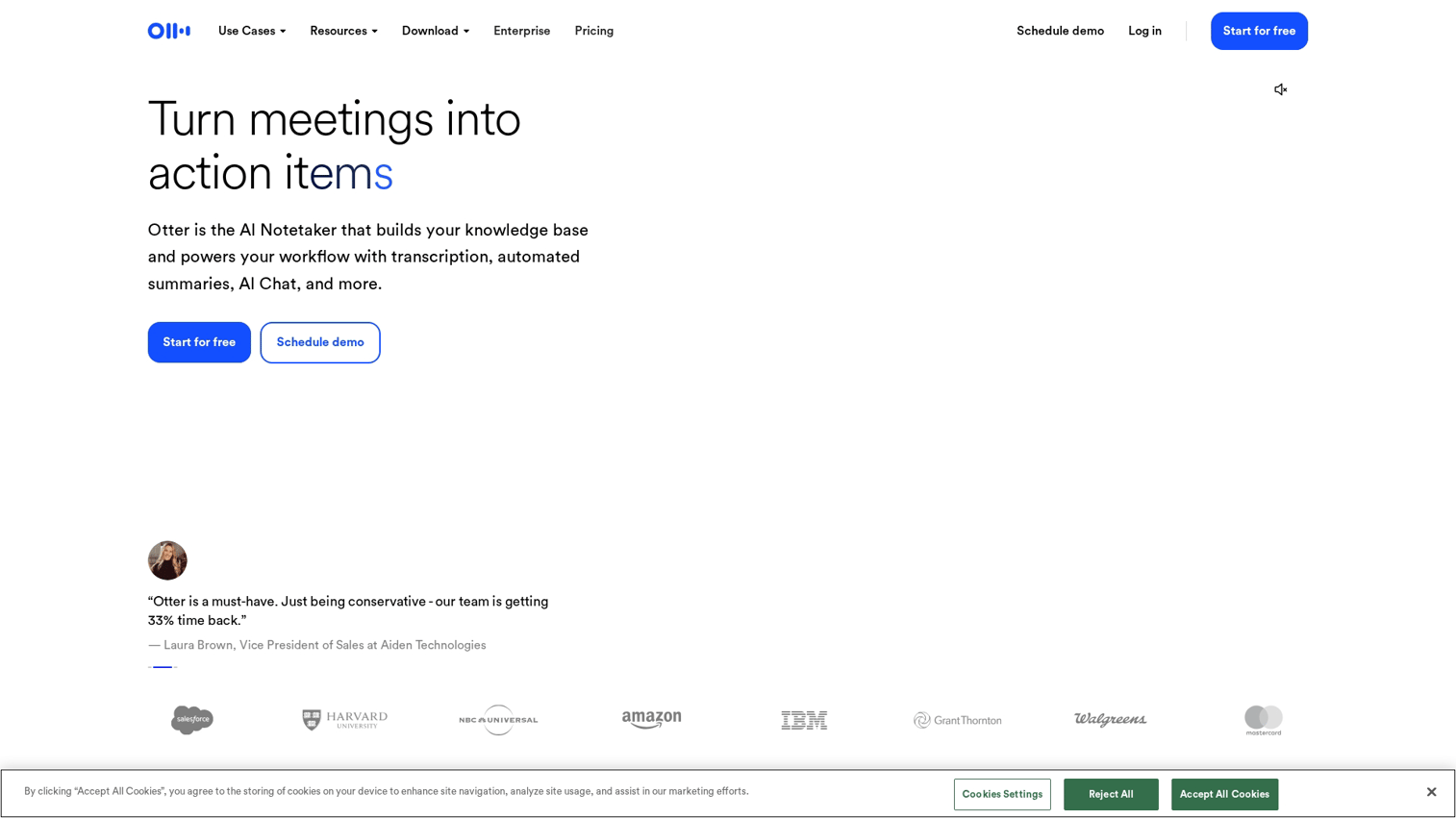
Otter.ai serves a different use case than personal dictation. It's built for capturing meetings, interviews, and conversations, then making that content searchable and actionable.
The app transcribes in real-time, identifies different speakers, and generates AI summaries with key points and action items. For writers who conduct interviews or professionals who attend many meetings, Otter.ai turns spoken conversations into organized, searchable notes.
Best for: Professionals who capture and search meetings, interviews, and multi-person conversations.
Key strengths
- Real-time transcription: Transcribes meetings, interviews, and lectures as they happen
- AI summaries: Automatically generates key points, action items, and meeting highlights
- Speaker identification: Labels who said what in multi-person conversations
- Search and organize: Find specific moments across all your transcripts with keyword search
Why choose Otter.ai
Otter.ai isn't designed for typing into documents. It's designed for capturing conversations you want to reference later. Writers use it for interview transcription. Sales teams use it for call notes. Anyone in meeting-heavy roles uses it to stop taking manual notes.
The free tier includes limited monthly transcription minutes. Paid plans increase limits and add features like custom vocabulary and advanced exports.
Pricing
Free tier with limited monthly minutes. Pro plan at $16.99/month. Business and Enterprise plans available for teams.
8. Speechnotes
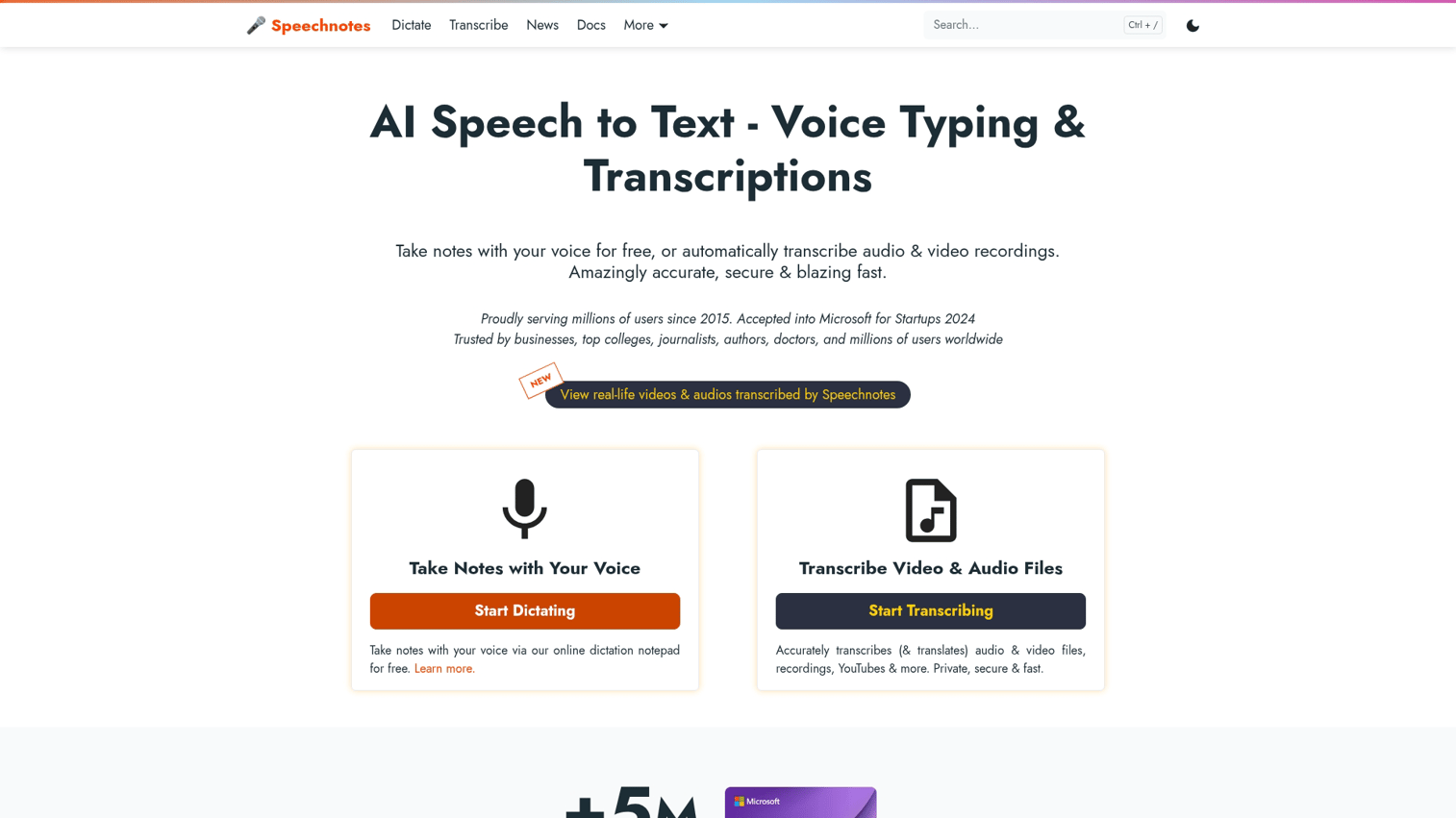
Speechnotes is a browser-based dictation app with a deliberately minimal interface. Open it in Chrome, click the microphone, and start dictating into a clean, distraction-free text editor.
The simplicity is the point. There are no complex features to learn, no accounts to manage, and no software to install.
Best for: Writers who want a simple, free dictation tool for drafting blog posts, articles, and long-form content.
Key strengths
- Clean interface: Minimal design focused entirely on writing without distractions
- Browser-based: Works in Chrome with no installation or account required
- Auto-save: Never lose your work, even if you close the browser accidentally
- Export options: Save as text file, copy to clipboard, or print directly
Why choose Speechnotes
Speechnotes works well for first drafts. You open it, dictate your thoughts, and export the text to edit elsewhere. The interface stays out of your way, which helps maintain flow during longer dictation sessions.
The limitations are similar to Google Docs Voice Typing. It only works in Chrome, and the AI cleanup is basic. You get raw transcription with punctuation commands, not the polished output of tools like Wispr Flow or Letterly.
Pricing
Free with ads. Premium version removes ads and adds features.
9. Letterly
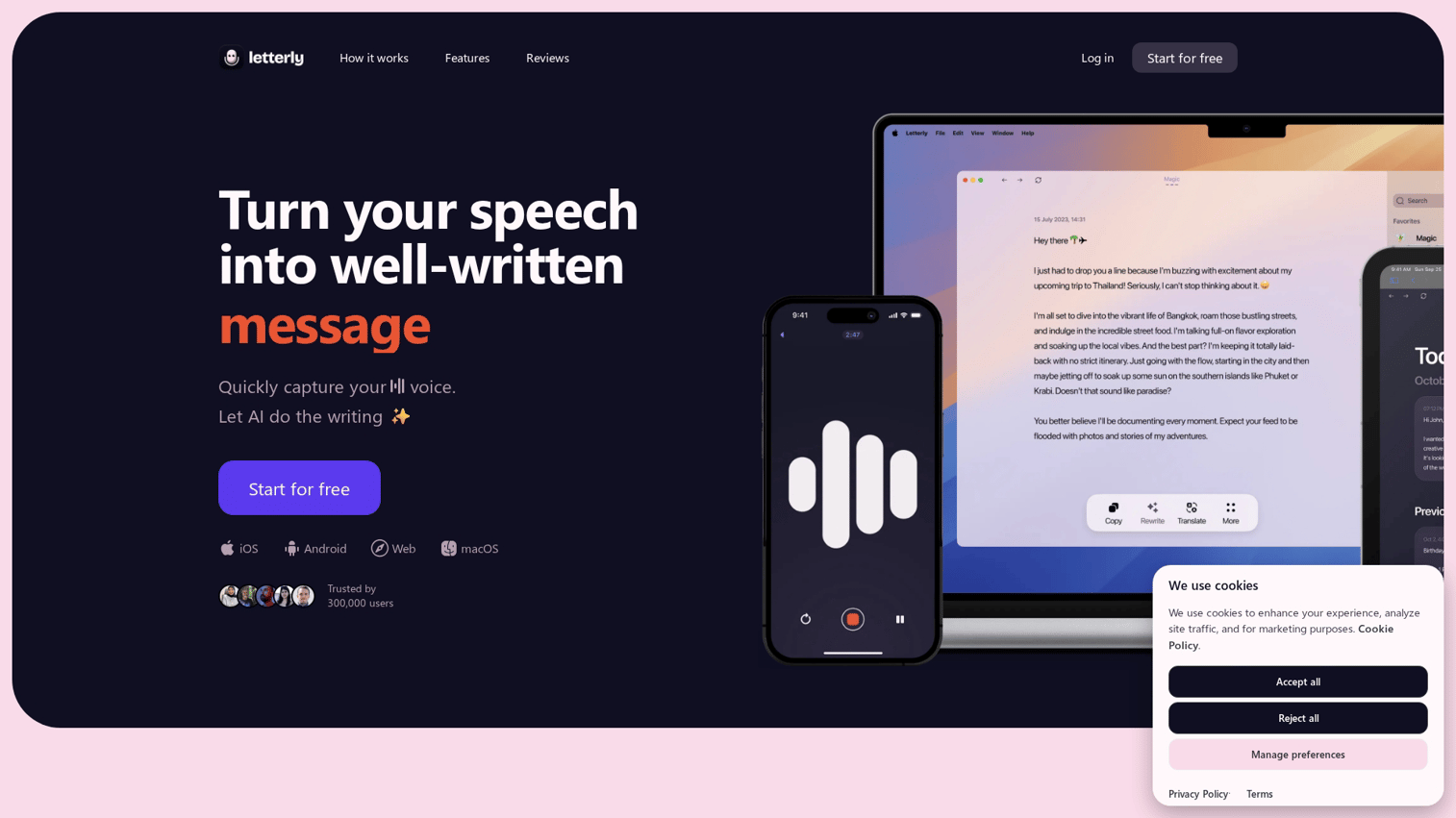
Letterly takes a different approach to dictation. Instead of giving you a transcript of what you said, it transforms your speech into structured, polished text.
You might ramble for two minutes about an idea. Letterly outputs a clean paragraph, bullet points, or whatever format you choose. The AI doesn't just transcribe. It rewrites your spoken thoughts into written form.
Best for: People who think out loud but struggle with written structure, especially for emails, social posts, and first drafts.
Key strengths
- AI writing transformation: Converts rambling speech into clear, organized paragraphs
- Multiple output styles: Choose formal, casual, bullet points, or custom formats for different contexts
- Structure automation: Automatically organizes your thoughts into logical flow
- Mobile-first: Designed for dictation on the go with quick capture and transformation
Why choose Letterly
Letterly solves a specific problem: the gap between how you speak and how you want to write. Some people think clearly out loud but freeze when typing. Letterly lets them capture ideas verbally and get polished written output.
The free tier lets you test the transformation feature. Paid plans unlock unlimited transformations and additional output formats.
Pricing
Free tier available. Paid plans for unlimited transformations. Check Letterly website for current pricing.
Tips for better results from dictation apps
Even the best dictation software works better with good habits. Here are practical tips that apply across all speech recognition tools.
1. Speak in complete sentences with natural pauses
Dictation works better when you speak in complete thoughts. Pause at sentence breaks to help the AI determine punctuation. Rambling without pauses creates run-on text that takes longer to edit than it saved to dictate.
2. Use voice commands for punctuation and formatting
Most dictation apps recognize commands like "period," "comma," "new paragraph," and "question mark." Learning voice commands saves editing time because you add punctuation as you speak instead of going back to fix it later.
Common commands across most apps:
- "Period" or "full stop"
- "Comma"
- "Question mark"
- "New line" or "new paragraph"
- "Open quote" and "close quote"
3. Train custom vocabulary for your industry
Apps like Dragon allow adding specialized terms, client names, and acronyms. If you dictate frequently and the app keeps getting the same words wrong, spend time adding them to your custom vocabulary. The upfront investment pays off in fewer corrections.
4. Invest in a quality external microphone
Built-in laptop and phone microphones pick up background noise, echo, and keyboard sounds. A dedicated USB microphone or quality headset improves accuracy significantly, especially for longer dictation sessions.
You don't need expensive equipment. A $30 USB microphone outperforms most built-in options.
5. Edit in batches after dictation sessions
Resist the urge to fix errors mid-dictation. Stopping to correct mistakes breaks your flow and slows you down more than batch editing afterward. Dictate your full thought, then go back and clean up the transcript in one pass.
Limitations of speech to text software
Dictation software has improved dramatically, but it still has real limitations and can exceed 50% word error rates in some cases. Understanding where dictation falls short helps you set realistic expectations.
Accent and dialect recognition gaps
Most speech recognition models train on limited accent data. Non-native English speakers and regional dialects often see lower accuracy than standard American or British English. This is improving, but it remains a real limitation for many users.
Background noise and audio quality issues
Dictation apps struggle with noisy environments, echo, and poor microphone quality. A quiet room with a decent microphone produces dramatically better results than dictating in a coffee shop with your laptop's built-in mic.
Technical jargon and specialized vocabulary
Out-of-the-box dictation often mangles industry-specific terms, acronyms, and proper nouns. Consumer apps don't know your company's product names or your industry's terminology. Custom vocabulary training helps but requires upfront effort.
Privacy concerns with cloud processing
Many dictation apps send audio to cloud servers for processing. Your voice recordings may be stored, analyzed, or used to train AI models. For professionals handling confidential information, cloud processing creates compliance and privacy risks.
Apps with on-device processing (Apple Dictation, Windows Voice Access, some modes of Dragon) avoid this issue but may sacrifice some accuracy.
How to choose the right dictation app for your workflow
The best dictation app depends on your specific situation. Here's a framework for deciding:
Choose Apple Dictation or Windows Voice Access if:
- You want free, built-in dictation with no setup
- Privacy matters and you prefer on-device processing
- Your dictation use is occasional and light
Choose Dragon by Nuance if:
- You work in legal, medical, or technical fields
- Accuracy is critical and errors create liability or rework
- You're willing to invest in professional-grade tools
Choose Wispr Flow or Letterly if:
- You want AI cleanup that polishes your speech into professional writing
- You work across multiple devices and platforms
- You dictate frequently for emails, documents, and content
Choose Google Docs Voice Typing or Speechnotes if:
- You're a writer working primarily in long-form documents
- Cost is a major factor (both are free)
- You don't require cross-platform or mobile dictation
Choose Otter.ai if:
- Your primary use case is meeting transcription, not personal dictation
- You capture and search multi-person conversations
- You want AI summaries and action item extraction
Workflow efficiency extends beyond dictation. For B2B teams communicating product value, interactive demos help show rather than tell, similar to how dictation helps capture ideas faster than typing. Marketing teams similarly boost efficiency with specialized product marketing software tools designed for their specific workflows and content needs.
Start your journey with Guideflow today!
FAQs about AI dictation software
Dragon by Nuance remains the industry standard for professionals who require specialized vocabularies and high accuracy in legal, medical, or technical fields. The investment is higher than consumer tools, but the accuracy and terminology support justify the cost for heavy professional use.
Apple Dictation and Windows Voice Access are the best free options since they come pre-installed, require no subscription, and offer solid accuracy for everyday use. Both support on-device processing for privacy and work offline after initial setup.
Yes, several apps offer offline dictation including Apple's Enhanced Dictation, Windows Voice Access, and Gboard with downloaded language packs. Cloud-based processing often delivers higher accuracy, but on-device options work well for most everyday dictation.
Modern AI dictation apps achieve accuracy rates competitive with typing for most users. Editing time depends on speaking clarity, microphone quality, and vocabulary complexity.
Most major dictation apps support dozens of languages. Google's voice typing and Gboard offer the widest multilingual support, including mid-sentence language switching for bilingual users. Specialized tools like Dragon focus primarily on English with limited additional language support.
Consumer dictation apps struggle with specialized vocabulary out of the box. Dragon by Nuance offers dedicated legal and medical editions with pre-built terminology and HIPAA-compliant options. For other apps, custom vocabulary training helps but requires manual setup.
Cloud-based dictation sends audio to remote servers for processing, which creates privacy considerations for confidential information. Professionals handling sensitive documents can choose apps with on-device processing or verify the vendor's security certifications and data handling policies.
Most dictation apps work with built-in device microphones. However, investing in a USB microphone or quality headset (even a $30 option) significantly improves accuracy, especially in noisy environments or during longer dictation sessions.