How to view custom fields in Trello
Here is how to view custom fields in trello
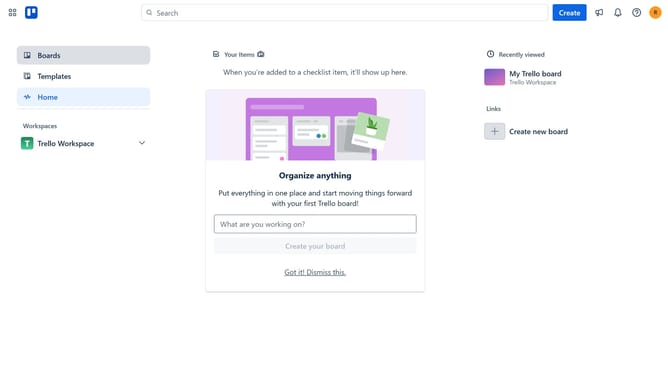
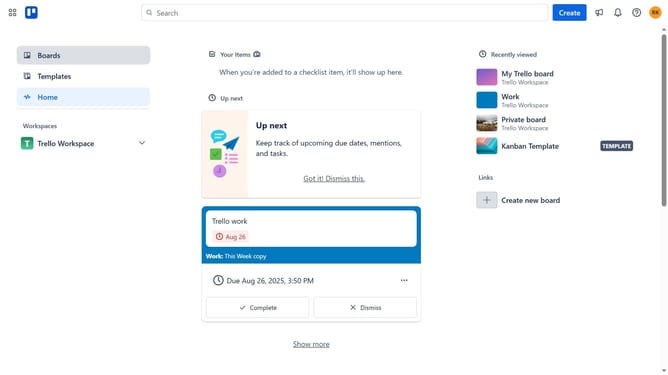
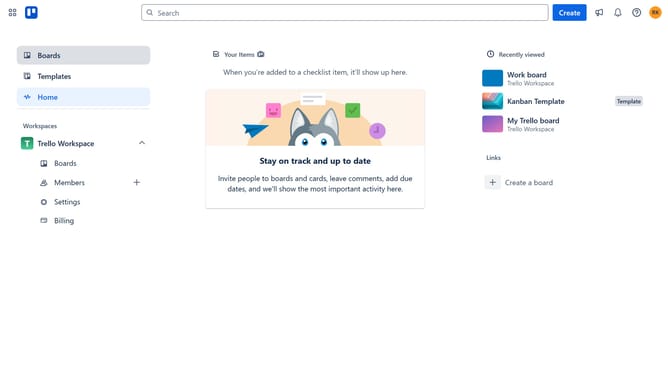
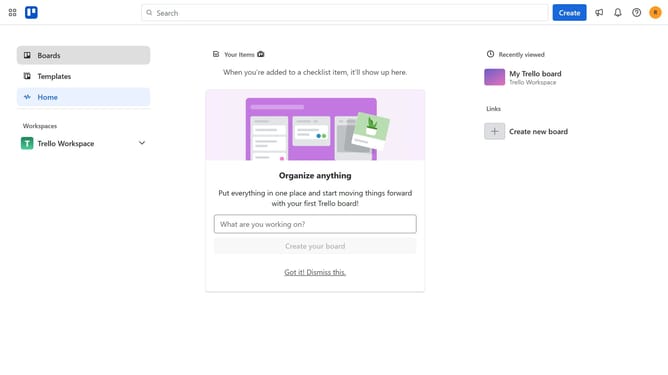
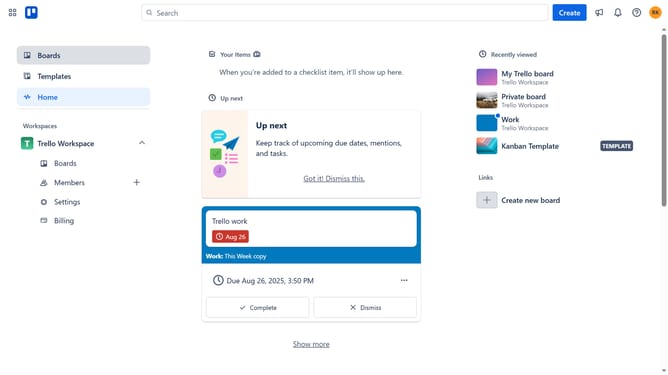
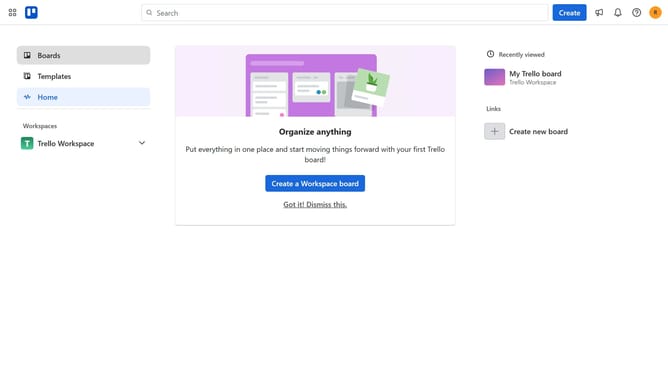
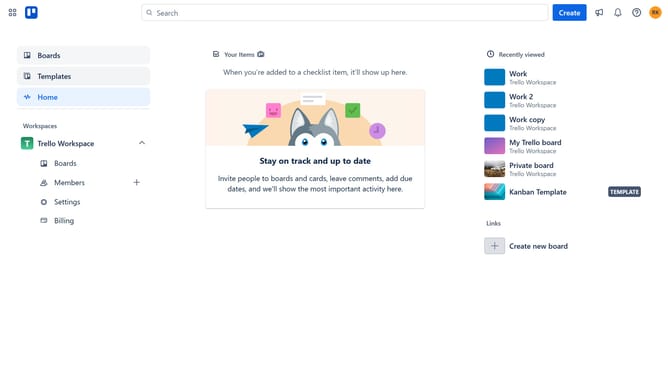
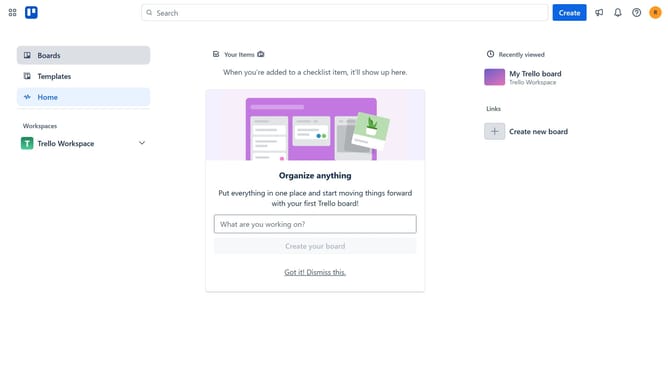
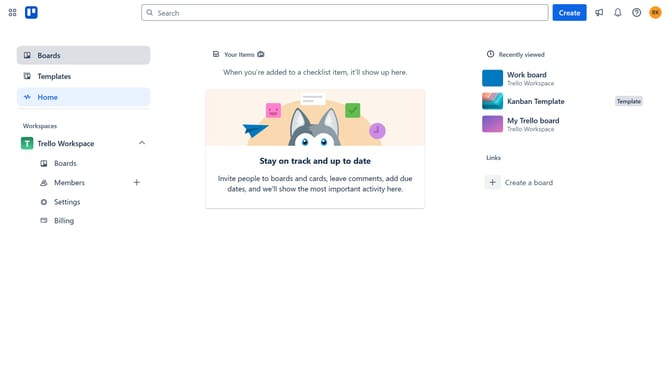
- First click on the "Boards" option in the left sidebar
- Then click on the board you want to open from the workspace section to view its custom fields
- Next click on the "More" menu button (three dots) in the top-right corner of the board
- Finally click on the "Custom Fields" option in the board menu to view all available custom fields
Why should you view custom fields in Trello
Trello is a versatile project management tool designed to streamline workflows and enhance team collaboration.
Viewing custom fields in Trello allows you to access essential information at a glance, adding depth to your project boards. Custom fields can hold varied data types such as dropdowns, checkboxes, or text, providing context beyond standard card features.
This accessibility benefits teams by ensuring all critical information is centralized, reducing the need for external documents and enhancing project clarity. By tailoring custom fields to suit specific needs, teams can keep relevant data front and center, boosting productivity.
Last update