How to use both personal and shared address books in a permission profile in DocuSign
Here is how to use both personal and shared address books in a permission profile in docusign
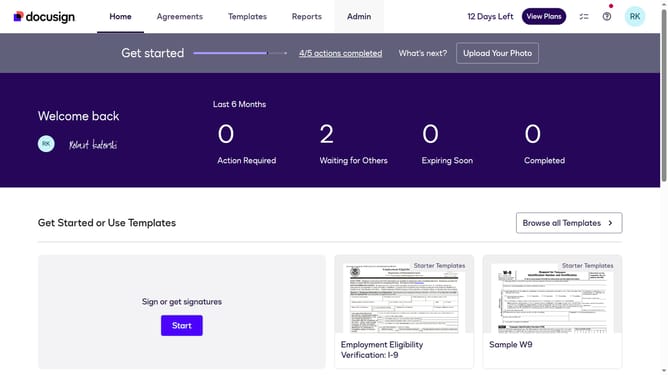
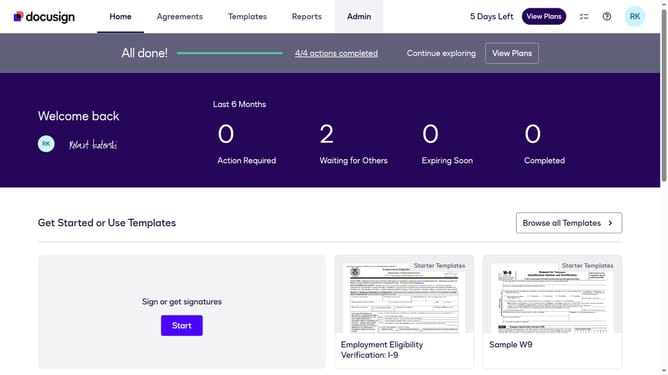
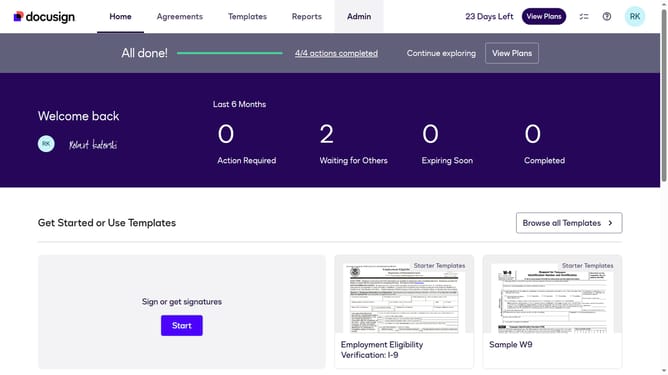
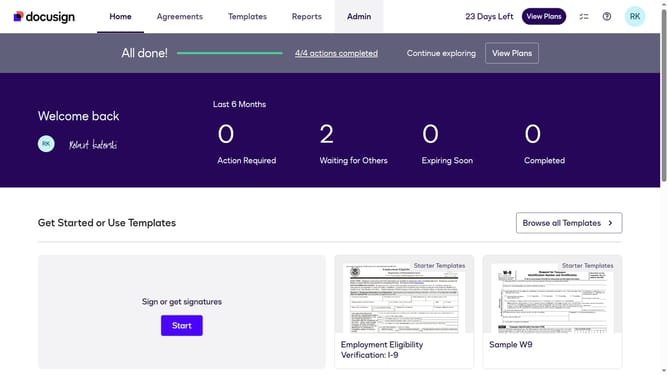
- First click on the "Admin" link in the top navigation menu
- Then scroll down the page to view the sidebar menu options
- Next click on the "Permission Profiles" link in the left sidebar under the "USERS AND GROUPS" section
- Then click on the "Actions" dropdown button next to a permission profile
- Next click on the "Edit" option from the dropdown menu
- Then scroll down the "Edit Permission Profile" dialog box to view more options
- Next click on the "Address Book" dropdown and select "Use Personal and Shared" option
- Finally click on the "Save" button to save the changes to the permission profile
Why should you use both personal and shared address books in a permission profile in DocuSign
DocuSign is a robust digital transaction platform designed to streamline electronic signature processes.
The ability to use both personal and shared address books in a permission profile amplifies the efficiency of DocuSign by simplifying the management of contacts for document signings.
Personal address books allow users to maintain a private list of frequent contacts, ensuring quick access and personalized organization. Shared address books promote collaboration, enabling teams to uniformly access a broader range of contacts.
This seamless integration bolsters productivity and enhances workflow by ensuring that the right people are always easily reachable.
Last update