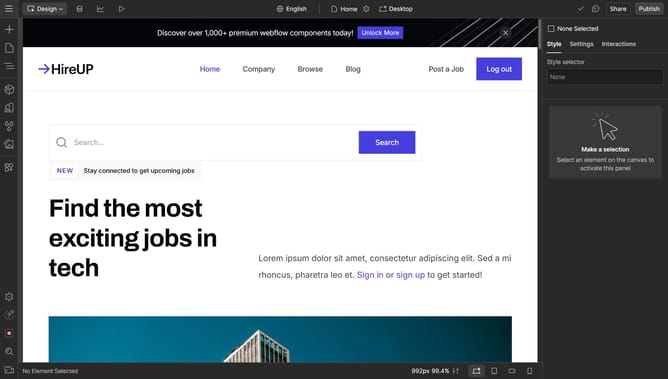
How to undo in Webflow?
Here is how to undo in webflow
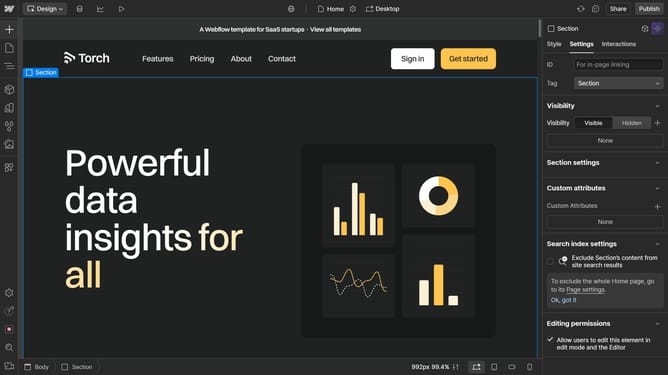
- To undo, there must be an action, such as deleting an element
- Right-click on the element and select "Delete" from the context menu
- Then click the Webflow Menu in the top-left corner
- Select Undo from the menu options
- Alternatively, simply press "Ctrl + Z" directly
- The previous action will be undone immediately
Why should you undo in Webflow?
Webflow empowers designers to create stunning, responsive websites without writing a single line of code. Its undo feature ensures that your creative flow remains uninterrupted by allowing you to easily revert recent changes. Mistakes happen, and with Webflow's quick undo capability, you can confidently experiment with design elements knowing you have a safety net. This essential tool streamlines workflow, providing peace of mind and the freedom to explore your boldest ideas.
Last update