How to adjust animation settings in Webflow
Here is how to adjust animation settings in webflow
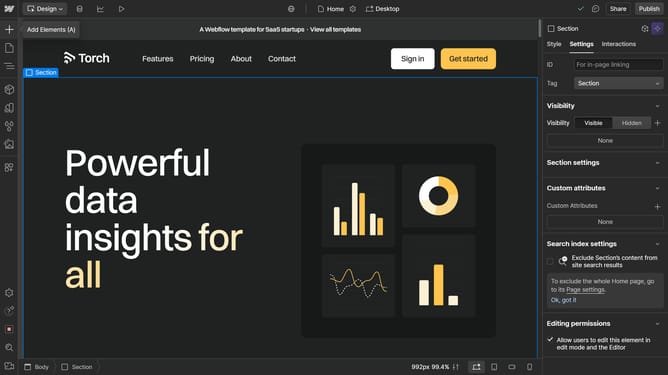
- First click on the Lottie Animation element in the main content area
- Then click on the "Lottie Animation settings" option in the right sidebar
- Built-in duration - how long the animation plays
- Loop - whether the animation plays on an infinite loop
- Play in reverse - whether the animation plays in reverse
- Render - SVG or canvas
- You can also replace the animation by clicking here
Why should you adjust animation settings in Webflow
Webflow is a powerful design tool that allows users to build visually stunning and interactive websites with ease.
Adjusting animation settings in Webflow lets you bring your design vision to life with fluid and eye-catching transitions.
This feature not only enhances user engagement but also allows you to tailor animations to perfectly match your website’s aesthetic.
By customizing animations, users can create a unique web experience that resonates with visitors and keeps them returning for more.
Last update