How add an image in Webflow
Here is how add an image in webflow
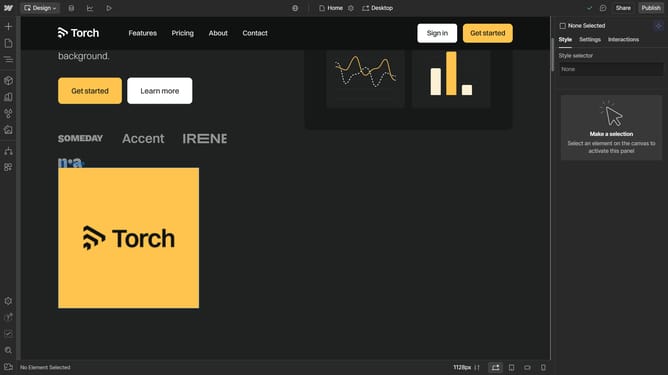
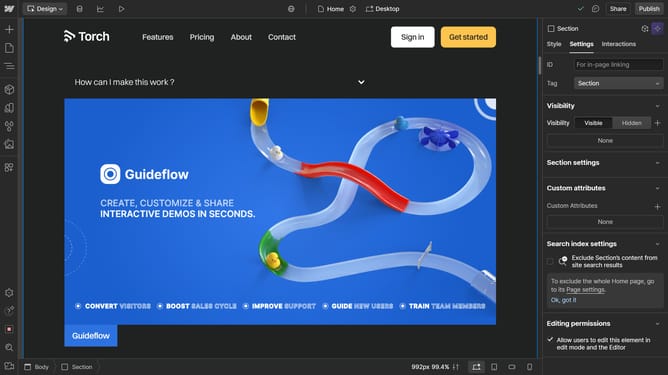
- First click the "Add" button in the left sidebar
- Then click the "Image" element under the Media section in the Elements panel
- Next click the "Replace image" in the Image Settings panel
- Then choose the image you want to add
Why should you How add an image in Webflow
Webflow is an innovative platform that empowers you to design, build, and launch responsive websites with ease and precision.
Incorporating images into your Webflow project seamlessly enhances visual appeal and user engagement. The flexibility of its interface allows you to create rich media experiences that captivate your audience.
Utilizing Webflow’s image features allows for greater creativity and visual storytelling, ultimately enriching your site’s appeal and interactivity. This feature supports a dynamic web presence that aligns with today’s digital expectations.
Last update