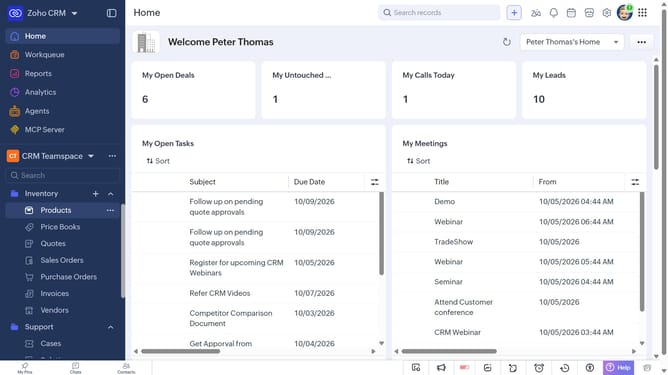
How to tag a product on Zoho CRM
Here is how to tag a product on zoho crm
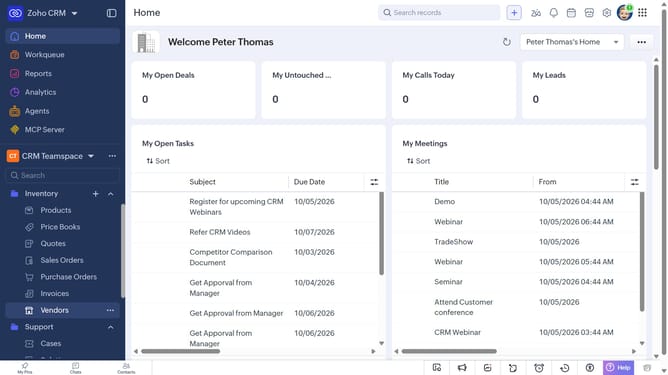
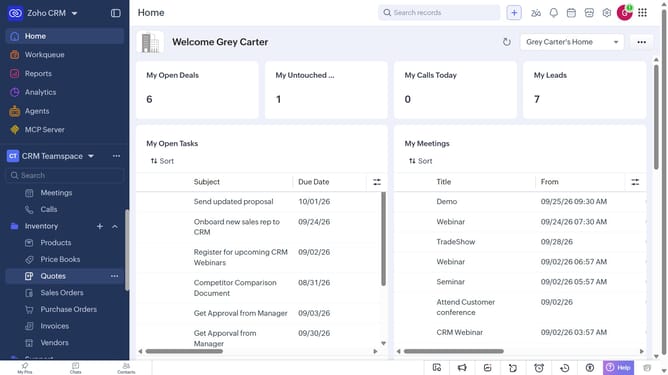
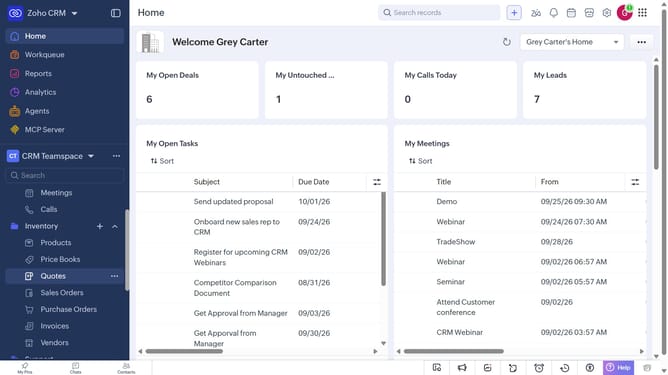
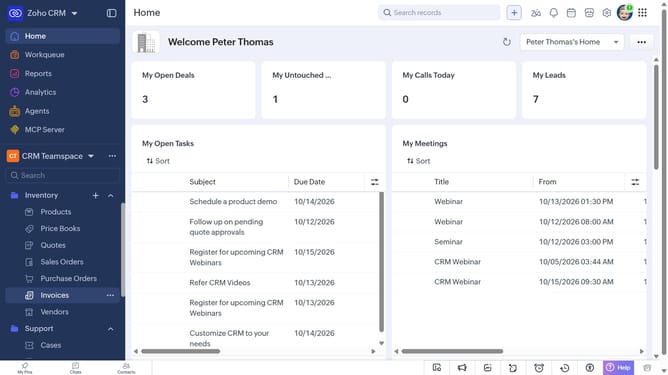
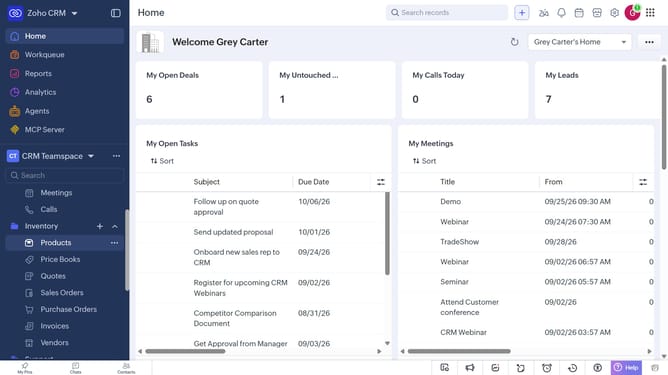
- First, click on "Products" under "Inventory" in the left sidebar menu
- Next, locate the product you want to add tags to
- Click on the "More options" button next to the product
- Select "Add Tags" from the dropdown menu
- Next, click on the "Enter Tags" field
- Then, you can choose from existing tags
- Alternatively, enter the tag you want to add and press "Enter"
- Finally, click on the "Save" button
Why should you How to tag a product on Zoho CRM
Zoho is a versatile platform designed to streamline business operations through its robust suite of applications, including CRM.
Tagging a product in Zoho CRM allows for efficient organization and retrieval of information. By attaching specific tags, you can categorize products, streamline searches, and ensure your product data is easily accessible whenever needed.
This feature enhances collaboration across teams, minimizes time spent on searches, and boosts productivity by enabling a more intuitive product management process. Utilizing tagging in Zoho CRM ultimately leads to a more organized and efficient workflow.
Last update