How to preview a lead before printing on Zoho CRM
Here is how to preview a lead before printing on zoho crm
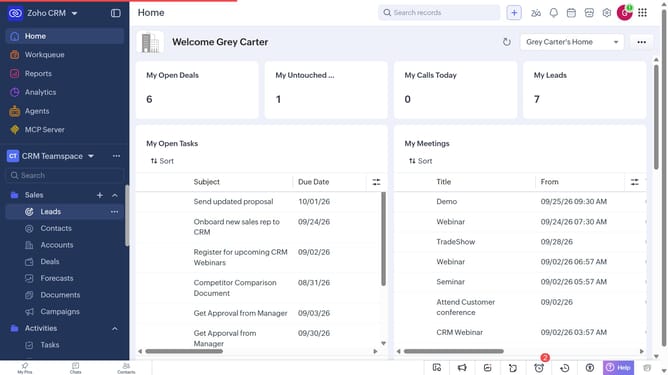
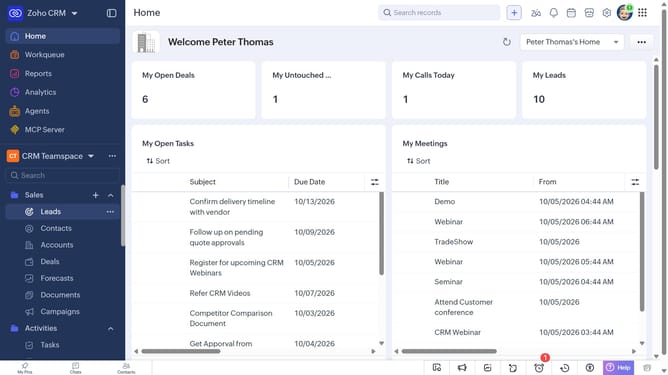
- First click on "Leads" in the left sidebar menu
- Next, click on the lead you want to preview to open its detail page
- Click on the "More options"(three dots) button in the top right corner
- Select "Print Preview" from the dropdown menu
- Then, review the lead details in the print preview
- Finally, click on the "Print" button to proceed, or close the preview to make changes
Why should you How to preview a lead before printing on Zoho CRM
Zoho is a comprehensive solution for managing business processes effectively, streamlining everything from customer interactions to sales automation.
Previewing a lead before printing within Zoho CRM empowers users to ensure accuracy and relevancy of information. This feature allows you to verify all details at a glance, minimizing errors and ensuring your printouts reflect the most current data.
Using the preview function enhances productivity and reduces waste, creating an opportunity for businesses to maintain consistency and professionalism in their customer communications. It's a straightforward tool that plays a crucial role in maintaining data integrity.
Last update