How to change the owner of sales orders in bulk on Zoho CRM
Here is how to change the owner of sales orders in bulk on zoho crm
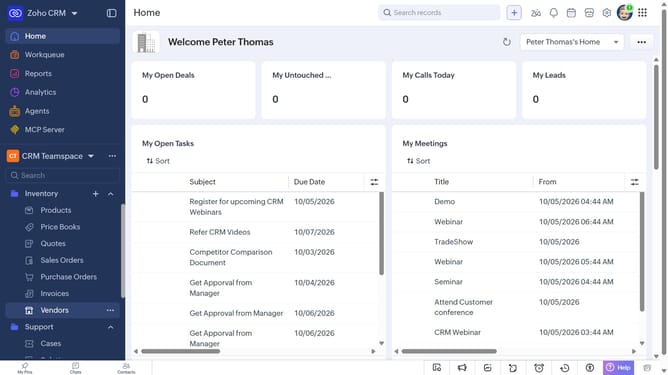
- First, click on "Sales Orders" under "Inventory" in the left sidebar menu
- Locate the sales orders whose owner you want to change
- Next, select the checkboxes next to each record
- Click on the "More Options" button at the top of the list
- Select "Change Owner" from the dropdown menu
- In the "Change Owner" modal, click on the dropdown
- Then select the new owner from the dropdown menu
- Next, check "Send Email notification" to enable alerts, or leave it unchecked
- In the "Transfer Related Items" field, choose which related items to transfer
- Finally, click on the "Change Owner" button
Why should you How to change the owner of sales orders in bulk on Zoho CRM
Zoho CRM is a dynamic platform designed to streamline and automate your business's customer relationship management processes.
Changing the owner of sales orders in bulk on Zoho CRM is a powerful feature that enhances efficiency. This capability allows you to swiftly reassign multiple orders to a new owner, which is particularly useful during team restructuring or when delegating workloads. It saves time and reduces manual effort significantly.
By utilizing this feature, you ensure seamless transitions, maintain data continuity, and optimize team management. Your sales operations become more dynamic and adaptable, allowing your business to respond swiftly to changes.
Last update