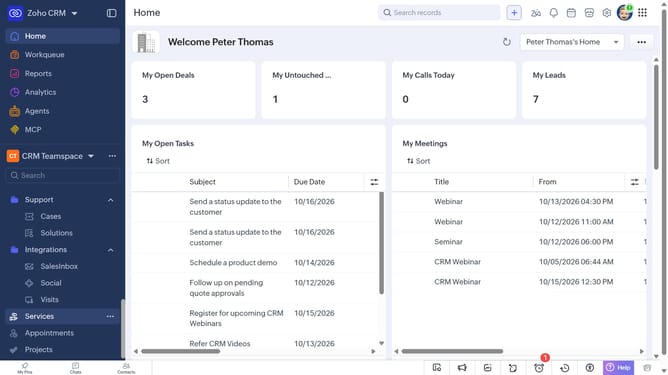
How to export purchase orders as an XLSX file on Zoho CRM
Here is how to export purchase orders as an xlsx file on zoho crm
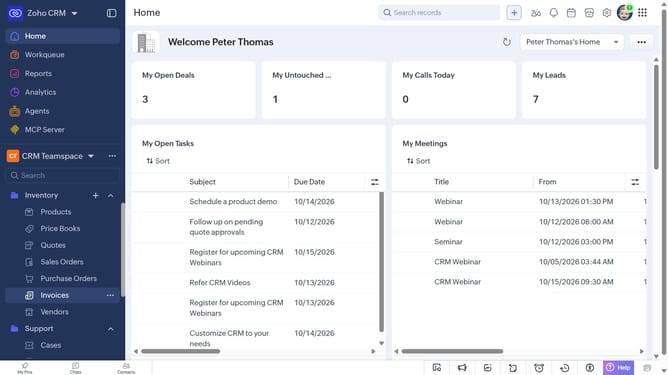
- First, click on "Purchase Orders" under "Inventory" in the left sidebar menu
- Next, click on the "More Options" button next to "Create Purchase Order"
- Select "Export Purchase Orders" from the dropdown menu
- In the "Export Purchase Order" dialog, click on the "Fields to Export" dropdown
- Choose whether to export all fields or only the fields from the custom view
- Then, select "XLSX" as the file type
- Next, toggle the "Set Password" switch on or leave it off
- Finally, click on the "Export" button
Why should you How to export purchase orders as an XLSX file on Zoho CRM
Zoho CRM is a flexible, cloud-based platform designed to streamline business processes and enhance customer relationships.
Exporting purchase orders as an XLSX file on Zoho CRM is a seamless process that simplifies data management. This feature ensures that you can effortlessly organize and analyze purchase data in Excel, a familiar and versatile format.
Utilizing this feature supports efficient record-keeping, aids in comprehensive data analysis, and facilitates easier sharing of crucial financial information with team members or stakeholders. The capability to quickly export data enhances workflow efficiency and boosts overall productivity.
Last update