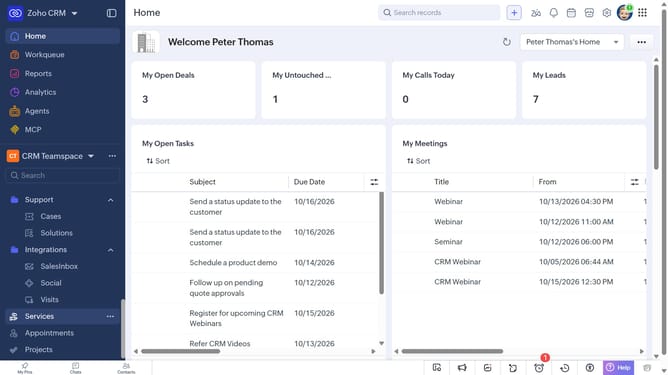
How to export services on Zoho CRM
Here is how to export services on zoho crm
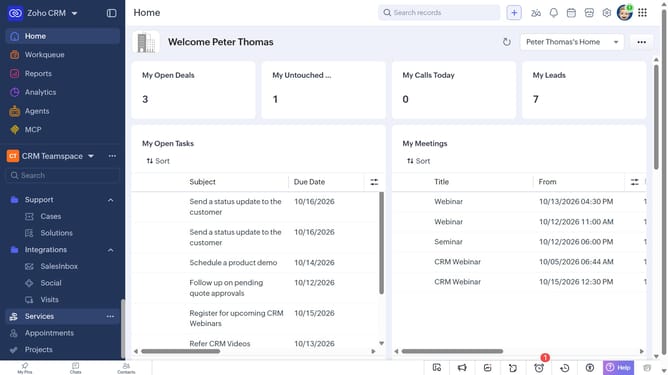
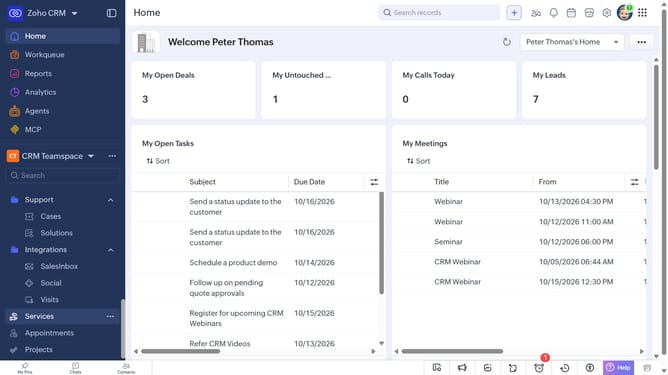
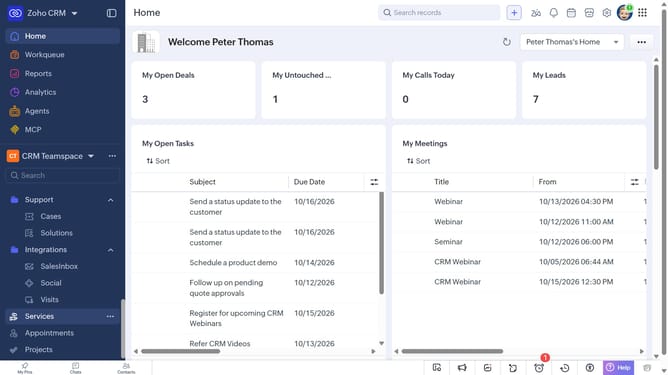
- First, click on "Services" in the left sidebar menu
- Next, click on the "More Options" button next to "Create Service"
- Select "Export Services" from the dropdown menu
- In the "Export Service" dialog, click on the "Fields to Export" dropdown
- Choose whether to export all fields or only the fields from the custom view
- Then, choose the file type
- Next, toggle the "Set Password" switch on or leave it off
- Finally, click on the "Export" button
Why should you How to export services on Zoho CRM
Zoho CRM is a powerful tool designed to streamline customer relationship management for businesses of all sizes.
One standout feature is the ability to seamlessly export services. This functionality empowers users to extract valuable data efficiently, making it accessible for further analysis or sharing.
Exporting services allows businesses to maintain organized records, support strategic planning, and enhance collaborative efforts by providing easy access to critical information.
Ultimately, this feature simplifies data management and ensures smoother operations, contributing to overall productivity and informed decision-making.
Last update