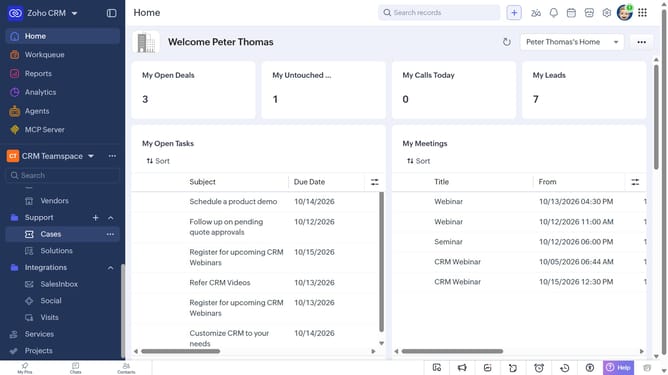
How to add tags to a service on Zoho CRM
Here is how to add tags to a service on zoho crm
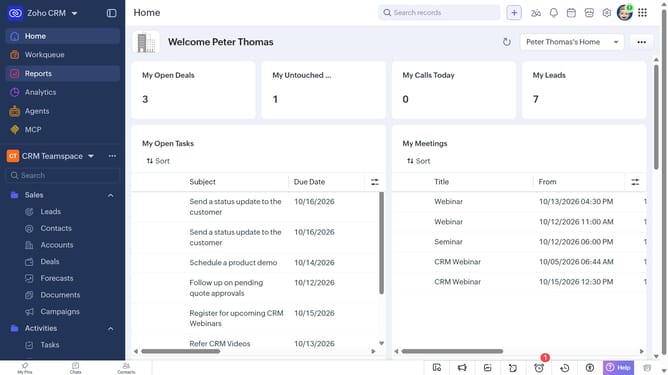
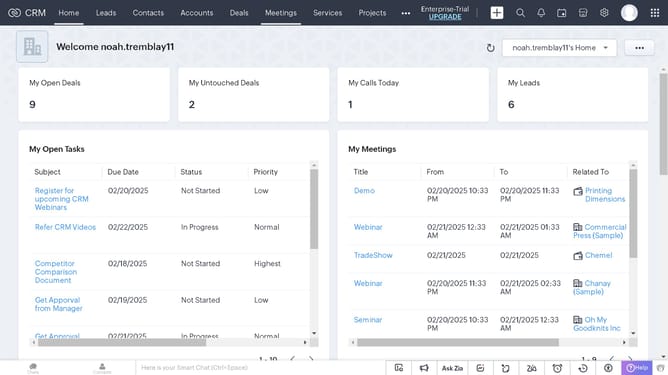
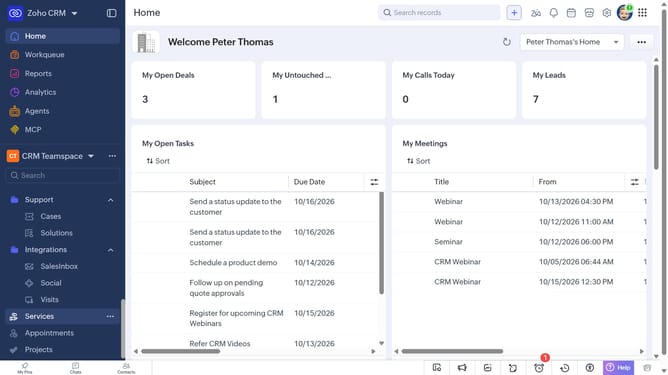
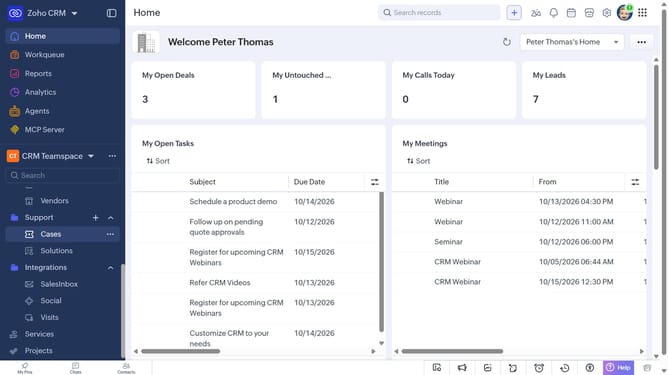
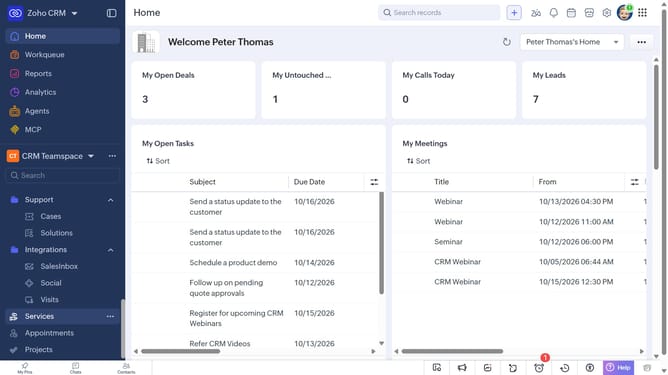
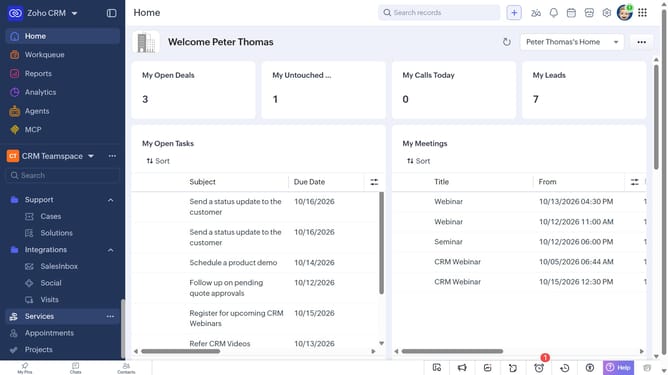
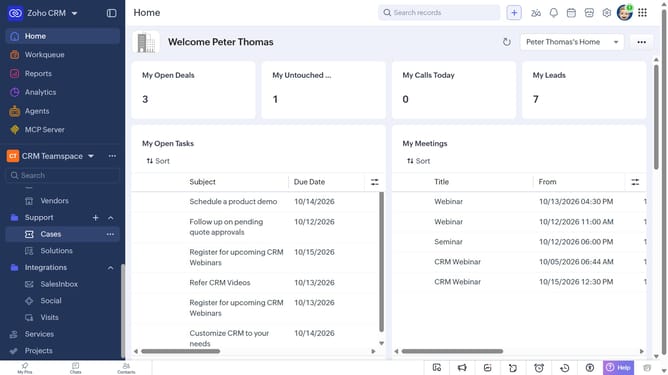
- First, click on "Services" in the left sidebar menu
- Next, locate the service you want to add tags to
- Click on the "More options" button next to the service
- Select "Add Tags" from the dropdown menu
- Next, click on the "Enter Tags" field
- Then, choose from existing tags
- Alternatively, enter the tag you want to add and press "Enter"
- Finally, click on the "Save" button
Why should you How to add tags to a service on Zoho CRM
Zoho CRM is a powerful tool designed to streamline customer relationship management and enhance business efficiency.
Adding tags to a service in Zoho CRM helps you categorize and organize your services intuitively. This feature allows you to label and distinguish between various services effortlessly, ensuring that you can quickly access and manage them as needed.
Using tags enhances your ability to personalize interactions and track specific service-related details. It boosts productivity by allowing seamless filtering, searching, and reporting within your CRM, ultimately improving your service management.
Last update