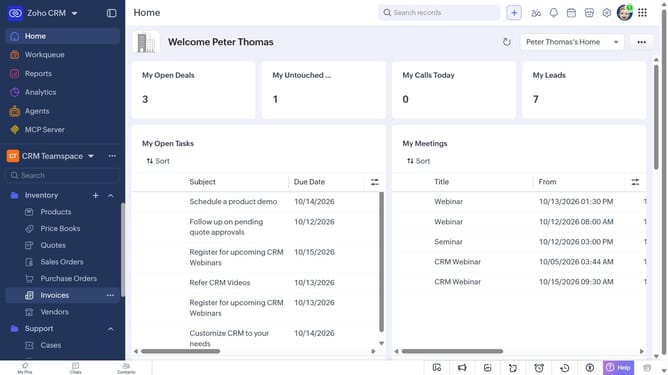
How to add tags to a case on Zoho CRM
Here is how to add tags to a case on zoho crm
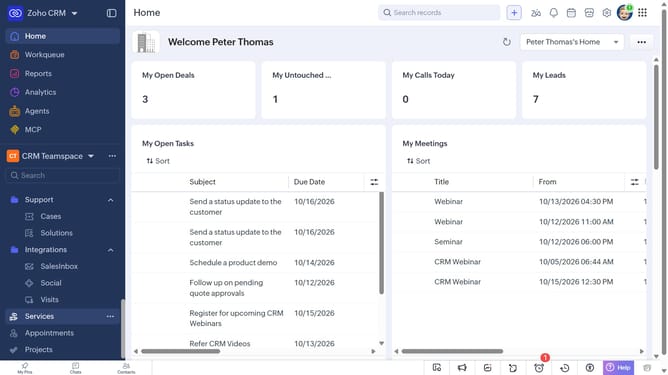
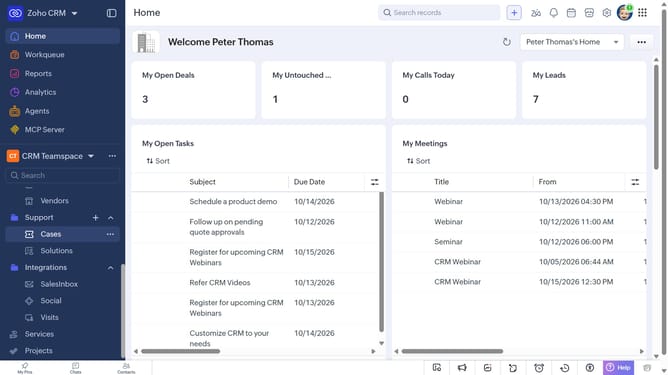
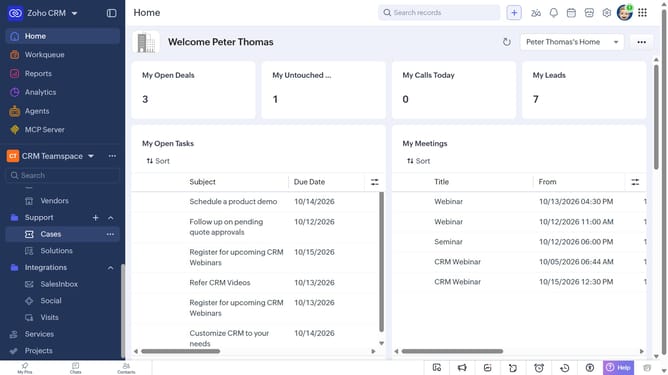
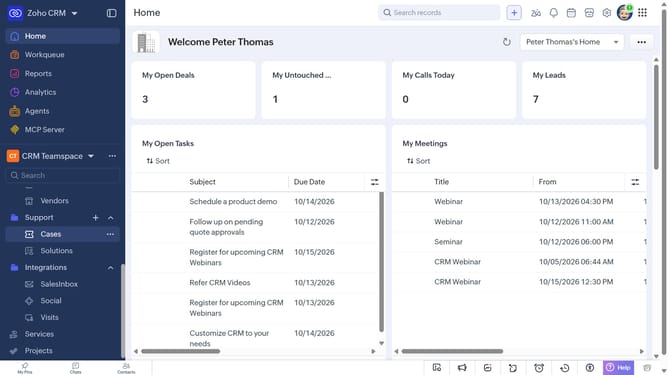
- First, click on "Cases" under "Support" in the left sidebar menu
- Next, locate the case you want to add tags to
- Click on the "More options" button next to the case
- Select "Add Tags" from the dropdown menu
- Next, click on the "Enter Tags" field
- Then, you can choose from existing tags
- Alternatively, enter the tag you want to add and press "Enter"
- Finally, click on the "Save" button
Why should you How to add tags to a case on Zoho CRM
Zoho CRM is a powerful tool designed to streamline customer relationship management for businesses of all sizes.
One beneficial feature is the ability to add tags to a case. This feature allows users to organize and categorize cases with ease, making data retrieval seamless and efficient.
Tagging enhances searchability, enabling quick access to relevant information and improving team collaboration. By using tags, businesses can ensure that workflow remains smooth and organized, leading to more effective case management.
Ultimately, this feature empowers teams to deliver faster and more personalized customer support, boosting overall efficiency.
Last update