How to change the owner of vendors in bulk on Zoho CRM
Here is how to change the owner of vendors in bulk on zoho crm
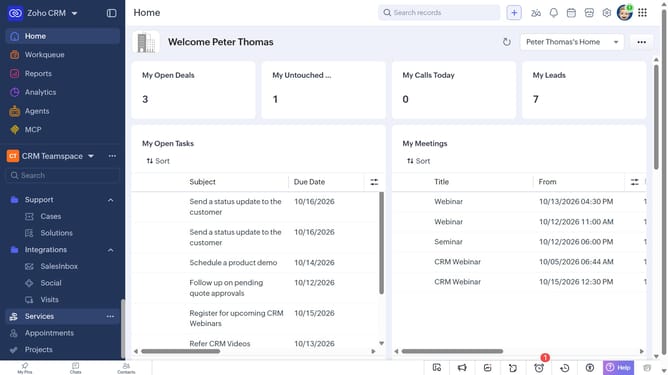
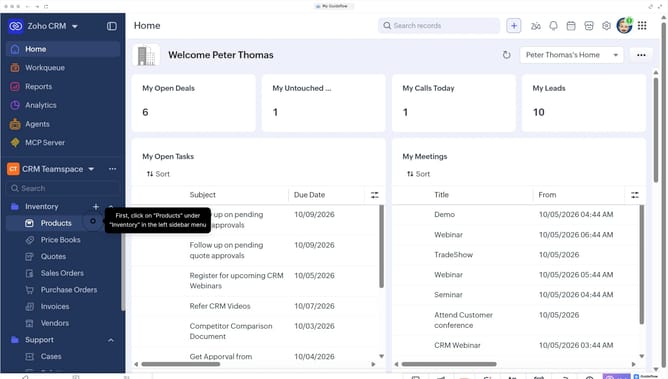
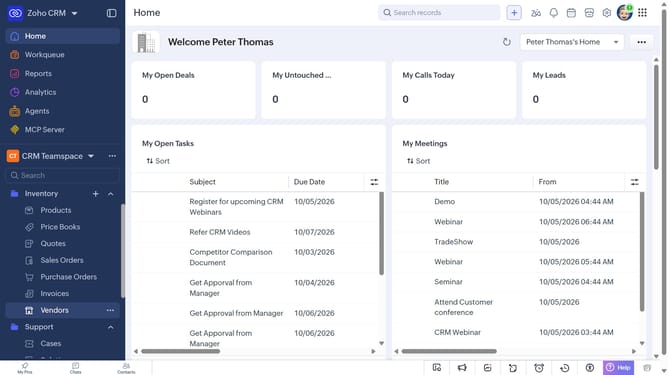
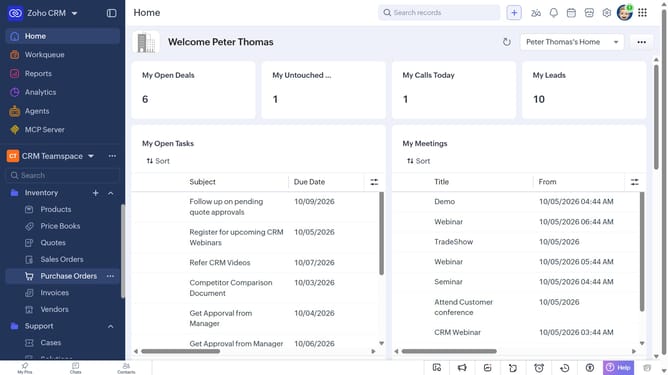
- First, click on "Vendors" under "Inventory" in the left sidebar menu
- In the List View, locate the vendors whose owner you want to change
- Next, select the checkboxes next to the vendors
- Click on the "More Options" button at the top of the list
- Then click on "Change Owner" from the dropdown menu
- In the "Change Owner" modal, click on the dropdown
- Then select the new owner from the dropdown menu
- Next, check "Send Email notification" to enable alerts, or leave it unchecked
- In the "Transfer Related Items" field, select the related items you want to transfer
- Finally click on the "Change Owner" button
Why should you How to change the owner of vendors in bulk on Zoho CRM
Zoho CRM is a comprehensive platform designed to streamline customer relationship management and enhance business efficiency.
With the feature to change the owner of vendors in bulk on Zoho CRM, managing vendor assignments becomes a breeze. This functionality allows users to efficiently reassign multiple vendor records at once, saving time and assuring accuracy in data handling.
The ability to make these changes in bulk is invaluable for maintaining up-to-date records and optimizing team workflows. It ensures that vendor interactions are managed by the most appropriate team member, enhancing productivity and collaboration.
Last update