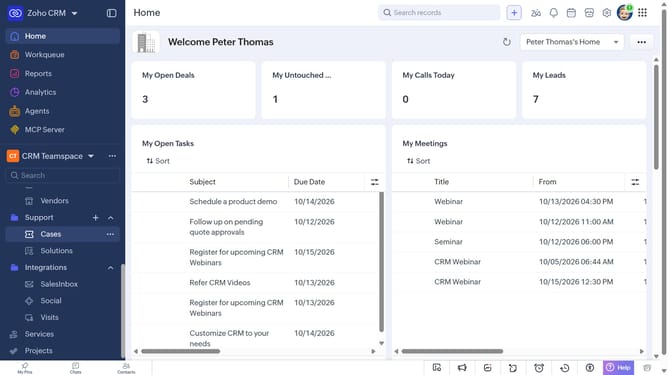
How to delete price books in bulk on Zoho CRM
Here is how to delete price books in bulk on zoho crm
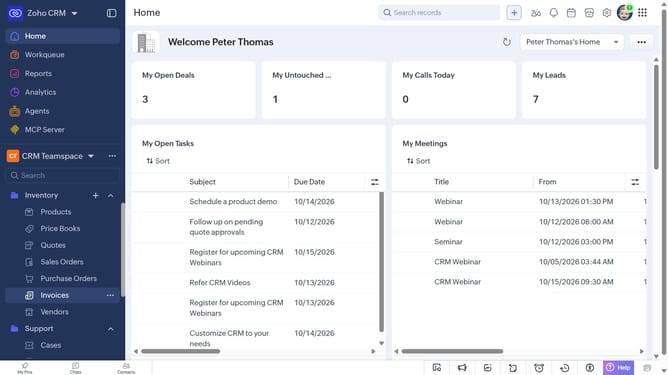
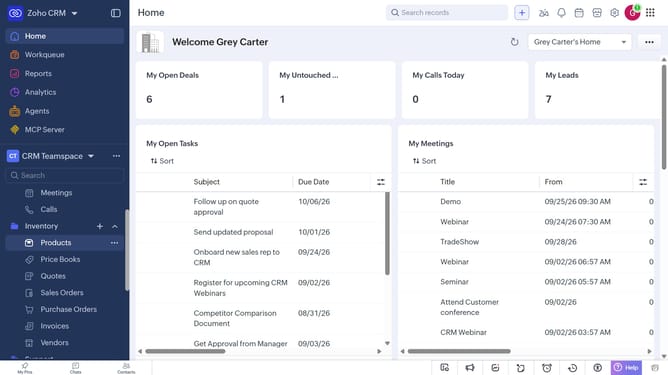
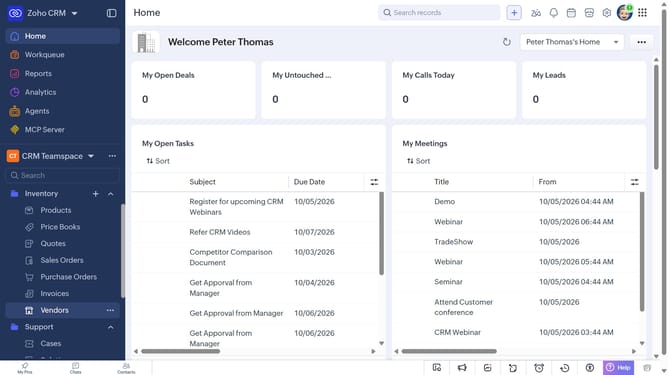
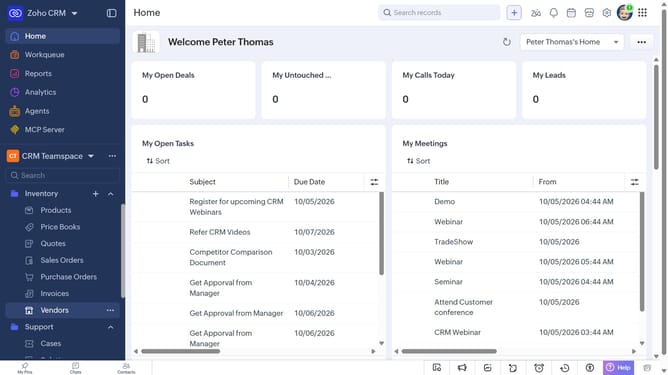
- First, click on "Price Books" under "Inventory" in the left sidebar menu
- Locate the price books you want to delete
- Next, select the checkboxes next to each record
- Click on the "More Options" button at the top of the list
- Then, select "Delete" from the dropdown menu
- Finally, click on "Delete" in the confirmation dialog
Why should you How to delete price books in bulk on Zoho CRM
Zoho is a dynamic suite of software solutions designed to streamline your business operations effortlessly.
Managing price books in Zoho CRM becomes incredibly efficient with the capability to delete them in bulk. This feature is perfect for businesses looking to update or remove outdated pricing structures quickly.
The ability to delete price books in bulk saves valuable time and minimizes errors, ensuring that your CRM remains organized and up-to-date with minimal effort.
Embracing this functionality enhances productivity and allows your team to focus on more strategic tasks, ultimately contributing to smoother business processes.
Last update