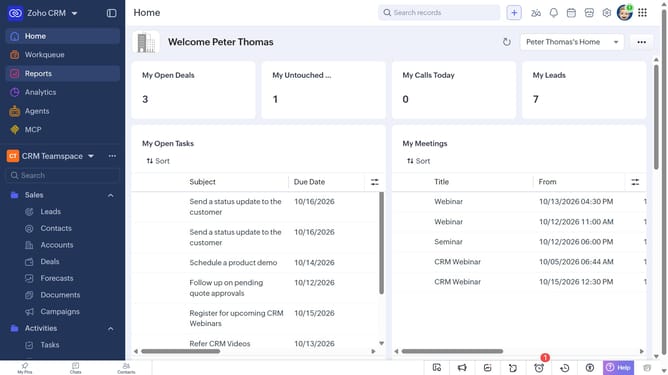
How to delete contacts in bulk on Zoho CRM
Here is how to delete contacts in bulk on zoho crm
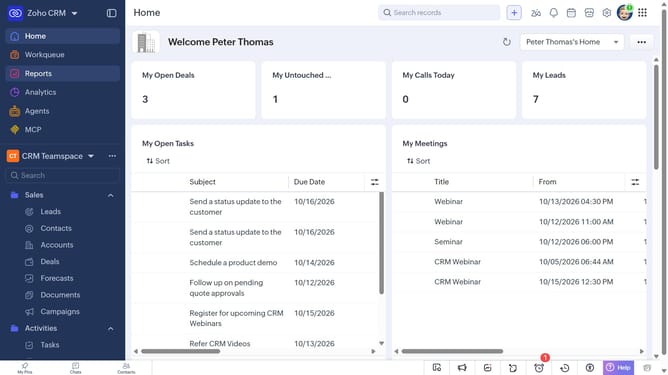
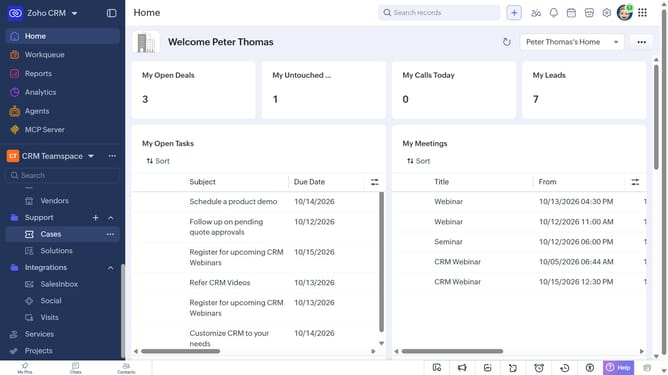
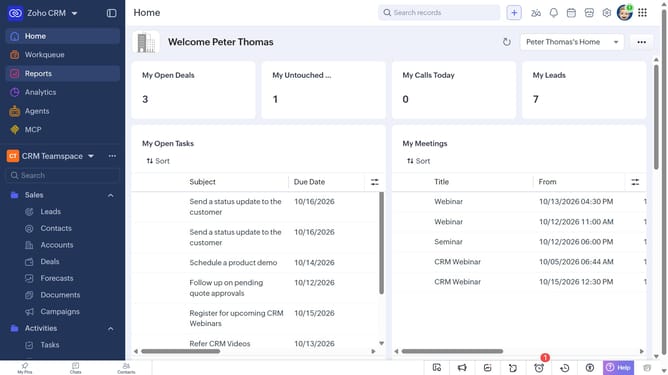
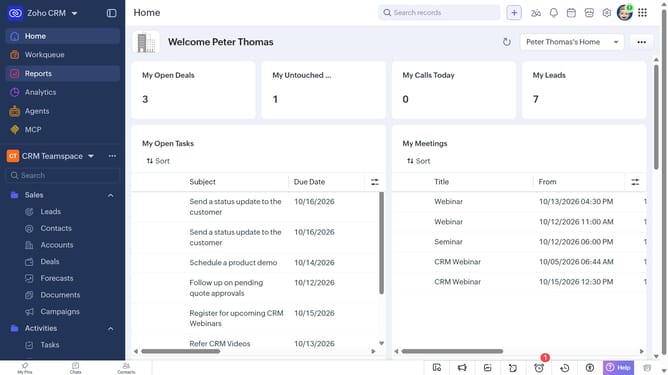
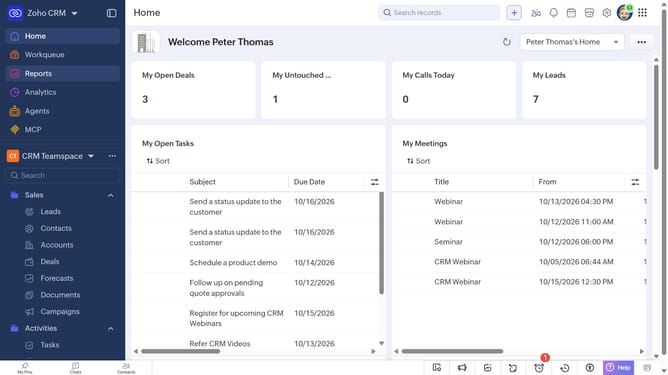
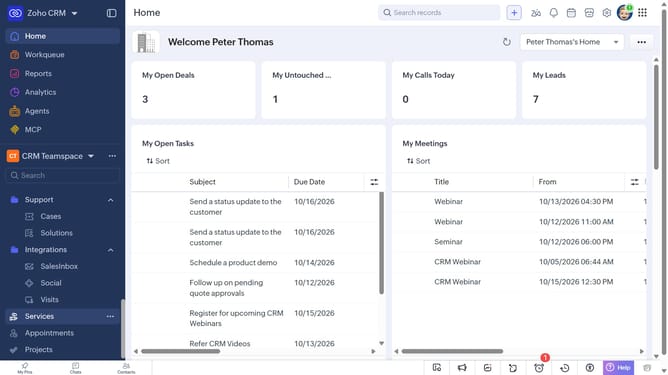
- First, click on "Contacts" under "Inventory" in the left sidebar menu
- Locate the contacts you want to delete
- Next, select the checkboxes next to each record
- Click on the "More Options" button at the top of the list
- Then, select "Delete" from the dropdown menu
- Finally, click on "Delete" in the confirmation dialog
Why should you How to delete contacts in bulk on Zoho CRM
Zoho, a leading and comprehensive business software suite, empowers businesses to streamline operations effortlessly.
The bulk delete feature in Zoho CRM allows you to manage your contacts efficiently. By removing numerous outdated or irrelevant contacts in one action, you keep your database organized and relevant. This not only saves time but also enhances data accuracy.
Effortlessly maintaining a clean contact list ensures smoother communication and improved team productivity. This feature is essential for companies looking to optimize their CRM performance without unnecessary hassle.
Last update