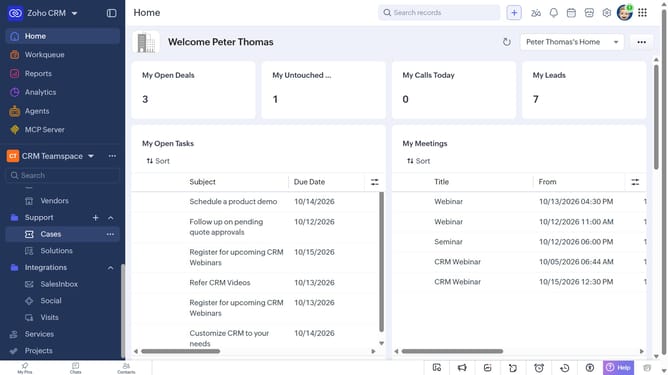
How to change the owner of contacts in bulk on Zoho CRM
Here is how to change the owner of contacts in bulk on zoho crm
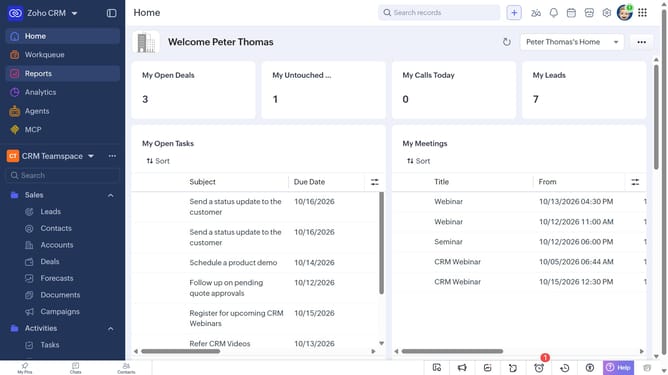
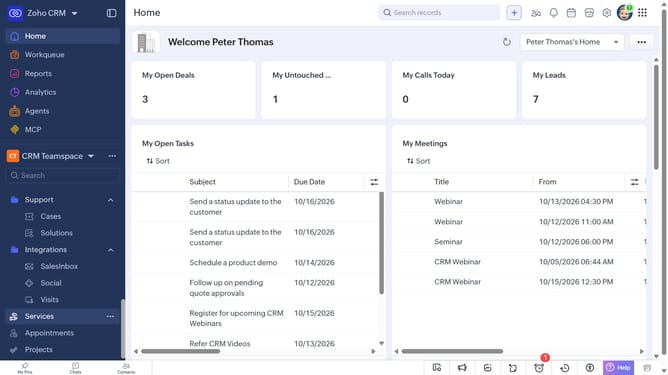
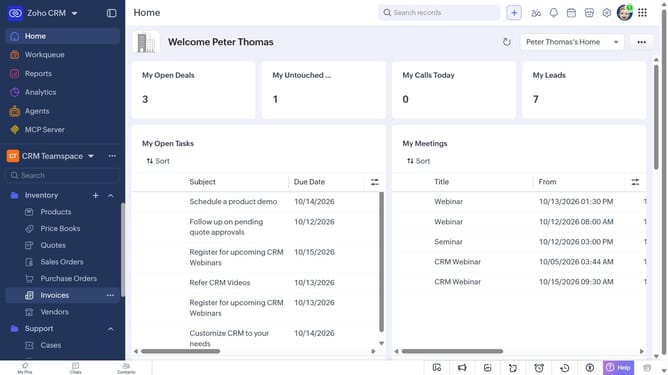
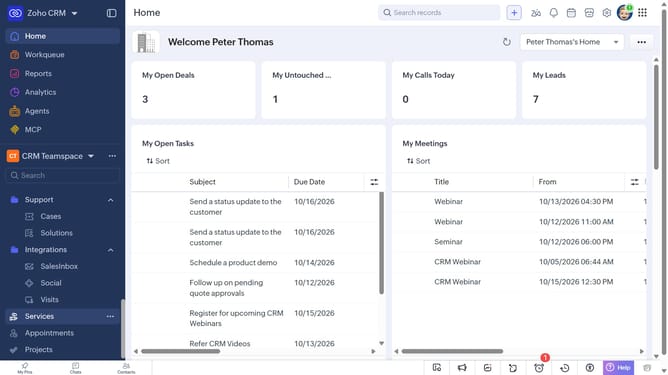
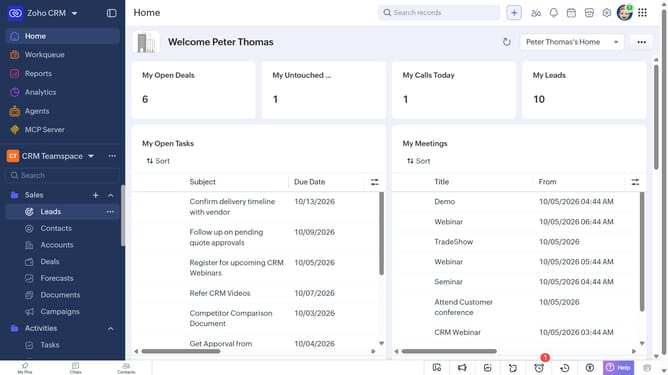
- First, click on "Contacts" under "Inventory" in the left sidebar menu
- Locate the contacts whose owner you want to change
- Next, select the checkboxes next to the contacts
- Click on the "More Options" button at the top of the list
- Select "Change Owner" from the dropdown menu
- In the "Change Owner" modal, click on the dropdown
- Then select the new owner from the dropdown menu
- Next, check "Send Email notification" to enable alerts, or leave it unchecked
- In the "Transfer Related Items" field, choose which related items to transfer
- Finally, click on the "Change Owner" button
Why should you How to change the owner of contacts in bulk on Zoho CRM
Zoho CRM is a robust and intuitive platform designed to streamline customer relationship management and enhance business efficiency.
One of its powerful features is the ability to change the owner of contacts in bulk, which can save valuable time for teams managing large databases.
Easily assigning a new owner to multiple contacts allows for seamless transition and access management, ensuring that no contact is missed during team shifts or organizational restructuring.
This feature helps maintain data integrity, enhances workflow efficiency, and ensures consistent and personalized communication with contacts.
Last update