How to print case details on Zoho CRM
Here is how to print case details on zoho crm
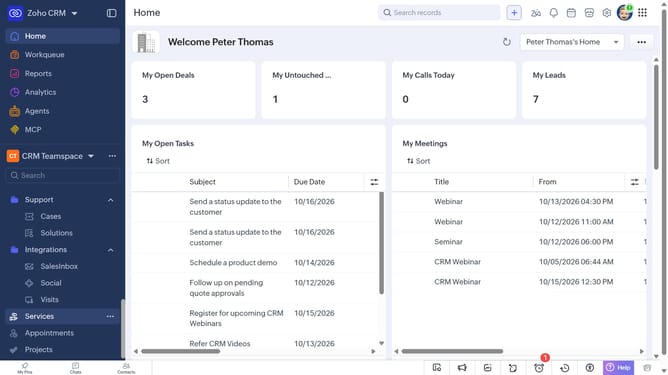
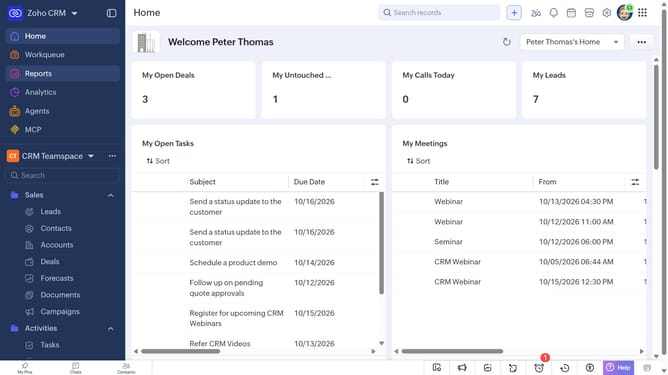
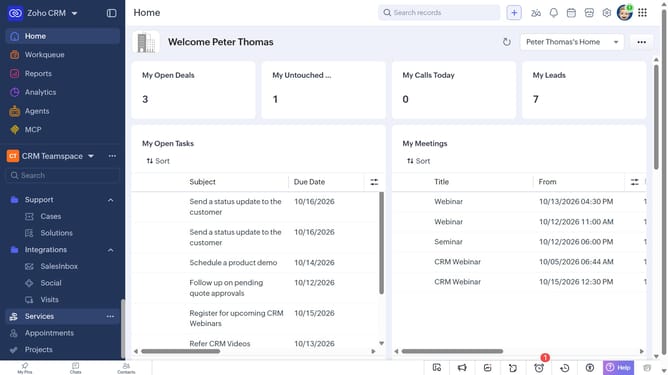
- First, click on "Cases" under "Support" in the left sidebar menu
- Next, click on the case you want to preview
- After that, click on the "More Options" button
- Select "Print Preview" from the dropdown menu
- Next, click the "Choose a Template Category" dropdown
- Then choose a template from the dropdown menu
- Finally, click on the "Print" button
Why should you How to print case details on Zoho CRM
Zoho CRM is an innovative platform designed to streamline customer relationship management with ease and efficiency.
One standout feature is the ability to print case details, which transforms how businesses manage and present crucial information.
This feature allows quick access to well-organized case summaries, making it a breeze to share with team members or clients during meetings or reviews.
Utilizing the print case details functionality in Zoho CRM enhances collaboration and ensures everyone is on the same page, fostering effective communication and streamlined operations.
Last update