How to add tags to leads in bulk on Zoho CRM
Here is how to add tags to leads in bulk on zoho crm
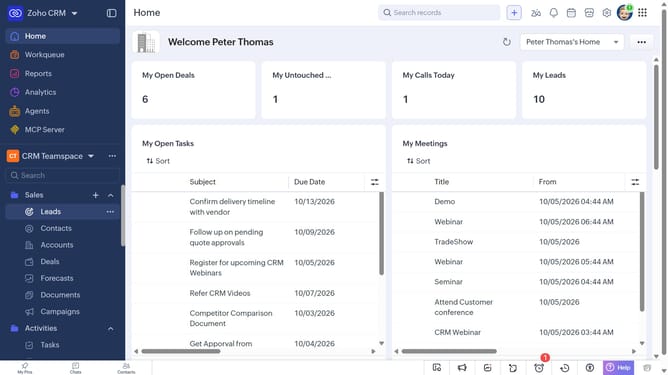
- First, click on "Leads" under "Inventory" in the left sidebar menu
- Locate the leads you want to add tags to
- Next, select the checkboxes next to each record
- Click on the "Tags" button at the top of the list
- Select "Add Tags" from the dropdown menu
- Then, click on the "Enter Tags" field
- Next, choose from existing tags
- Alternatively, enter the tag you want to add and press "Enter"
- Next, check or uncheck "Overwrite any existing Tags"
- Finally, click on the "Save" button
Why should you How to add tags to leads in bulk on Zoho CRM
Zoho CRM is a versatile tool designed to streamline your customer relationship management processes effectively.
The ability to add tags to leads in bulk within Zoho CRM empowers businesses to organize and manage leads more efficiently. By categorizing leads quickly, companies can improve segmentation, streamline follow-ups, and tailor their marketing strategies.
This feature ensures better data management, saving time and enhancing the accuracy of targeting specific audiences. Ultimately, it supports more personalized engagement and boosts overall productivity.
Last update