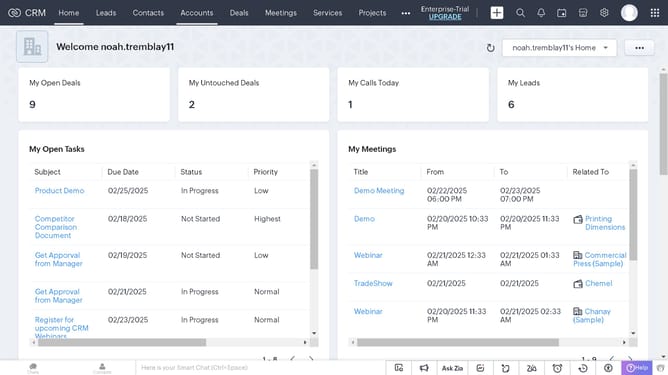
How to change the owner of cases in bulk on Zoho CRM
Here is how to change the owner of cases in bulk on zoho crm
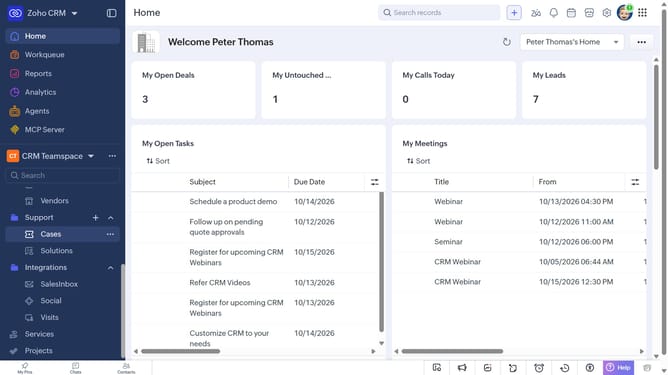
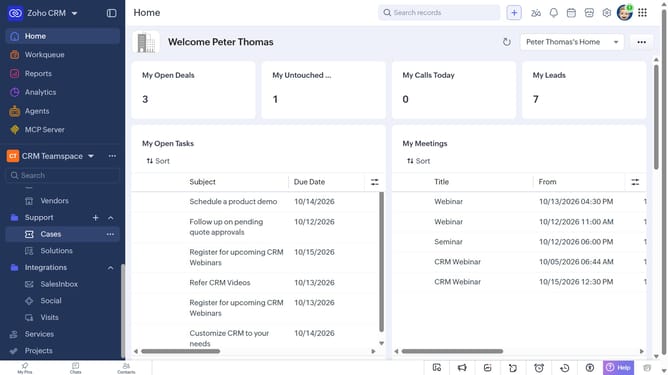
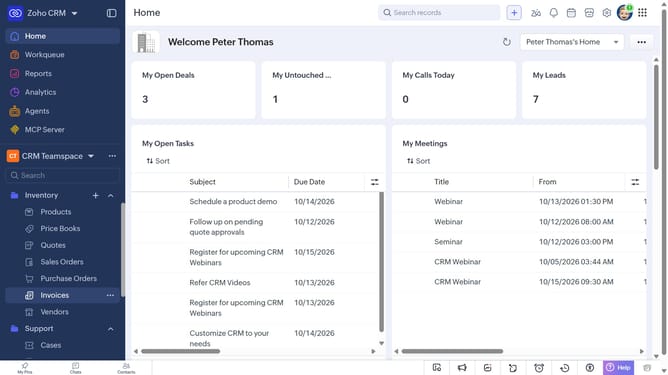
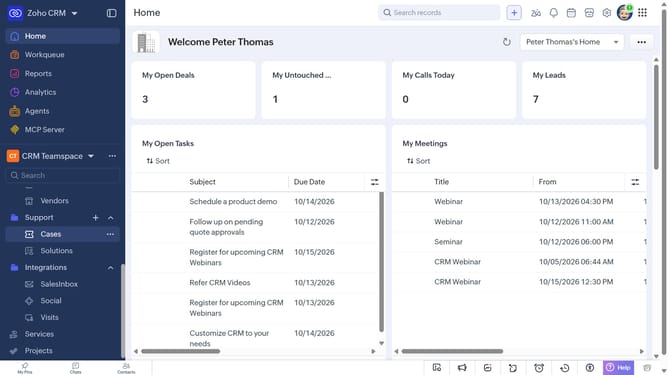
- First, click on "Cases" under "Support" in the left sidebar menu
- Locate the cases whose owner you want to change
- Next, select the checkboxes next to each record
- Click on the "More Options" button at the top of the list
- Select "Change Owner" from the dropdown menu
- In the "Change Owner" modal, click on the dropdown
- Then select the new owner from the dropdown menu
- Next, check "Send Email notification" to enable alerts, or leave it unchecked
- In the "Transfer Related Items" field, choose which related items to transfer
- Finally, click on the "Change Owner" button
Why should you How to change the owner of cases in bulk on Zoho CRM
Zoho is a versatile platform designed to streamline and elevate business operations.
One standout feature in Zoho CRM is the ability to change the owner of cases in bulk. This function is particularly valuable for teams experiencing shifts in roles or responsibilities, allowing for seamless transitions without manual case-by-case updates.
By using this feature, businesses can ensure that all cases are appropriately aligned with the right team members, enhancing efficiency and maintaining momentum. It promotes organized workflows and ensures consistent customer interaction by assigning cases to the most relevant personnel promptly.
Last update