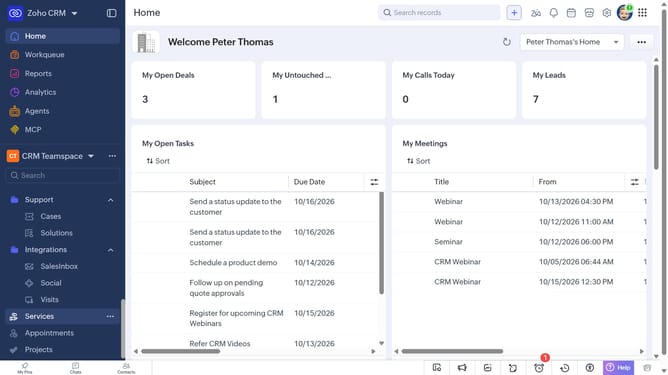
How to create tasks for leads in bulk on Zoho CRM
Here is how to create tasks for leads in bulk on zoho crm
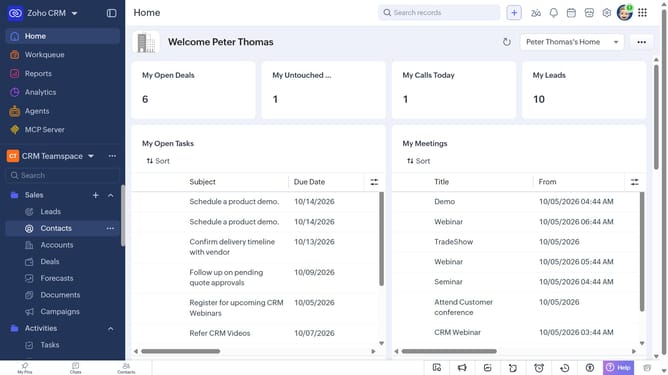
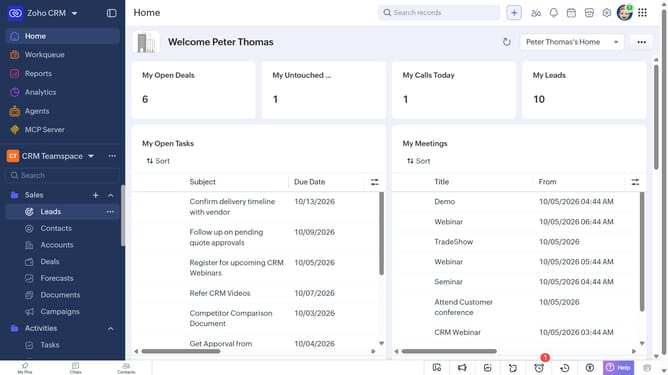
- First, click on "Leads" under "Inventory" in the left sidebar menu
- Locate the leads you want to create tasks for
- Next, select the checkboxes next to each record
- Click on the "More Options" button at the top of the list
- Select "Create Task" from the dropdown menu
- Then, enter the task details, such as the subject, due date, priority, and more
- Finally, click on the "Save" button
Why should you How to create tasks for leads in bulk on Zoho CRM
Zoho CRM, a powerful tool for managing customer relationships, offers robust features to streamline processes and boost efficiency.
One standout feature is the ability to create tasks for leads in bulk. This functionality allows you to efficiently manage multiple lead follow-ups without repetitive manual entry.
Using this feature leads to increased productivity, ensuring no lead is overlooked and enabling timely engagement.
By creating tasks in bulk, sales teams can maintain a structured workflow, focusing on building meaningful connections with potential customers.
Last update