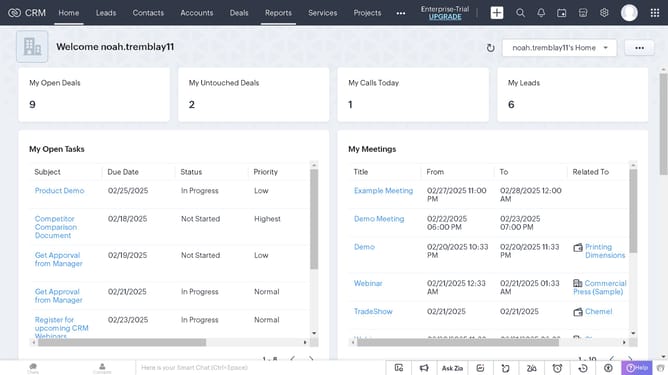
How to export purchase orders as a CSV file on Zoho CRM
Here is how to export purchase orders as a csv file on zoho crm
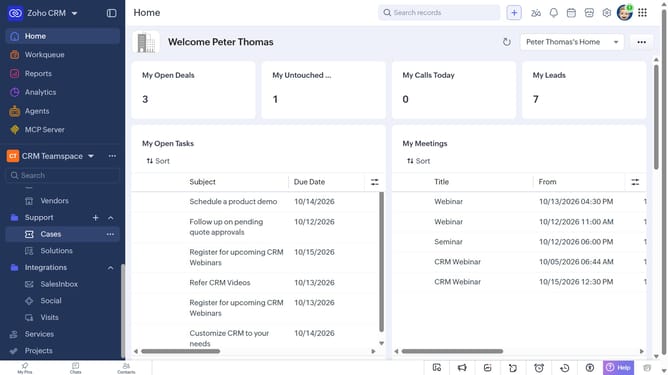
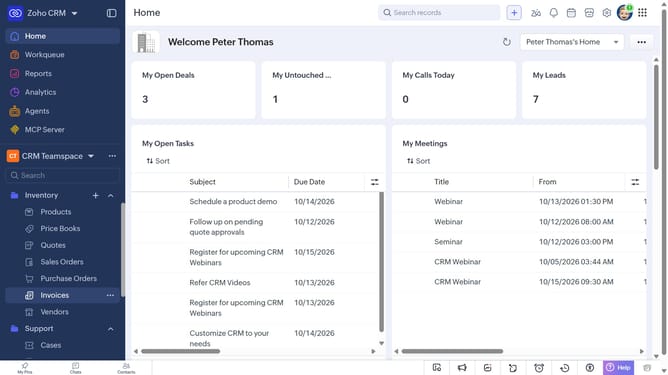
- First, click on "Purchase Orders" under "Inventory" in the left sidebar menu
- Next, click on the "More Options" button next to "Create Purchase Order"
- Select "Export Purchase Orders" from the dropdown menu
- In the "Export Purchase Order" dialog, click on the "Fields to Export" dropdown
- Choose whether to export all fields or only the fields from the custom view
- After that, select "CSV" as the file type
- Next, click on the "Charset" dropdown and and select the desired encoding
- Then, toggle the "Set Password" switch on or leave it off
- Finally click on the "Export" button
Why should you How to export purchase orders as a CSV file on Zoho CRM
Zoho CRM is an all-in-one platform designed to streamline business operations and enhance customer relationships.
The ability to export purchase orders as a CSV file on Zoho CRM offers a seamless way to organize and manipulate data. This feature allows users to quickly transfer important purchasing information into a universally readable format. With CSV, integrating purchase data with other tools becomes effortless.
Utilizing this feature leads to improved data management, as it provides a straightforward method for sharing and analyzing documents across departments or with external stakeholders. The functionality elevates efficiency by simplifying the process of tracking, sorting, and reviewing purchase records.
Last update