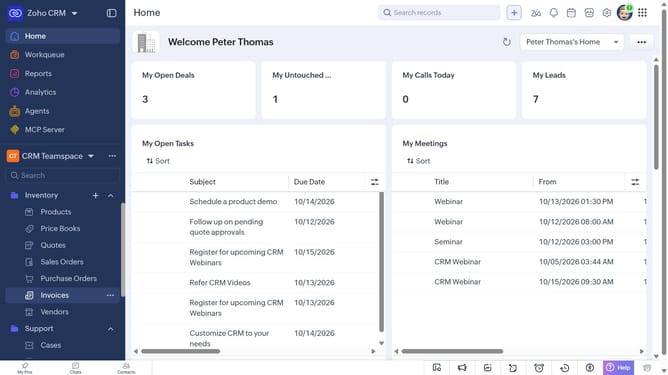
How to export accounts in bulk on Zoho CRM
Here is how to export accounts in bulk on zoho crm
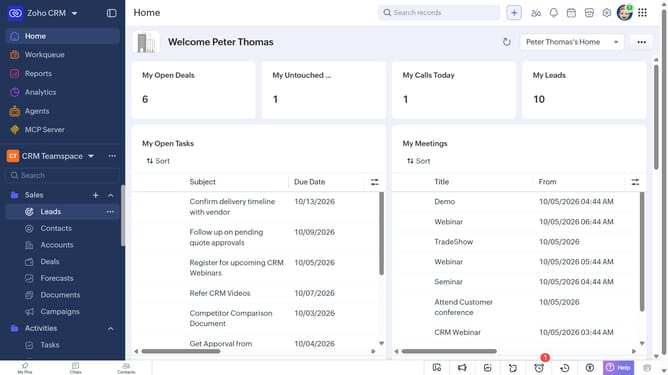
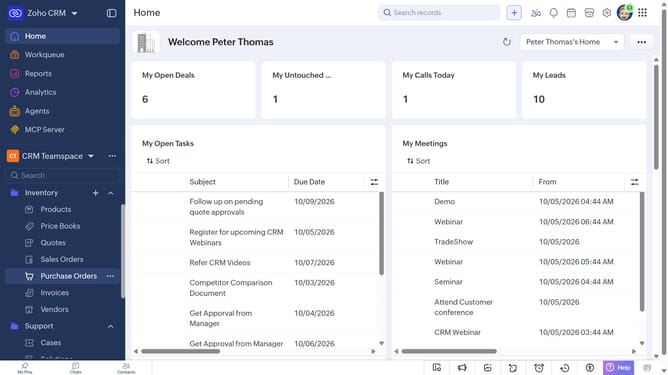
- First, click on "Accounts" under "Inventory" in the left sidebar menu
- Next, select the checkboxes next to the accounts whose owner you want to export
- Click on the "More Options" button at the top of the list
- Select "Export Selected Records" from the dropdown menu
- In the "Export Selected Records" dialog, select the file type
- Then, toggle the "Set Password" switch on or leave it off
- Finally click on the "Export" button
Why should you How to export accounts in bulk on Zoho CRM
Zoho CRM is a dynamic platform designed to streamline your customer relationship management effortlessly.
Exporting accounts in bulk within Zoho CRM is a powerful feature that empowers users to manage their data efficiently. This capability allows you to handle multiple accounts simultaneously, saving valuable time and reducing manual effort.
By leveraging this feature, businesses can maintain a comprehensive and organized database, enhancing productivity and decision-making. It simplifies data migration and ensures accuracy, contributing to a seamless workflow.
Last update