How to change the owner of an invoice on Zoho CRM
Here is how to change the owner of an invoice on zoho crm
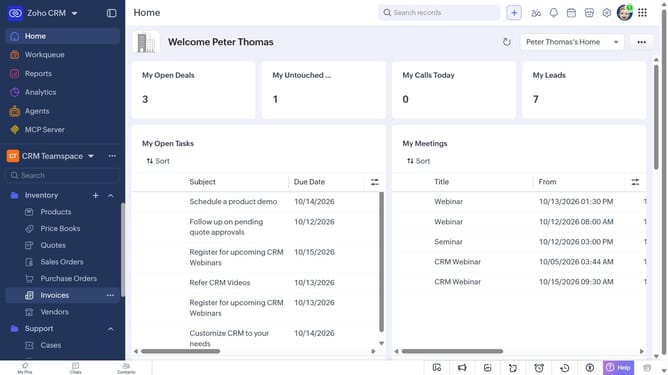
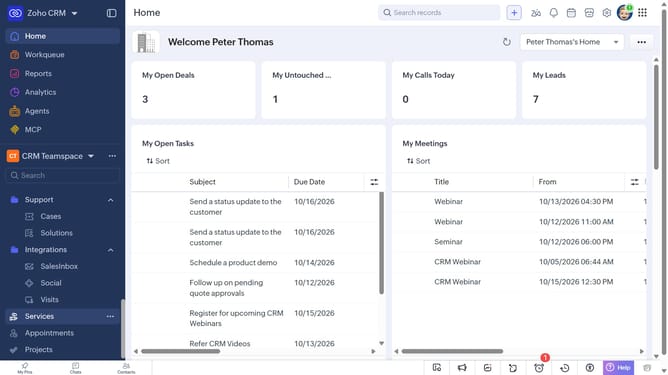
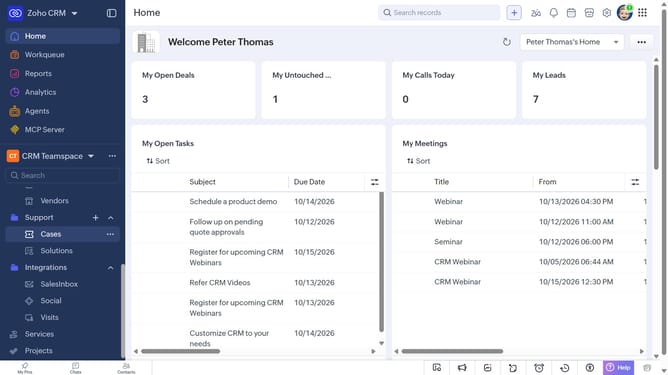
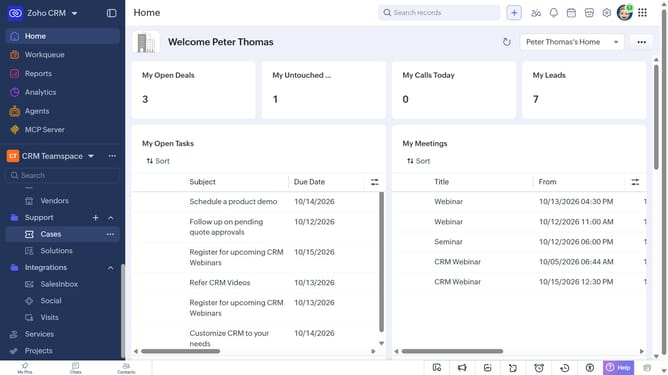
- First, click on "Invoices" under "Inventory" in the left sidebar menu
- Next, locate the invoice whose owner you want to change
- Click on the "More options" button next to the invoice
- Select "Change Owner" from the dropdown menu
- In the "Change Owner" modal, click on the dropdown
- Then select the new owner from the dropdown menu
- Next, check "Send Email notification" to enable alerts, or leave it unchecked
- Finally, click on the "Change Owner" button
Why should you How to change the owner of an invoice on Zoho CRM
Zoho is a versatile platform designed to simplify and enhance business operations, offering tools to streamline everything from customer relationships to project management.
Changing the owner of an invoice in Zoho CRM is a convenient feature that ensures the right team member manages the transaction and client interaction. It helps maintain accurate records and efficient workflows within your team.
This capability allows businesses to adapt quickly to staff changes or redistribute workloads, ensuring that clients always receive prompt and personalized attention. It enhances collaboration, accountability, and ultimately, customer satisfaction.
Last update