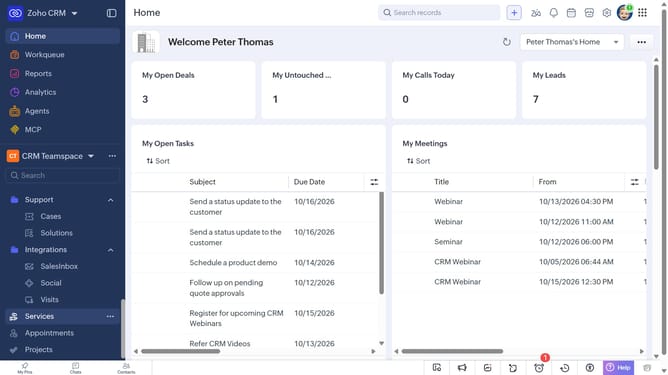
How to change the owner of products in bulk on Zoho CRM
Here is how to change the owner of products in bulk on zoho crm
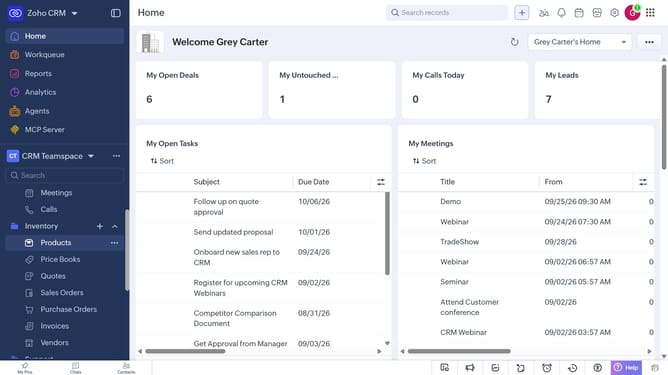
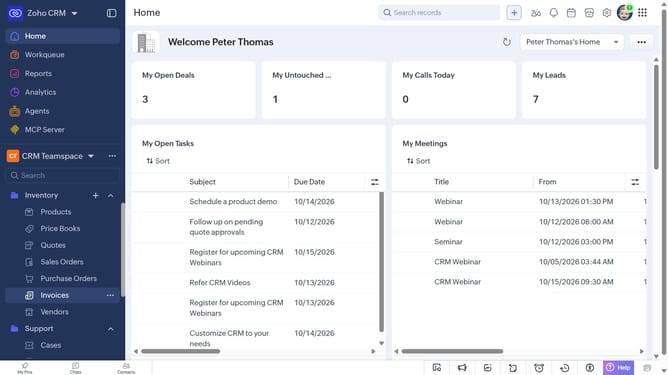
- First, click on "Products" under "Inventory" in the left sidebar menu
- Locate the products whose owner you want to change
- Next, select the checkboxes next to each record
- Click on the "More Options" button at the top of the list
- Select "Change Owner" from the dropdown menu
- In the "Change Owner" modal, click on the dropdown
- Then select the new owner from the dropdown menu
- Next, check "Send Email notification" to enable alerts, or leave it unchecked
- In the "Transfer Related Items" field, choose which related items to transfer
- Finally, click on the "Change Owner" button
Why should you How to change the owner of products in bulk on Zoho CRM
Zoho is a dynamic platform designed to streamline business operations, offering a suite of robust tools for efficiency and productivity.
One standout feature in Zoho CRM is the ability to change the owner of products in bulk. This feature simplifies management, especially for businesses with extensive product catalogs, by allowing quick reassignment of product ownership.
Using this feature enhances collaboration and ensures responsibility is with the right team members, leading to improved operational flow and better customer service.
Ultimately, it saves time and reduces the hassle of manual updates, providing a seamless experience for CRM users.
Last update