How to change the owner of leads in bulk on Zoho CRM
Here is how to change the owner of leads in bulk on zoho crm
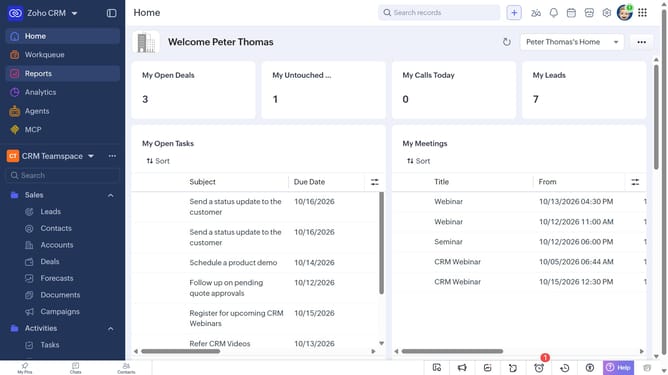
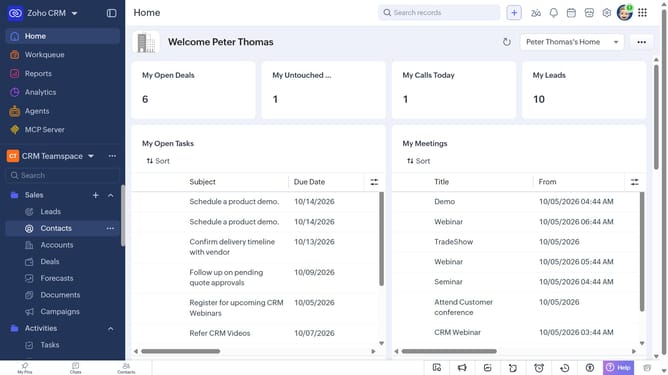
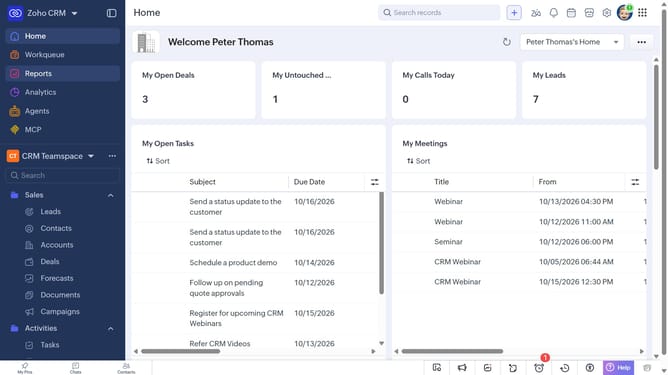
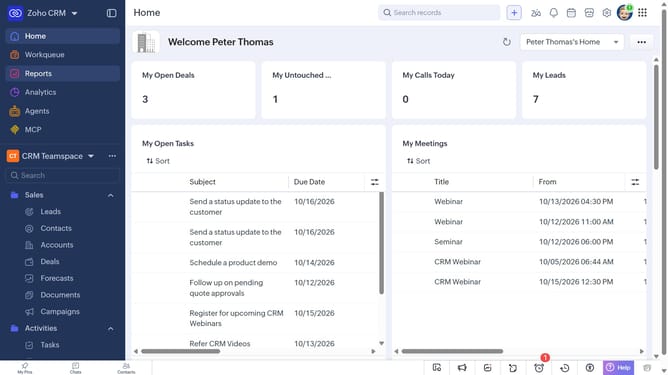
- First, click on "Leads" under "Inventory" in the left sidebar menu
- Locate the leads whose owner you want to change
- Next, select the checkboxes next to the leads
- Click on the "More Options" button at the top of the list
- Select "Change Owner" from the dropdown menu
- In the "Change Owner" modal, click on the dropdown
- Then select the new owner from the dropdown menu
- Next, check "Send Email notification" to enable alerts, or leave it unchecked
- In the "Transfer Related Items" field, choose which related items to transfer
- Finally, click on the "Change Owner" button
Why should you How to change the owner of leads in bulk on Zoho CRM
Zoho is an integrated suite of online productivity tools designed to streamline business operations and enhance efficiency.
Changing the owner of leads in bulk on Zoho CRM empowers your team to efficiently reassign responsibilities, ensuring that no potential client is overlooked. It simplifies the task of redistributing leads during staff changes or when rebalancing workloads.
By leveraging this feature, you maintain consistent lead management, enhance collaboration, and keep your sales process running smoothly. This ensures every lead receives the attention it deserves, boosting your team's productivity and driving success.
Last update