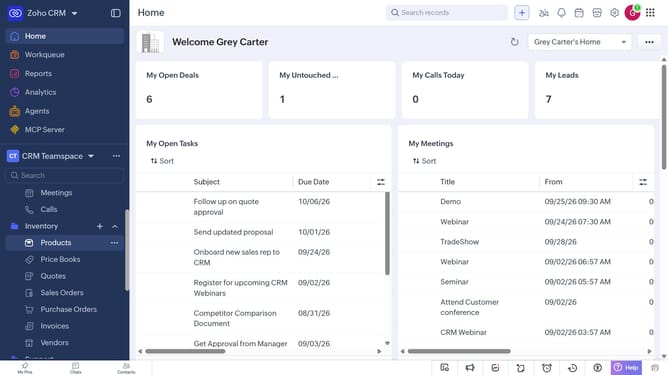
How to add tags to a product on Zoho CRM
Here is how to add tags to a product on zoho crm
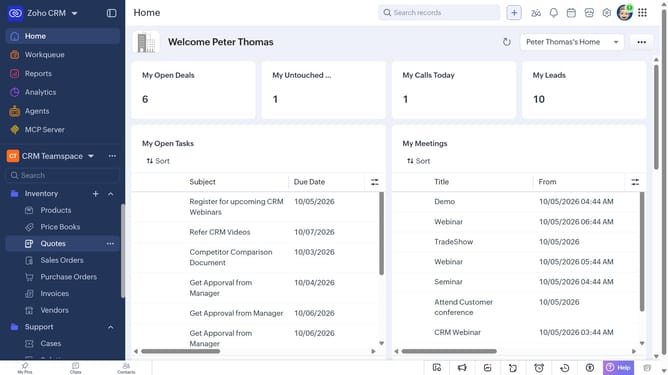
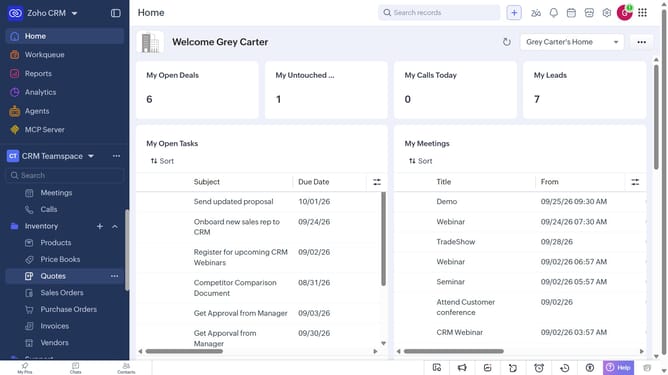
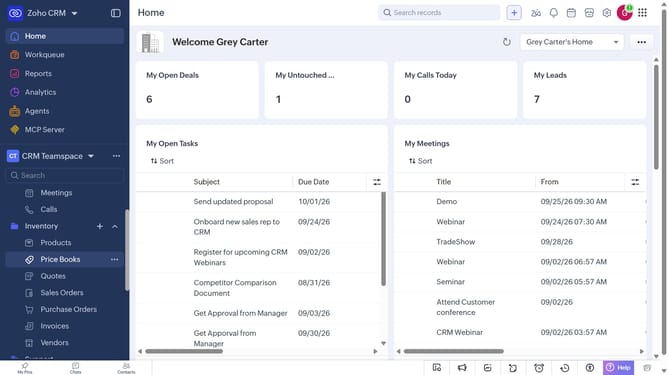
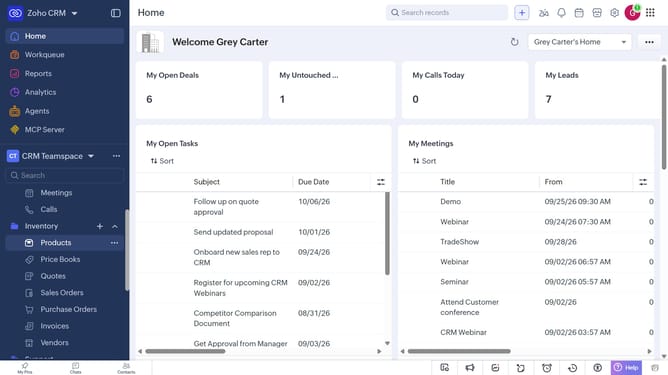
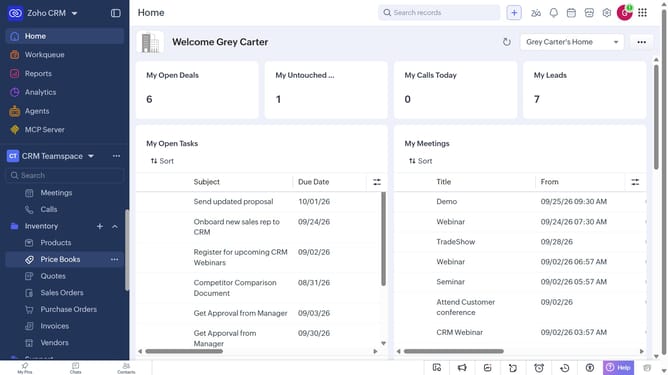
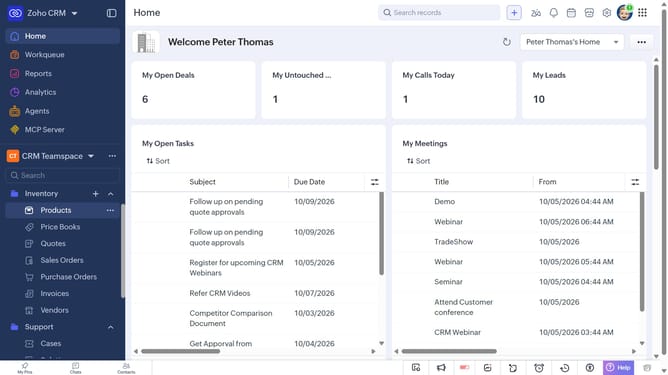
- First, click on "Products" under "Inventory" in the left sidebar menu
- Next, locate the product you want to add tags to
- Click on the "More options" button next to the product
- Select "Add Tags" from the dropdown menu
- Next, click on the "Enter Tags" field
- Then, you can choose from existing tags
- Alternatively, enter the tag you want to add and press "Enter"
- Finally, click on the "Save" button
Why should you How to add tags to a product on Zoho CRM
Zoho CRM is a dynamic tool designed to enhance customer relationship management efficiently.
Adding tags to a product on Zoho CRM is a feature that allows for streamlined organization and precise categorization of your inventory. This feature enhances your ability to quickly retrieve and manage product information, ensuring that your team has a clear understanding of each product's attributes and status.
Using tags improves searchability, allowing your sales and marketing teams to target specific products effortlessly. This promotes a more focused and personalized approach, enhancing customer satisfaction and improving overall workflow efficiency.
Last update