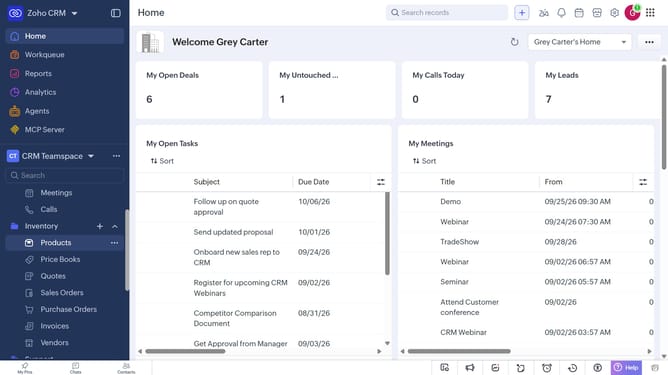
How to create tasks for products in bulk on Zoho CRM
Here is how to create tasks for products in bulk on zoho crm
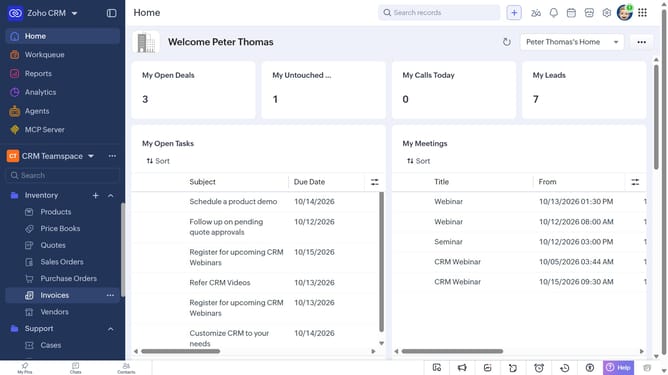
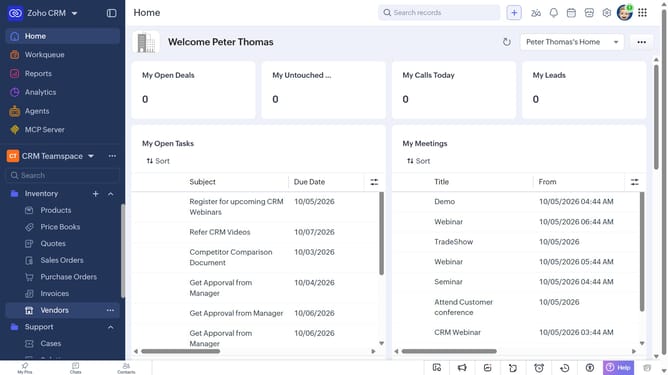
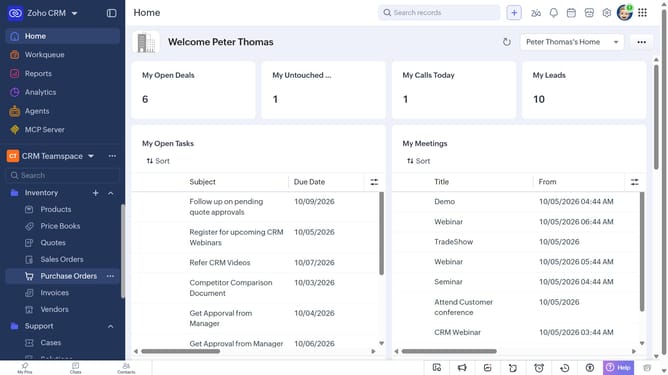
- First, click on "Products" under "Inventory" in the left sidebar menu
- Locate the products you want to create tasks for
- Next, select the checkboxes next to each record
- Click on the "More Options" button at the top of the list
- Select "Create Task" from the dropdown menu
- Then, enter the task details, such as the subject, due date, priority, and more
- Finally, click on the "Save" button
Why should you How to create tasks for products in bulk on Zoho CRM
Zoho CRM is a comprehensive platform designed to streamline business processes and enhance customer relationships.
One standout feature of Zoho CRM is the ability to create tasks for products in bulk, significantly optimizing productivity. By utilizing this feature, users can efficiently manage multiple product-related tasks simultaneously, cutting down on repetitive manual entries.
This approach not only saves time but also reduces the risk of errors, ensuring a more organized workflow. The efficient bulk task creation in Zoho CRM empowers teams to focus on strategic activities, driving business growth and improving customer experiences.
Last update