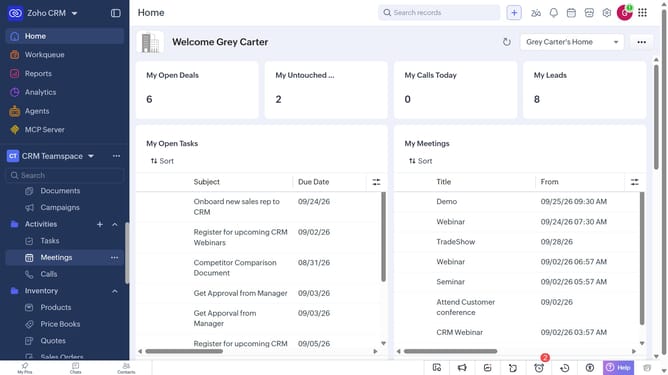
How to export tasks as an XLSX file on Zoho CRM
Here is how to export tasks as an xlsx file on zoho crm
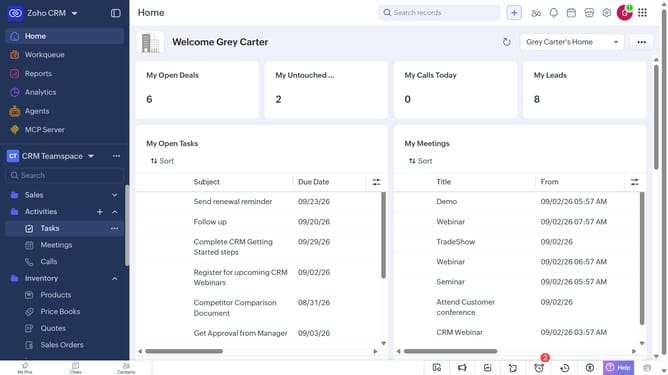
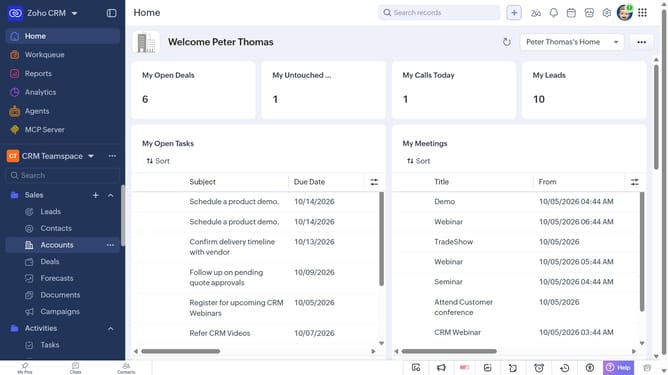
- First, click on "Tasks" in the left sidebar menu
- Next, click on the "More Options" button at the top of the Tasks list
- Select "Export Tasks" from the dropdown menu
- In the "Export Tasks" dialog, click on the "Fields to Export" dropdown
- Choose whether to export all fields or only the fields from custom view
- Then, select "XLSX" as the file type
- Next, toggle the "Set Password" switch on or leave it off
- Finally, click on the "Export" button
Why should you How to export tasks as an XLSX file on Zoho CRM
Zoho CRM is a powerful tool designed to streamline customer relationship management and enhance business efficiency.
Exporting tasks as an XLSX file in Zoho CRM allows users to easily organize and analyze their data in Excel. This feature is incredibly useful for those who need to generate reports, track tasks, or share information across teams without hassle.
By converting tasks into a flexible Excel format, users can customize their data, apply filters, and perform detailed analysis. This ensures that businesses can make informed decisions quickly, leveraging data-driven insights to optimize strategies.
Overall, this export feature enhances productivity by enabling seamless data management, ensuring crucial information is always at your fingertips.