How to preview a price book before printing on Zoho CRM
Here is how to preview a price book before printing on zoho crm
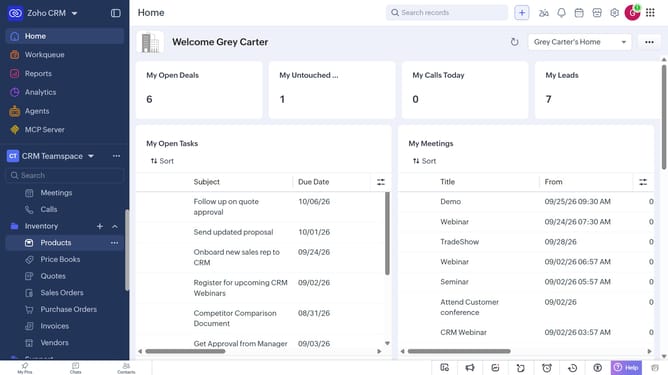
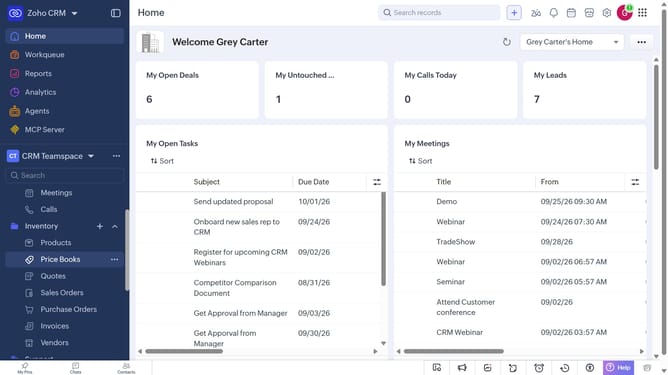
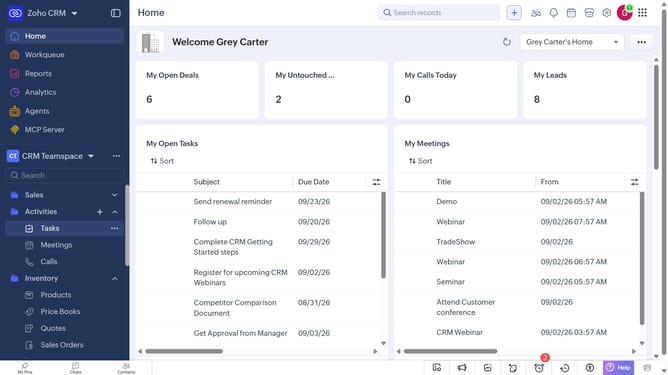
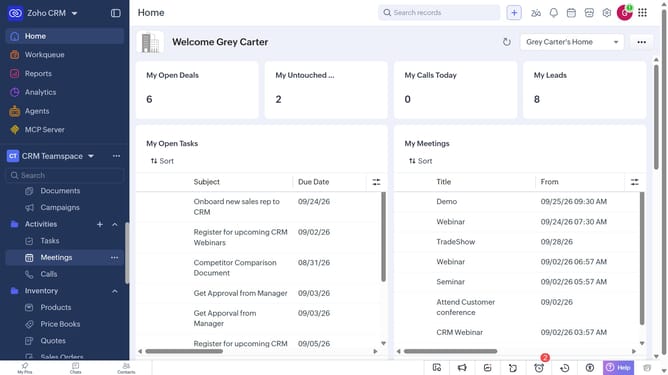
- First, click on "Price Books" under the "Inventory" section in the left sidebar menu
- Next, click on the price book you want to print
- After that, click on the "More Options" menu
- Select "Print Preview" from the dropdown menu
- Then, review the price book details in the print preview
- Finally, click on the "Print" button to proceed
Why should you How to preview a price book before printing on Zoho CRM
Zoho CRM is a powerful, cloud-based tool designed to streamline and invigorate customer relationship management.
The feature to preview a price book before printing on Zoho CRM plays a crucial role in ensuring data accuracy and presentation quality. By allowing users to view price books in their final format, this feature helps in spotting errors or necessary adjustments before the physical document is printed.
This proactive approach saves time, resources, and enhances professionalism by guaranteeing that the data shared with clients is both precise and well-organized. Previewing is essential for maintaining the integrity of information shared with key stakeholders.
Last update