How to export products as an XLSX file on Zoho CRM
Here is how to export products as an xlsx file on zoho crm
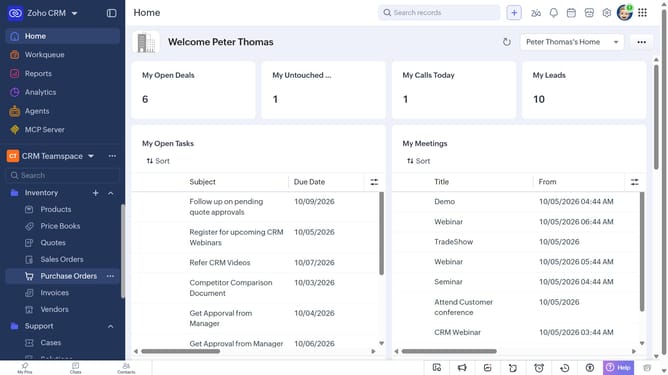
- First, click on "Products" under "Inventory" in the left sidebar menu
- Next, click on the "More Options" button next to "Create Product"
- Select "Export Products" from the dropdown menu
- In the "Export Product" dialog, click on the "Fields to Export" dropdown
- Choose whether to export all fields or only the fields from the custom view
- Then, select "XLSX" as the file type
- Next, toggle the "Set Password" switch on or leave it off
- Finally, click on the "Export" button
Why should you How to export products as an XLSX file on Zoho CRM
Zoho CRM is a versatile platform designed to streamline business operations by managing customer relationships and enhancing productivity.
Exporting products as an XLSX file on Zoho CRM simplifies data handling, allowing users to organize and analyze product information effortlessly. This feature makes it easy to compile comprehensive product lists, ensuring you always have the data you need at your fingertips for strategic planning.
With easy export options, you'll save time and reduce manual entry errors, providing a seamless way to integrate detailed product data into reports and presentations.
By leveraging this functionality, businesses can maintain up-to-date inventory records and align sales strategies effectively, enhancing overall operational efficiency and decision-making processes.