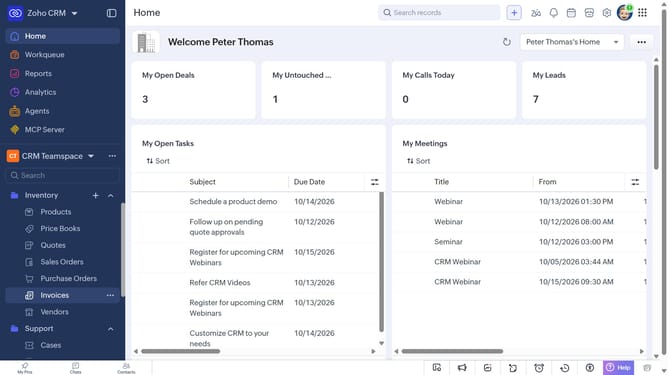
How to add tags to a vendor on Zoho CRM
Here is how to add tags to a vendor on zoho crm
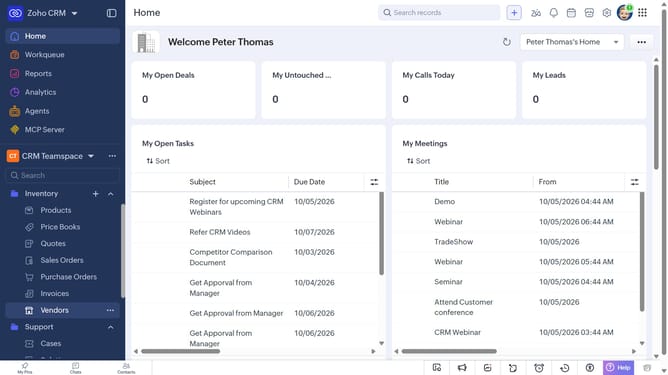
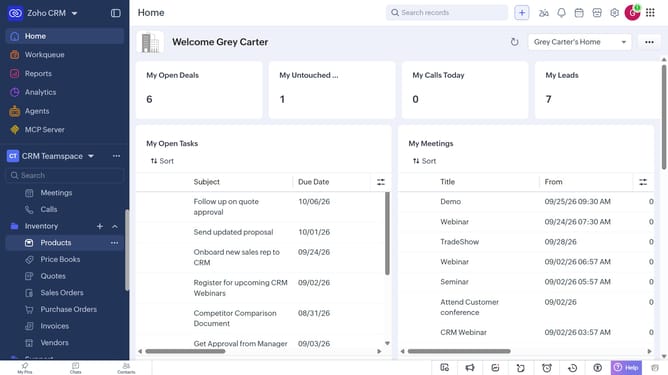
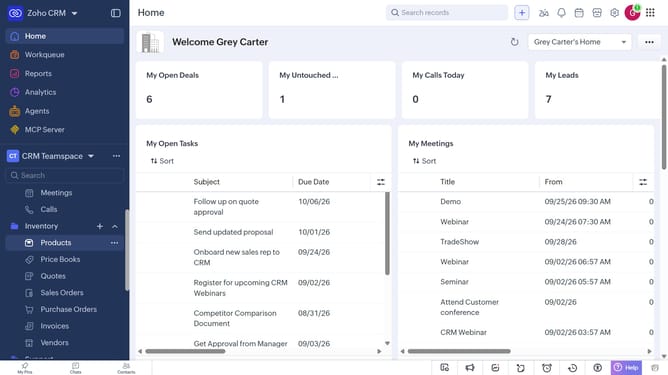
- First, click on "Vendors" under "Inventory" in the left sidebar menu
- Next, locate the vendor you want to add tags to
- Click on the "More options" button next to the vendor
- Select "Add Tags" from the dropdown menu
- Next, click on the "Enter Tags" field
- Then, you can choose from existing tags
- Alternatively, enter the tag you want to add and press "Enter"
- Finally, click on the "Save" button
Why should you How to add tags to a vendor on Zoho CRM
Zoho CRM is a robust solution designed to streamline business operations and enhance customer relationships.
Utilizing the feature of adding tags to a vendor in Zoho CRM allows for better organization and easy retrieval of information. With tags, you can categorize vendors based on specific criteria, making data access more intuitive and efficient.
This feature enhances your ability to personalize CRM strategies and improves workflow by providing a clear overview of vendor interactions. The tagging system ensures you have instant insights and can tailor communications with precision.
Overall, adding tags elevates your CRM experience, boosting productivity and ensuring you never miss crucial details.
Last update