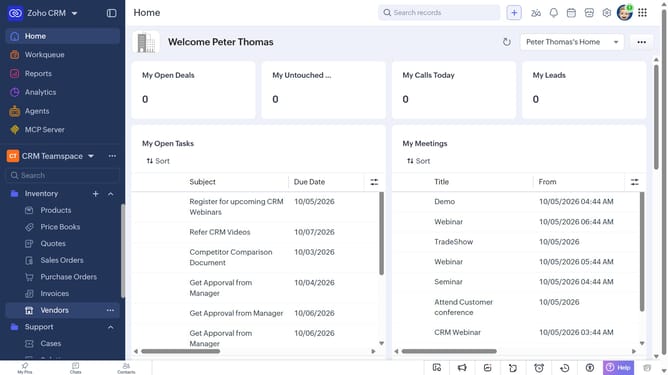
How to export selected vendor records on Zoho CRM
Here is how to export selected vendor records on zoho crm
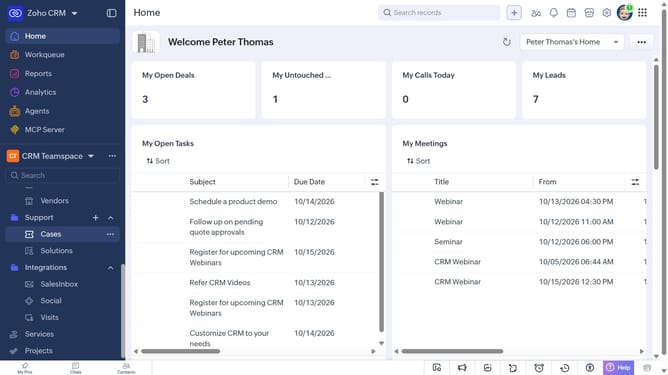
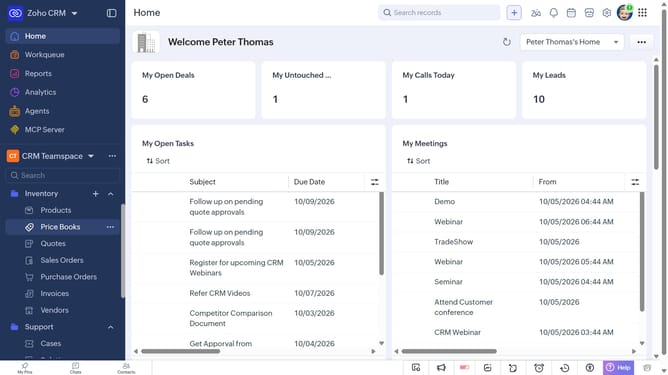
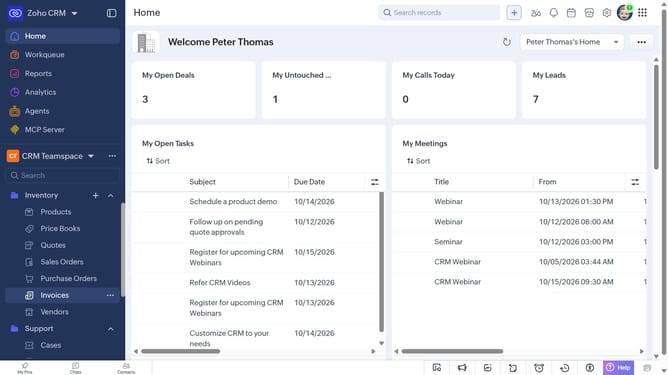
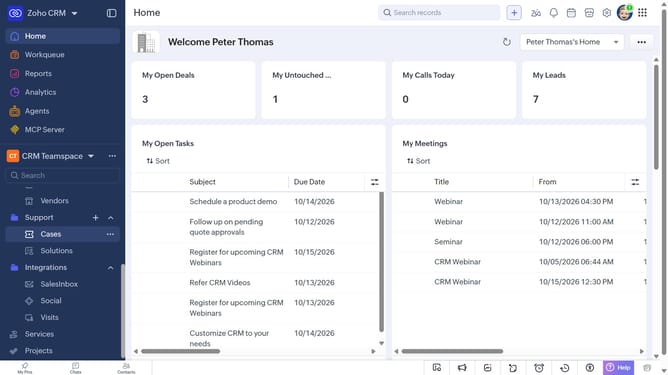
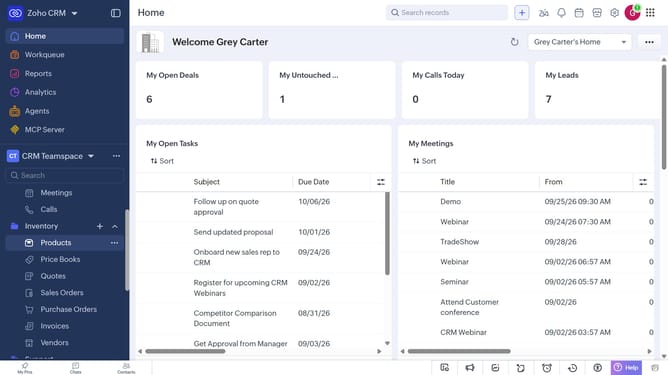
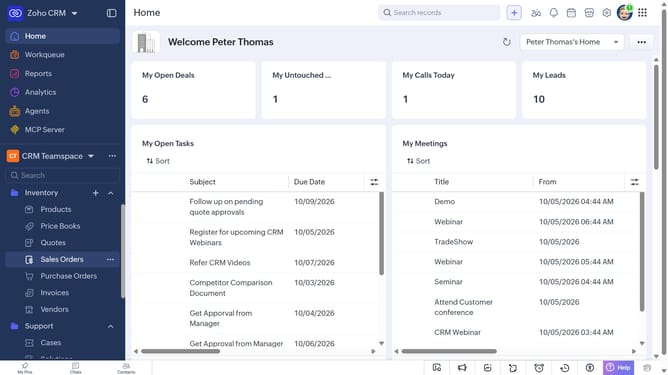
- First, click on "Vendors" under "Inventory" in the left sidebar menu
- In the List View, locate the vendors you want to export
- Next, check the boxes next to the vendors
- Click on the "More Options" button at the top of the list
- Select "Export Selected Records" from the dropdown menu
- In the "Export Selected Records" dialog, select the file type
- Then, toggle the "Set Password" switch on or leave it off
- Finally click on the "Export" button
Why should you How to export selected vendor records on Zoho CRM
Zoho is a comprehensive suite of cloud-based applications designed to streamline business operations.
Exporting selected vendor records in Zoho CRM allows users to efficiently manage data by focusing only on the required details. This targeted approach ensures that businesses can easily access and analyze vendor information without sifting through unnecessary data.
This feature enhances productivity by simplifying data handling and supports better decision-making by delivering precise and relevant information quickly. It's a valuable tool for teams looking to maintain organized and up-to-date records effortlessly.
Last update