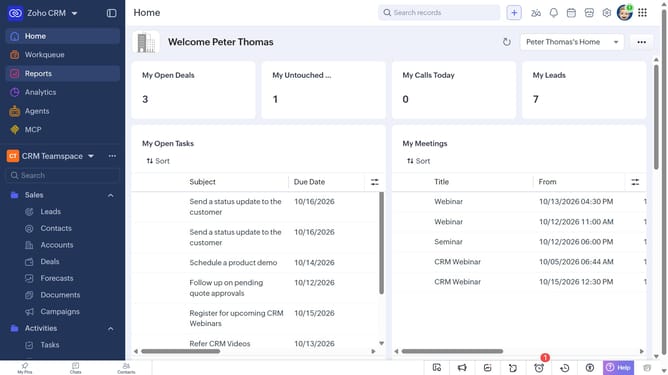
How to delete sales orders in bulk on Zoho CRM
Here is how to delete sales orders in bulk on zoho crm
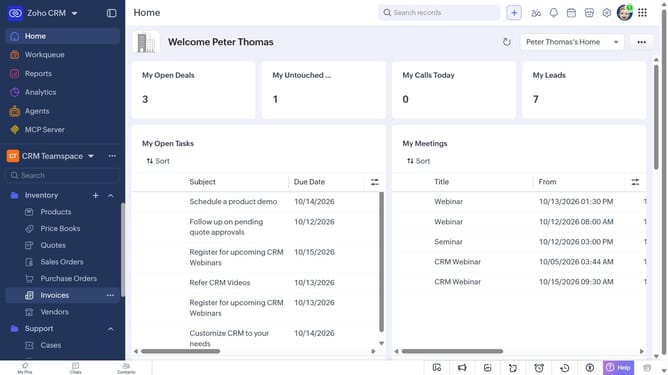
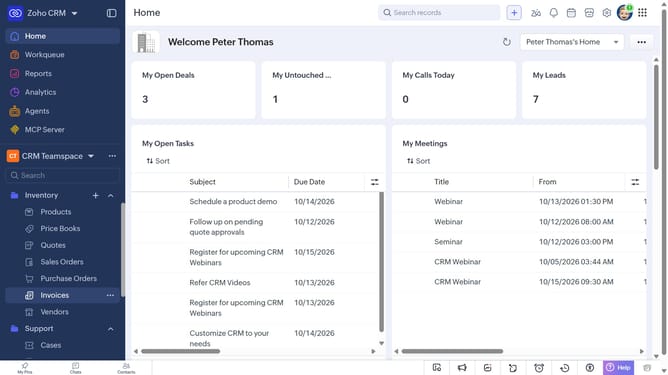
- First, click on "Sales Orders" under "Inventory" in the left sidebar menu
- Locate the sales orders you want to delete
- Next, select the checkboxes next to each record
- Click on the "More Options" button at the top of the list
- Then, select "Delete" from the dropdown menu
- Finally, click on "Delete" in the confirmation dialog
Why should you How to delete sales orders in bulk on Zoho CRM
Zoho is a comprehensive suite designed to streamline business processes and enhance productivity.
The ability to delete sales orders in bulk on Zoho CRM is a powerful feature that simplifies data management. By enabling users to remove multiple outdated or incorrect orders simultaneously, it significantly reduces manual effort.
This feature contributes to maintaining clean and organized sales records, enhancing overall efficiency. It ensures that your CRM remains clutter-free, allowing your team to focus on current and important data.
Overall, bulk deletion helps keep your system up-to-date, ensuring optimal performance and decision-making.
Last update