How to add tags to an invoice on Zoho CRM
Here is how to add tags to an invoice on zoho crm
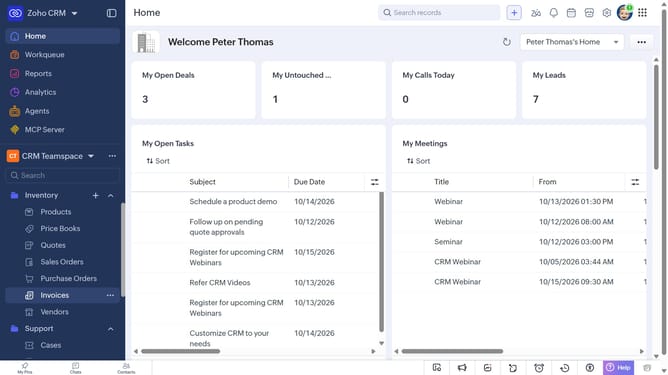
- First, click on "Invoices" under "Inventory" in the left sidebar menu
- Next, locate the invoice you want to add tags to
- Click on the "More options" button next to the invoice
- Select "Add Tags" from the dropdown menu
- Next, click on the "Enter Tags" field
- Then, you can choose from existing tags
- Alternatively, enter the tag you want to add and press "Enter"
- Finally, click on the "Save" button
Why should you How to add tags to an invoice on Zoho CRM
Zoho CRM is an integrated platform designed to streamline your business processes and enhance customer relationships.
Adding tags to an invoice in Zoho CRM is a feature that enhances organization and customization. Tags allow you to categorize invoices for easy access and retrieval, enhancing workflow efficiency. They serve as flexible labels that can be tailored to your unique business needs, making it simple to locate and manage invoices.
The use of tags can lead to improved tracking and reporting capabilities. This feature ensures a streamlined process, reducing time spent on manual sorting and boosting productivity. It empowers teams by promoting better collaboration and communication.
Last update