How to change the owner of price books in bulk on Zoho CRM
Here is how to change the owner of price books in bulk on zoho crm
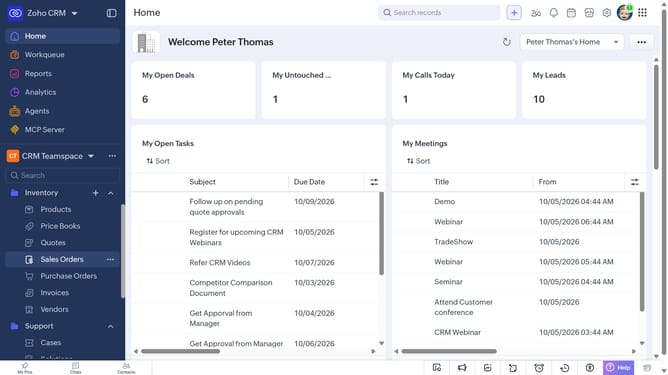
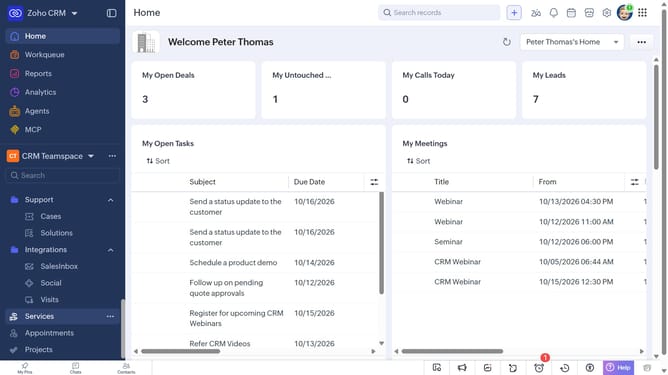
- First, click on "Price Books" under "Inventory" in the left sidebar menu
- Locate the price books whose owner you want to change
- Next, select the checkboxes next to each record
- Click on the "Change Owner" button at the top of the list
- In the "Change Owner" modal, click on the dropdown
- Then select the new owner from the dropdown menu
- Next, check "Send Email notification" to enable alerts, or leave it unchecked
- Finally, click on the "Change Owner" button
Why should you How to change the owner of price books in bulk on Zoho CRM
Zoho CRM is a comprehensive platform designed to streamline sales and enhance customer relationship management.
Changing the owner of price books in bulk on Zoho CRM is a powerful feature that saves time and boosts productivity. Instead of editing each price book individually, this feature allows users to efficiently manage and update ownership across multiple records in one go.
Utilizing this capability ensures that the right team members have access to relevant data, promoting better collaboration and workflow management. It's a seamless way to keep your pricing information accurately assigned and up-to-date.
Last update