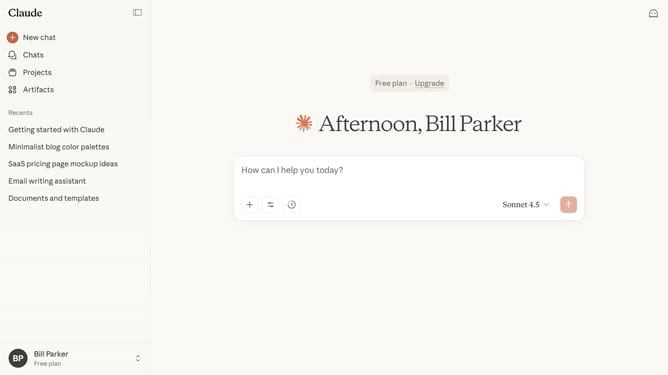
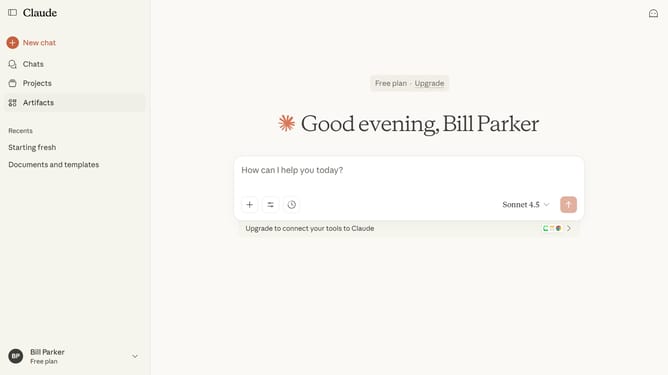
How to switch to light mode in Claude.ai
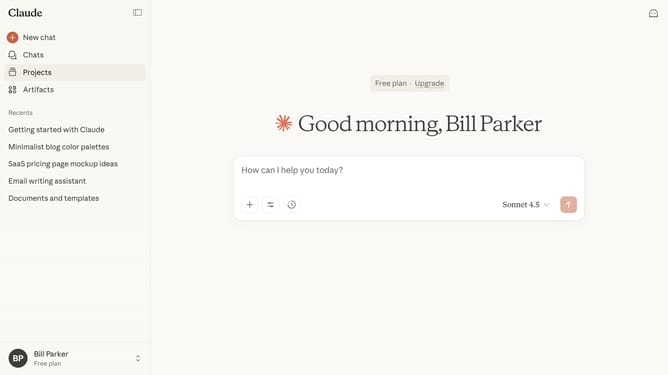
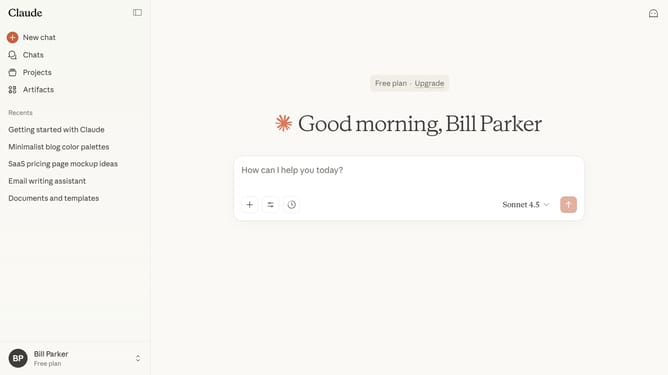
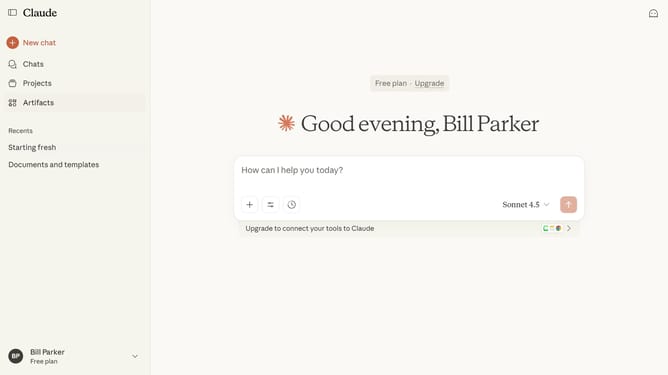
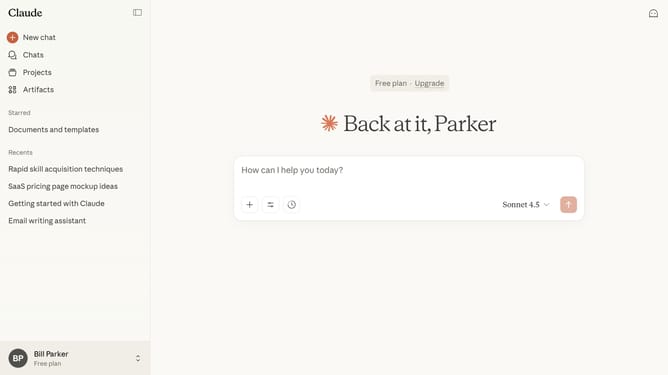
Here is how to switch to light mode in claude.ai
- First click on the user profile section in the bottom left sidebar
- Next click on the "Settings" option in the expanded sidebar menu
- Navigate to the "General" tab
- Then scroll down to view the "Appearance" section
- Finally click on the "Light" color mode option
Why should you switch to light mode in Claude.ai
Claude.ai is a cutting-edge AI tool designed to enhance productivity and streamline workflows with ease.
Switching to light mode in Claude.ai is simple and beneficial. This feature is perfect for users who prefer a bright, clean interface, which can make navigating and reading content more comfortable.
Utilizing light mode reduces eye strain during long periods of usage, promoting a more pleasant user experience. Embrace a fresh look while enjoying enhanced visibility and focus, especially in well-lit environments.
Last update