How to switch to dark mode in Claude.ai
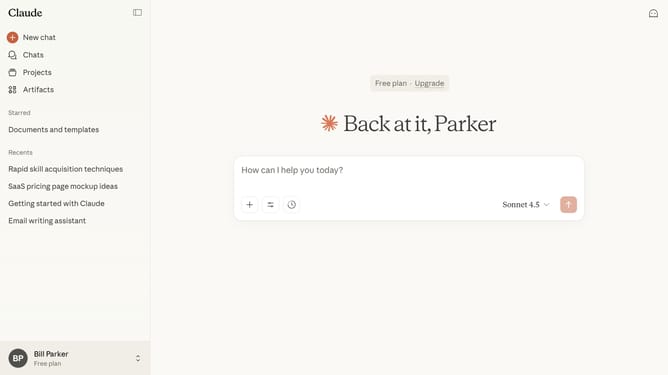
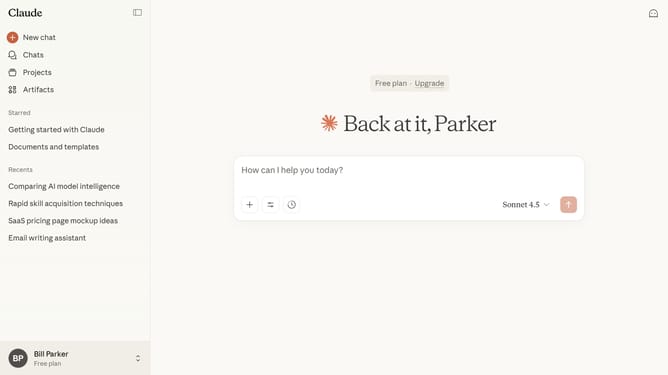
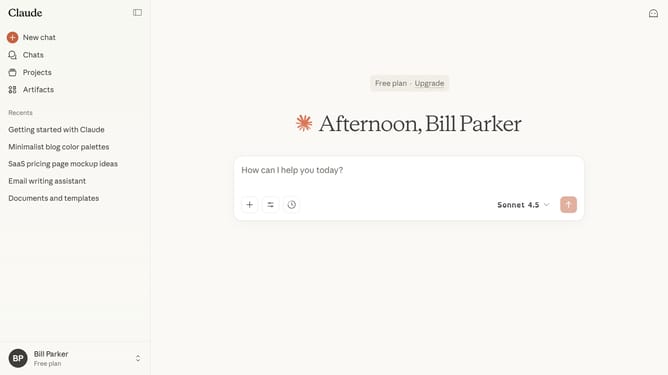
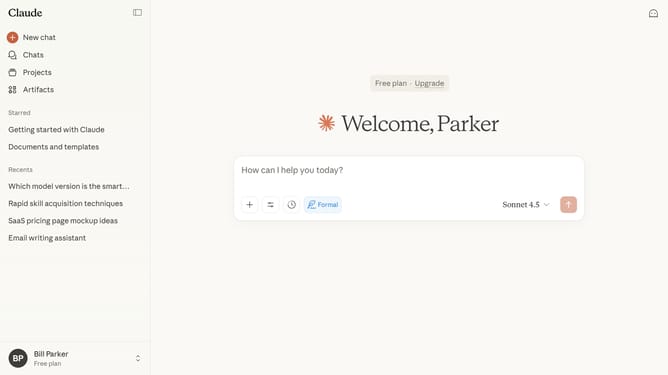
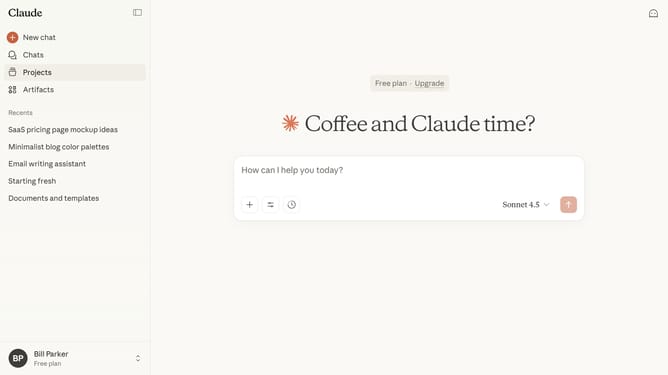
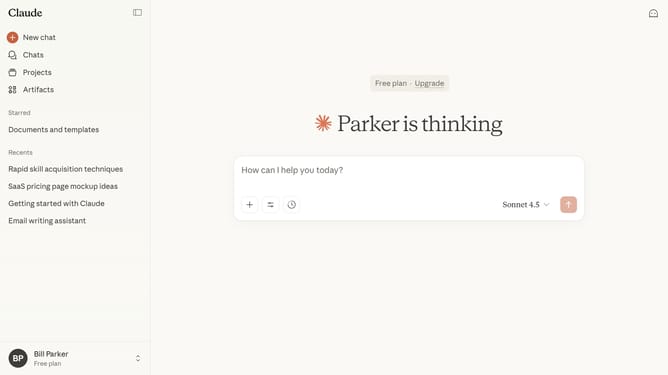
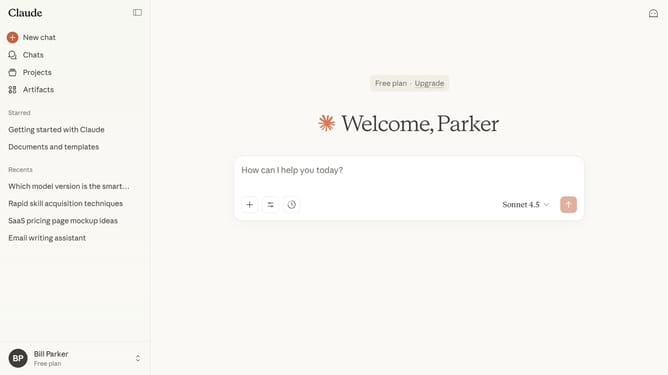
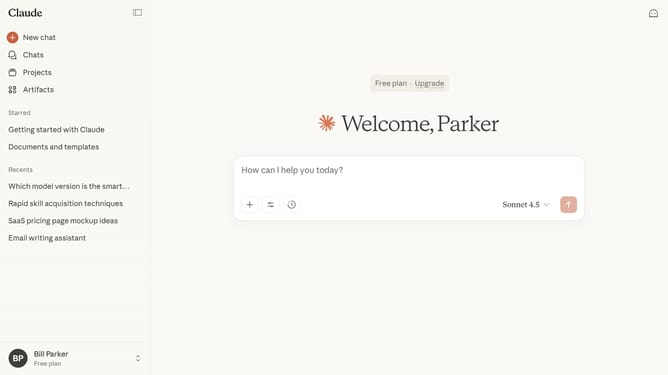
Here is how to switch to dark mode in claude.ai
- First click on the user profile section in the bottom left sidebar
- Next click on the "Settings" option in the sidebar menu
- Navigate to the "General" tab
- Then scroll down to view the "Appearance" section
- Finally select the "Dark" theme to apply it to the interface
Why should you switch to dark mode in Claude.ai
Claude.ai is a sophisticated AI-driven platform designed to enhance user experiences by offering intelligent solutions and insights.
Switching to dark mode in Claude.ai is a breeze, adding a sleek aesthetic to your interface that pairs beautifully with functionality. This feature provides an alternative visual mode that reduces eye strain, especially in low-light environments, making extended use more comfortable and less taxing on your eyes.
Additionally, dark mode can help conserve device battery life, making it both an economical and user-friendly choice.
Last update