How to stop triggering events when a workflow completes in DocuSign
Here is how to stop triggering events when a workflow completes in docusign
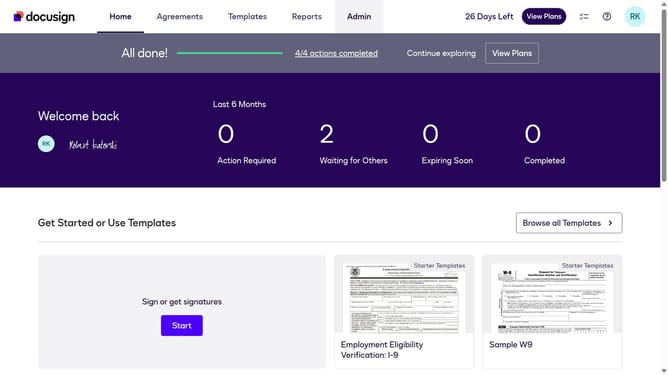
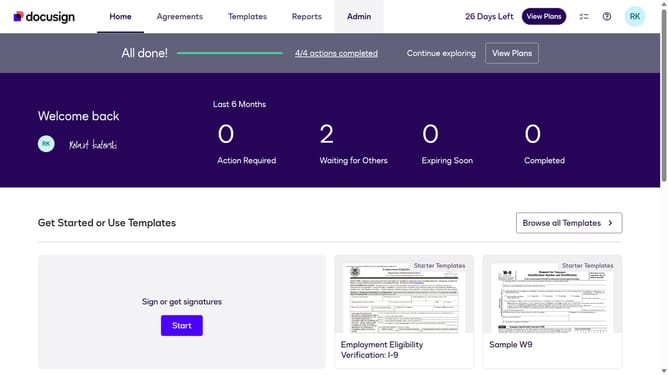
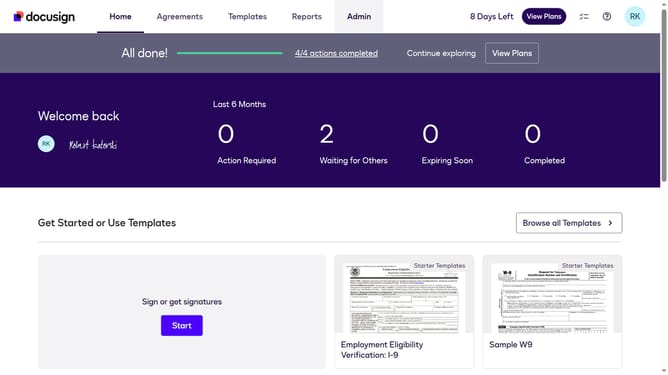
- First click on the "Admin" link in the top navigation menu
- Then click on the scroll bar to scroll down the page
- Next click on the "Connect" option in the left sidebar under the "INTEGRATIONS" section
- Then click on the "Actions" dropdown button next to a custom configuration in the configurations table
- Next select the "Edit" option from the Actions dropdown menu
- Then scroll down the page using the scroll bar on the right side
- Next click on the "Maestro" section expand button to view workflow options
- Then uncheck the "Workflow Completed" checkbox
- Next scroll down the page using the scroll bar on the right side
- Finally click on the "Save Configuration" button at the bottom of the page
Why should you stop triggering events when a workflow completes in DocuSign
DocuSign is a leading digital transaction management platform that simplifies electronic agreements.
The feature to stop triggering events when a workflow completes allows users to maintain control over their automated processes. This capability is crucial for businesses aiming to streamline operations while preventing unwanted notifications or actions that might occur post-workflow.
By using this feature, organizations can ensure a more efficient and focused workflow environment, leading to improved productivity. This control fosters better resource allocation and reduces the risk of process mismanagement.
Last update