How to show the name column in permission profiles in DocuSign
Here is how to show the name column in permission profiles in docusign
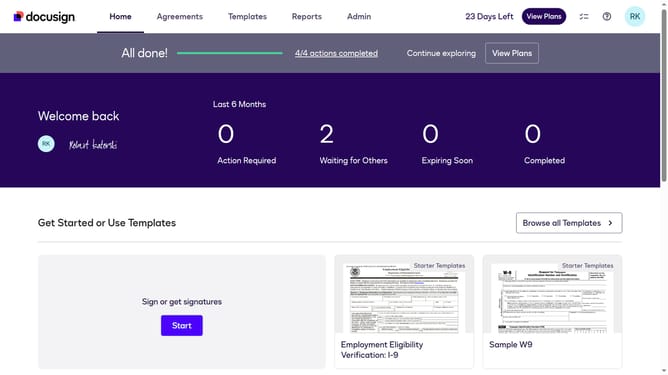
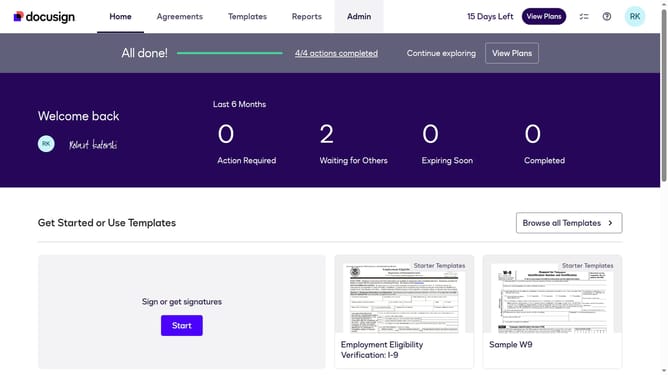
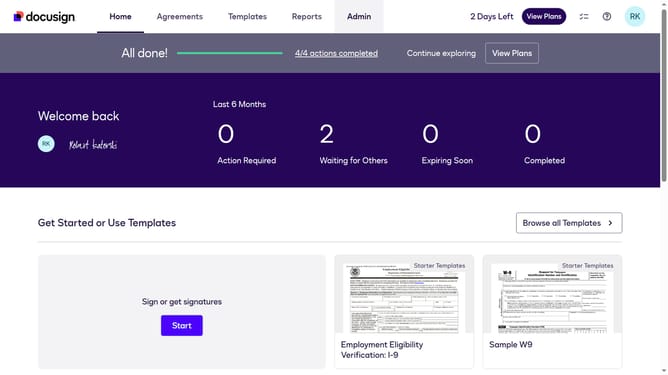
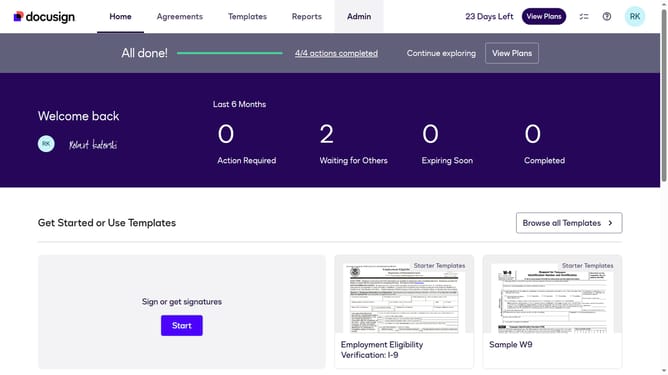
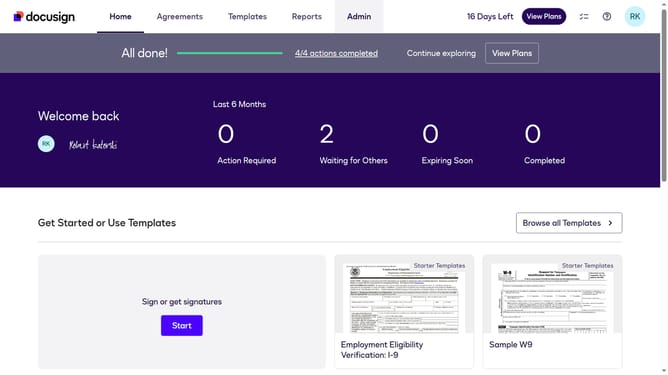
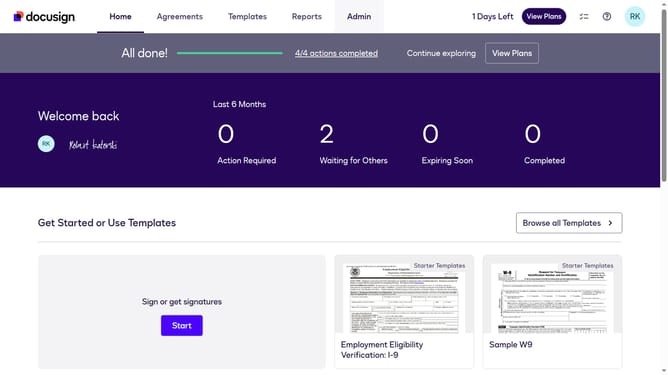
- First click on the "Admin" link in the top navigation menu
- Then scroll down the page to view the sidebar menu options
- Next click on "Permission profiles" under the USERS AND GROUPS section
- Then click on the settings icon (gear icon) in the top right area of the Permission Profiles table
- Then click on the "Name" checkbox in the "Permission Profile Column Setting" dialog
- Finally click on the "Apply" button to save the column settings
Why should you show the name column in permission profiles in DocuSign
DocuSign is a leading digital transaction management platform designed to streamline electronic agreements and enhance workflow efficiency.
The ability to show the name column within permission profiles in DocuSign facilitates a more organized approach to managing team members and their respective access rights. This feature helps in quickly identifying and distinguishing users, improving administrative oversight.
By seamlessly associating user names with permission levels, it ensures transparency and speeds up the process of granting or modifying access, ultimately leading to a more secure and efficient document management experience.
Last update