How to show the last modified column in permission profiles in DocuSign
Here is how to show the last modified column in permission profiles in docusign
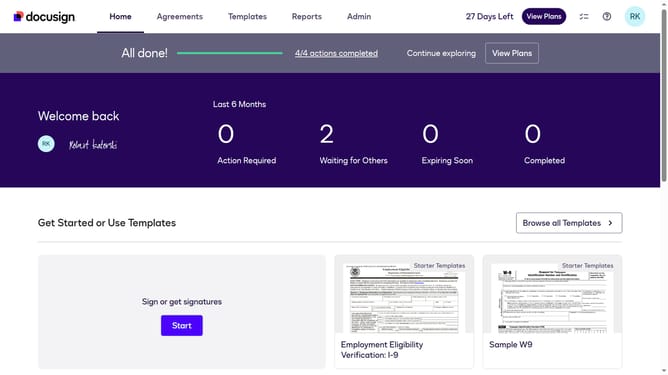
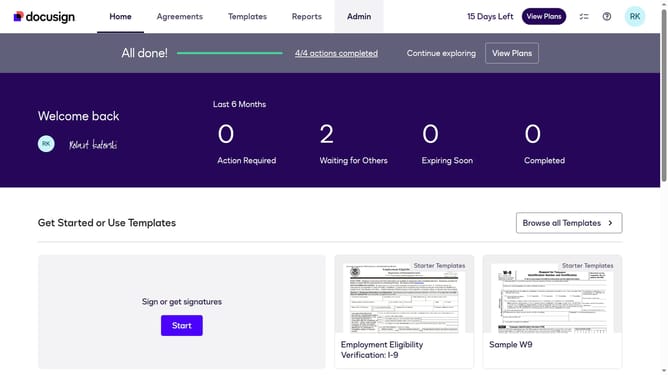
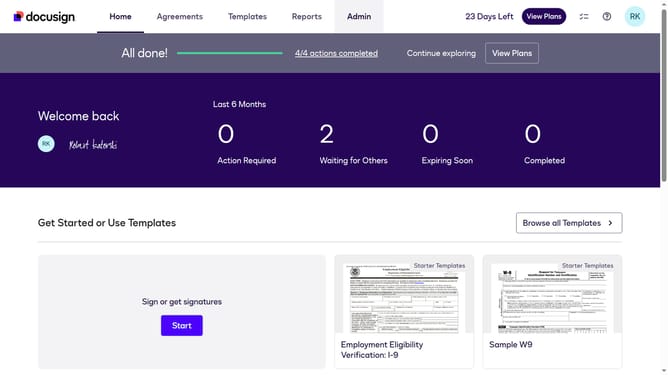
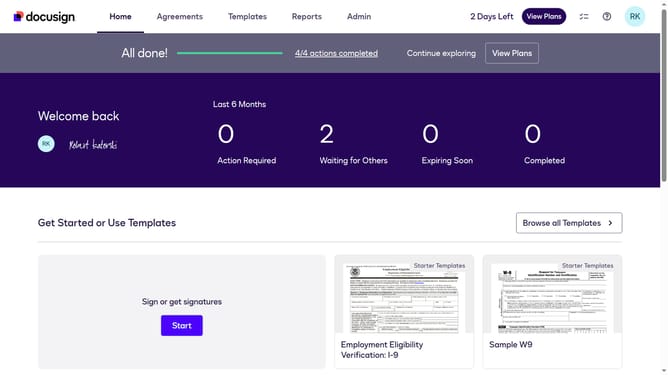
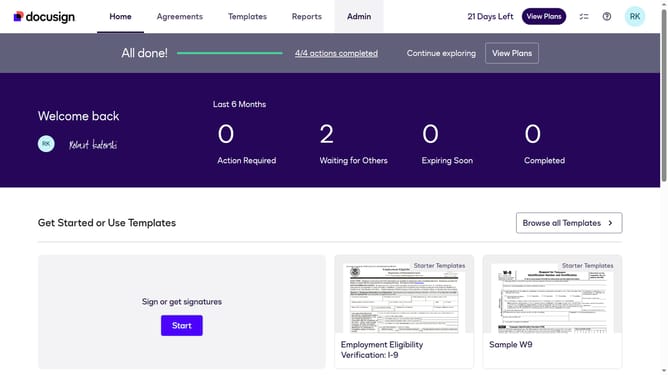
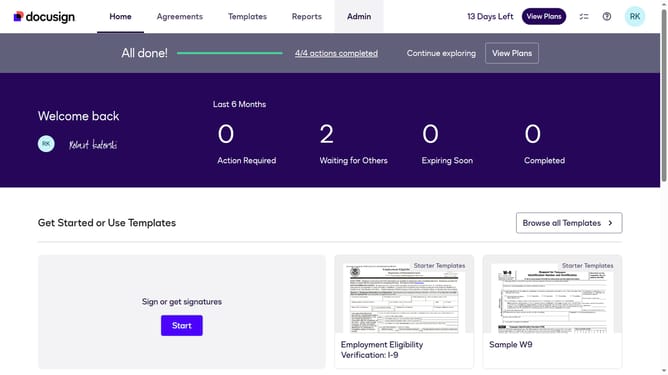
- First click on the "Admin" link in the top navigation menu
- Then scroll down the page to view the sidebar menu options
- Next click on "Permission profiles" under the USERS AND GROUPS section
- Then click on the settings icon (gear icon) in the top right area of the Permission Profiles table
- Then click on the "Last modified" checkbox in the "Permission Profile Column Setting" dialog
- Finally click on the "Apply" button to save the column settings
Why should you show the last modified column in permission profiles in DocuSign
DocuSign is a leading platform that facilitates seamless electronic agreement management for businesses worldwide.
Incorporating the ability to display the last modified column in permission profiles amplifies transparency and control within DocuSign.
This feature allows users to effortlessly track changes and updates, ensuring enhanced audit trails and accountability.
By staying informed about recent modifications, organizations can make informed decisions, optimizing their workflow efficiency and collaboration.
Last update