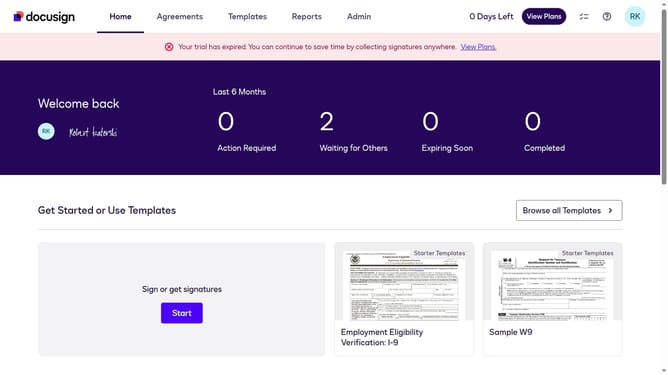
How to show the added date column under the users section in DocuSign
Here is how to show the added date column under the users section in docusign
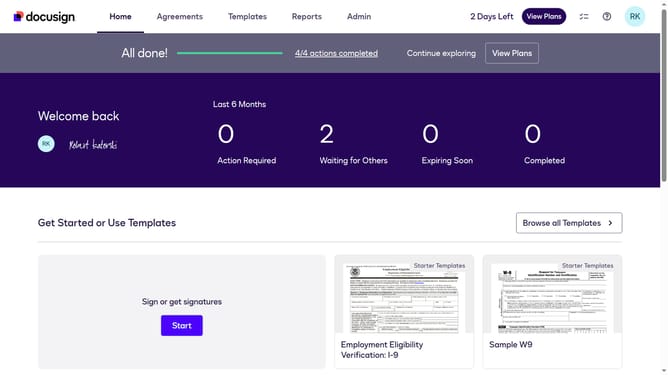
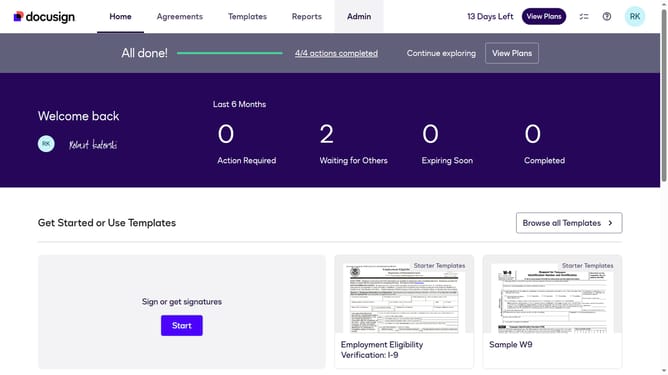
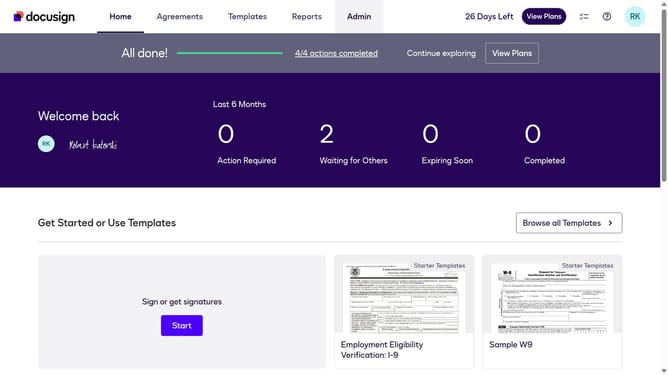
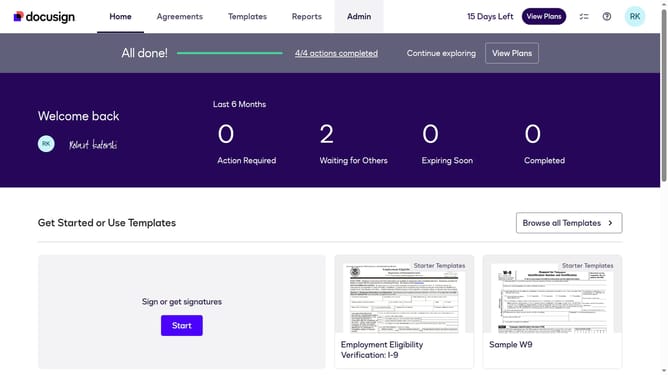
- First click on the "Admin" link in the top navigation menu
- Then scroll down the page to view the sidebar menu options
- Next click on the "Users" option in the left sidebar under "USERS AND GROUPS" section
- Then click on the settings icon (gear icon) in the top right corner of the Users table
- Next click on the "Added" checkbox to enable the Added column in the table view
- Finally click on the "Apply" button to save the column visibility changes
Why should you show the added date column under the users section in DocuSign
DocuSign simplifies the process of electronic agreements, making it easier for businesses to manage and execute documents efficiently.
The added date column in the users section is a valuable feature within DocuSign. It enhances clarity by providing immediate access to the timestamp when users were added to the platform.
Being able to view this information at a glance aids in better user management. This allows administrators to track user onboarding progress and ensures a more organized tracking system for account activities.
Ultimately, this feature contributes to improved workflow efficiency and overall transparency for all users involved.
Last update