How to show the actions menu in a permission profile in DocuSign
Here is how to show the actions menu in a permission profile in docusign
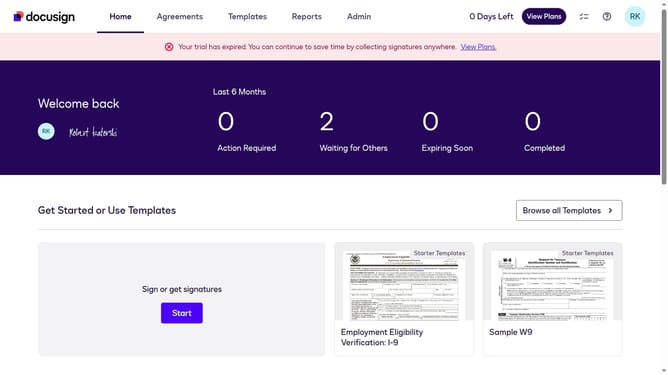
- First click on the "Admin" link in the top navigation menu
- Then scroll down in the left sidebar to reveal the "USERS AND GROUPS" section
- Next click on the "Permission Profiles" link in the left sidebar under "USERS AND GROUPS"
- Then click on the "Actions" dropdown button next to a permission profile
- Next click on the "Edit" option from the dropdown menu
- Then scroll down the "Edit Permission Profile" dialog box to view more options
- Next uncheck the "Hide Actions Menu" checkbox in the permissions section
- Finally click on the "Save" button at the bottom of the modal
Why should you show the actions menu in a permission profile in DocuSign
DocuSign revolutionizes how documents are signed and managed, making transactions seamless and secure.
Displaying the actions menu in a permission profile is a pivotal feature within DocuSign's intuitive platform. This feature provides users quick access to options that tailor their permissions, enhancing control over document workflows and security settings.
Utilizing the actions menu streamlines user management, ensuring that only authorized individuals have access to specific functionalities. This enhances efficiency and reinforces security by allowing precise configuration of document-related permissions.
Last update