How to show custom fields on a card in Trello
Here is how to show custom fields on a card in trello
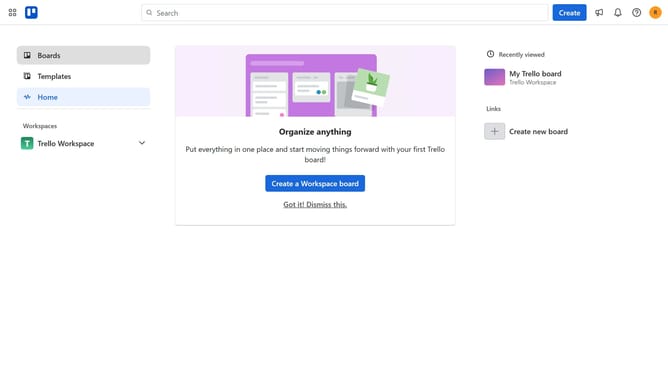
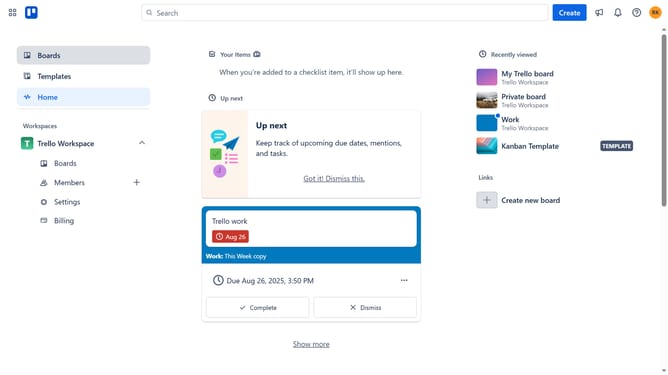
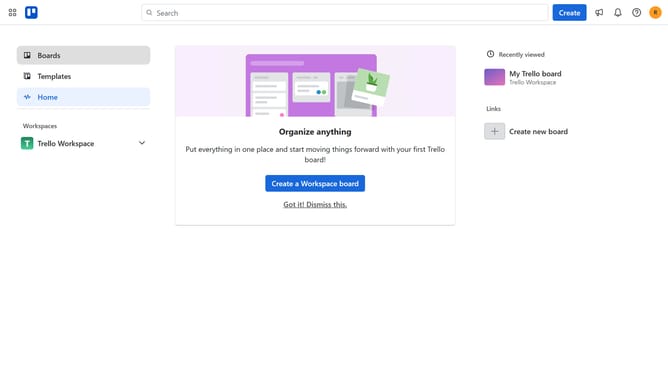
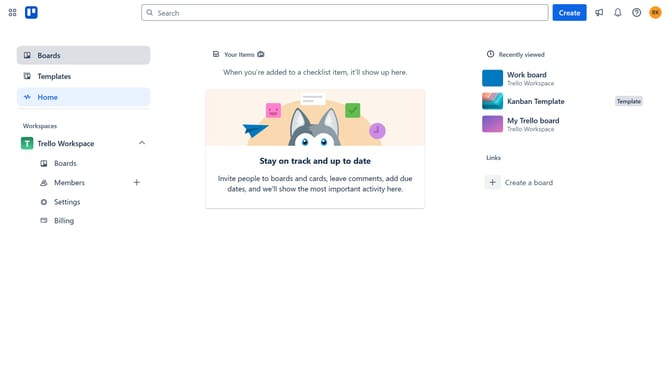
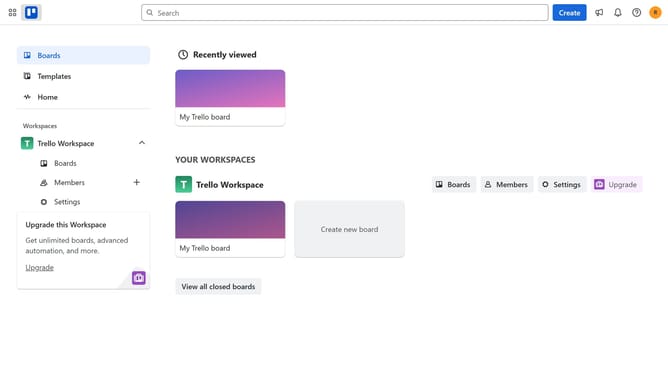
- First click on the "Boards" section in the left sidebar
- Then click on the board tile where you want to display the custom field in the workspace section
- Next click on the menu button (three dots) in the top right corner
- Then click on "Custom Fields" option in the menu
- Next click on the custom field you want to show in the custom fields panel
- Finally click the checkbox labeled "Show field on front of the card" to display the custom field on the card face
Why should you show custom fields on a card in Trello
Trello is a powerful project management tool designed to streamline your workflow with boards, lists, and cards.
One of its standout features is the ability to show custom fields on a card. This allows users to personalize their cards by adding specific information pertinent to their tasks.
Custom fields enhance organization and improve efficiency, offering insights at a glance. This feature empowers teams to tailor their boards to the exact needs of their projects, fostering a more productive environment.
Last update