How to set yourself as a signer in Microsoft Teams
Here is how to set yourself as a signer in microsoft teams
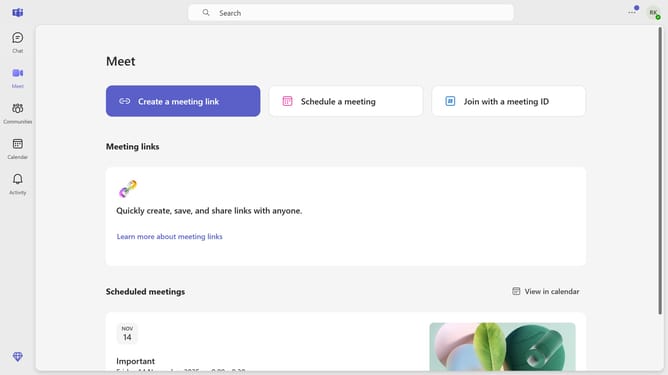
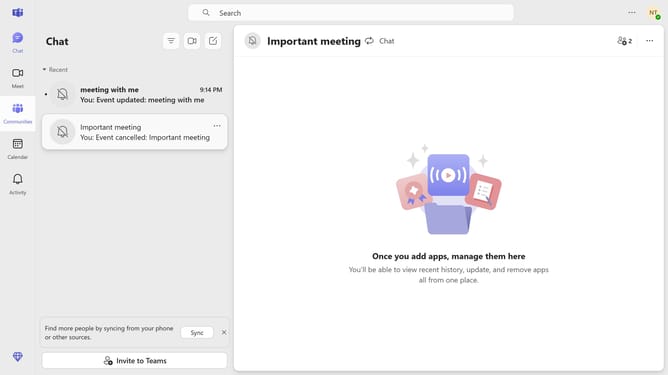
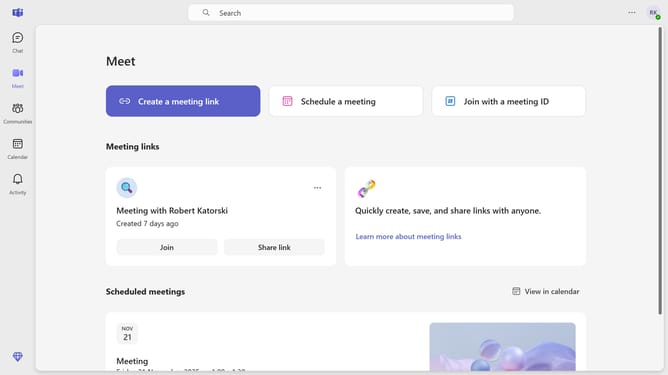
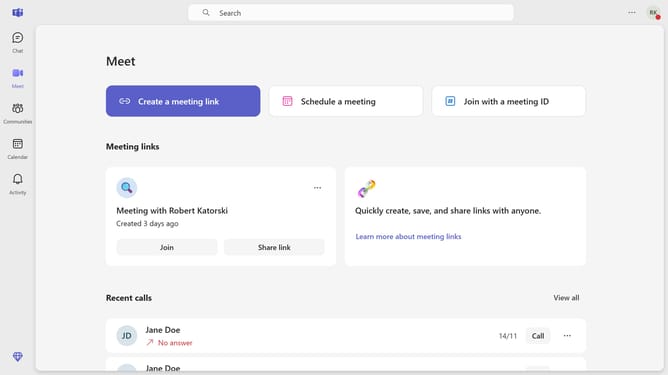
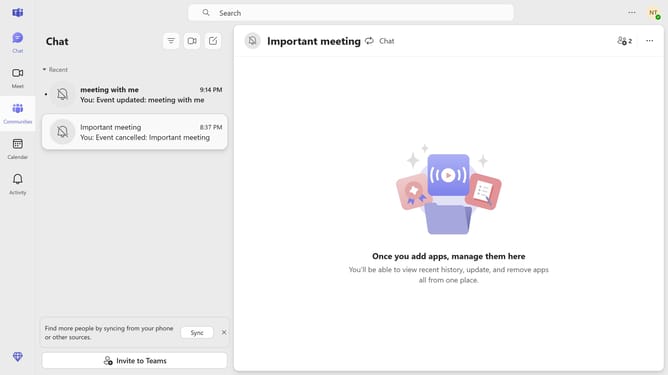
- First click on the "More options" button in the top-right corner of the header
- Then click on "Settings" option in the dropdown menu
- Next click on "Accessibility" option in the left sidebar
- Then click on the "Sign language mode" toggle switch to turn it on
- Finally select the "I am a Signer" radio button option under the Sign language mode section
Why should you set yourself as a signer in Microsoft Teams
Microsoft Teams is an all-in-one collaboration hub designed to streamline communication and boost productivity.
Setting yourself as a signer in Microsoft Teams is a straightforward feature that enhances document management efficiency.
This capability is crucial for teams that frequently deal with approvals, as it facilitates a seamless workflow by reducing roadblocks associated with manual signing.
Embracing this feature not only accelerates decision-making but also upgrades your document handling to a smooth, digital experience.
Last update