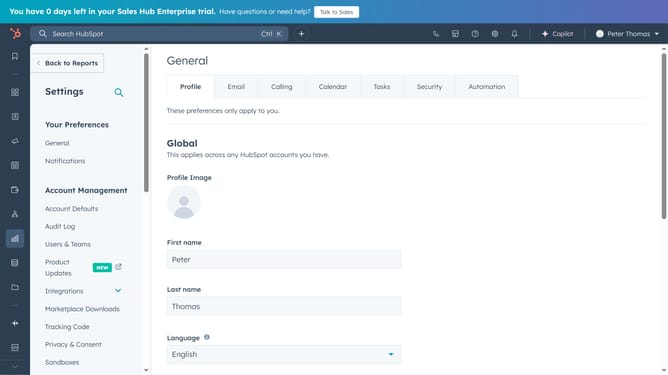
How to set up your knowledge base in HubSpot
Here is how to set up your knowledge base in hubspot
- First click on the "Content" icon in the left sidebar
- Then click on "Knowledge Base" in the expanded content menu
- Click on "Set up your knowledge base" button
- In the welcome dialog, click the checkbox to agree to HubSpot Beta Terms
- Next click on the "Continue" button to continue
- Enter a title for the knowledge base in the "knowledge base Title" field
- Click the Knowledge base language dropdown menu and select your desire language for the knowledge base
- Click the "Knowledge base domain" dropdown and select a domain for your Knowledge base
- Next enter a URL slug in the Knowledge base slug field
- Click "Next" to proceed to template selection
- Select the "Cards" template option that suits you
- Click "Next" to proceed to categories
- Then select the categories you want for your knowledge base
- Once done, click on the "Next" button to proceed
- Finally click "Done" to complete the knowledge base creation
- Your knowledge base has been successfully created, you can now start creating articles
Why should you set up your knowledge base in HubSpot
HubSpot is an all-in-one platform designed to streamline and enhance your inbound marketing, sales, and service efforts.
Setting up your knowledge base in HubSpot is a seamless process that enables your team to centralize valuable information. This feature simplifies sharing FAQs, guides, and other critical content, ensuring customers can find answers quickly.
Using HubSpot's knowledge base eliminates the guesswork for both your team and customers, increasing efficiency and reducing support queries. It's an essential tool for fostering a self-service culture, enhancing customer satisfaction, and building trust.
Last update