How to set up the CSAT survey in Zendesk
Here is how to set up the csat survey in zendesk
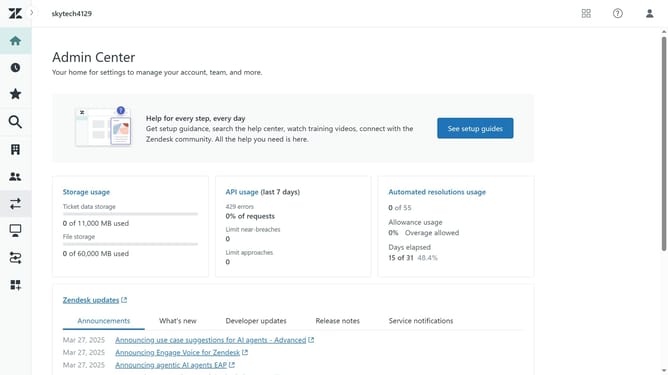
- First in the Admin Center, click on the "Objects and rules" in the left sidebar
- Then click on "Customer satisfaction" under the Business rules section
- Next, click the "Get started" button to begin the set up
- Click on "Edit survey" button to configure survey settings
- Under "Scale type" menu, change the Headline question as you want
- Click on "Scale type" dropdown and select the one that suits you
- Then edit the scale range and the "Label" as needed
- Scroll down and click "Dropdown question" to expand it
- Next, configure the drop-down question that will be shown to users who submit a negative rating
- Scroll down to the "Open-ended question" section and type the question you want to ask users who provide a negative rating
- You can click "Delete", to remove this question from the survey
- Then, click on the "Save" button to apply your changes
- Next, click "Back" to return to the Customer satisfaction page to activate a channel for your CSAT survey
- In the Channels section, click the more option (three dots) next the channel you chose to activate
- Then click "Activate"
- Finally, click on "Activate rule" button in the confirmation dialog to confirm and complete the set up
Why should you set up the CSAT survey in Zendesk
Zendesk is a powerful platform designed to enhance customer support experiences.
Setting up a CSAT survey in Zendesk helps businesses measure customer satisfaction effectively. This feature allows companies to gather valuable feedback directly from users, ensuring that customer service is aligned with their expectations.
Using CSAT surveys can significantly improve customer support strategies by identifying areas for enhancement and strengthening customer relationships. This ensures consistently positive interactions and promotes overall service excellence.
Last update