How to set up Salesforce Inbox
Here is how to set up salesforce inbox
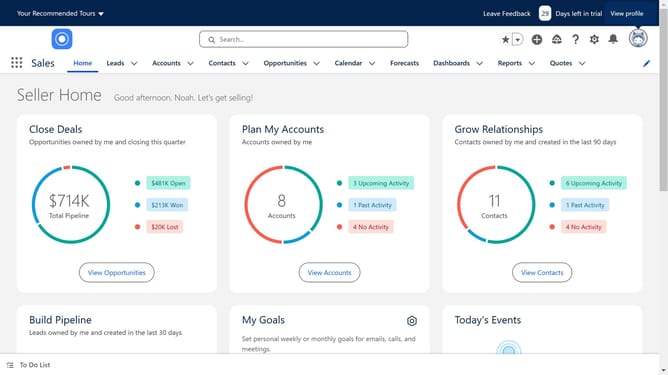
- First click the setup gear icon in the top navigation bar
- Then click on the "Setup" link in the dropdown menu
- Click on "Quick Find" search box in the left sidebar
- Click on "Setup Assistant" under the Sales Engagement section in the left sidebar
- Click the toggle switch to enable "Make Inbox Available to Users"
- Click on "Set Up" link next to Einstein Activity Capture
- Click "Get Started" button in the Einstein Activity Capture welcome screen
- Check the authorization checkbox that says "I'm authorized by my company to accept these terms"
- Click the "Try Einstein" button to proceed
- Select your Email service provider
- Click "Next" to continue with Google G Suite selection
- Choose either "User Level" or "Google Workspace Marketplace App"
- Click "Next" to proceed
- Fill in the details for your configuration
- Click "Next" to continue with the configuration settings
- Review the sync settings for emails, events and contacts shown on screen
- Click "Next" to proceed with the reviewed sync settings
- Review the advanced settings screen with options for email and event filters then click "Next"
- Review the users and profiles screen then click "Next"
- Review the exclude addresses screen with options for customer and internal domains then click "Next"
- Click "Next" after reviewing Default Activity Sharing
- Finally click "Finish" to complete the Einstein Activity Capture setup
Why should you set up Salesforce Inbox
Salesforce is a powerful customer relationship management platform designed to enhance business interactions.
Setting up Salesforce Inbox elevates this experience by seamlessly integrating email with your CRM system. This feature allows you to streamline communication, increasing productivity and efficiency.
By bringing together emails, calendars, and CRM data, users can easily manage their tasks and client interactions from one place, ensuring no opportunity is missed and every relationship is nurtured with care.
Last update