How to set up and turn off notifications in HubSpot
Here is how to set up and turn off notifications in hubspot
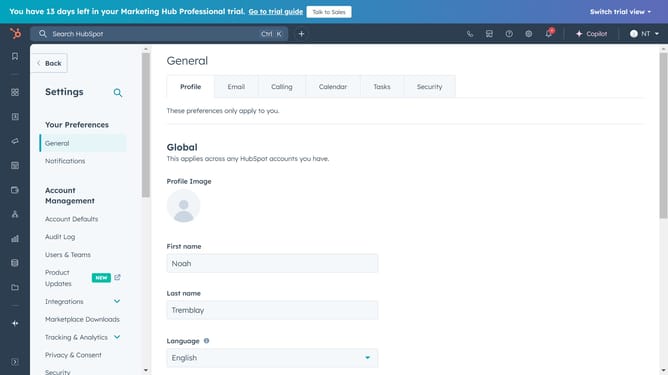
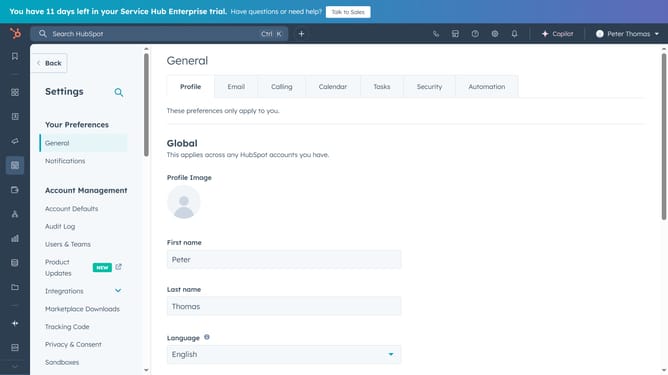
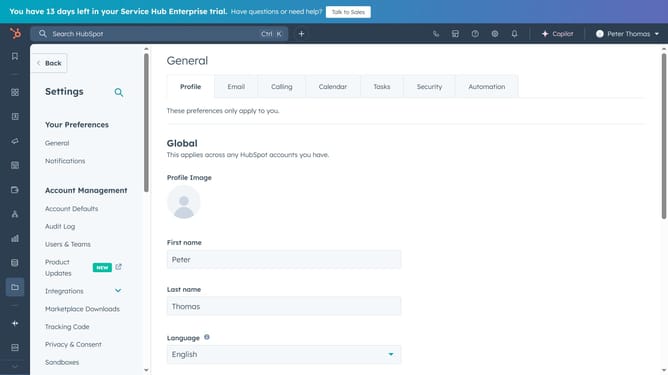
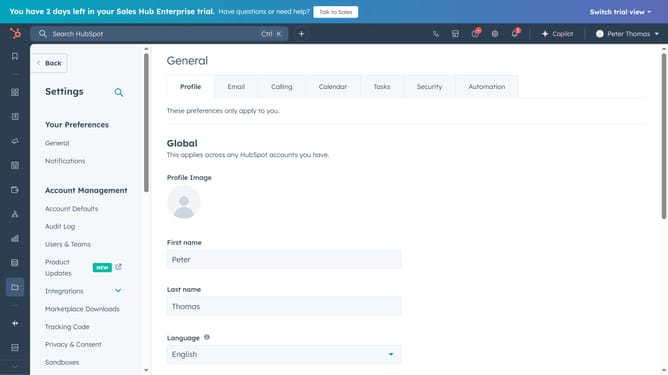
- First click on the "Gear" icon in the top toolbar to access the settings
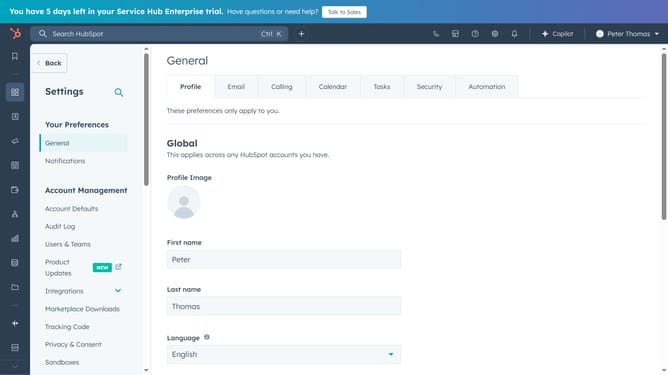
- Then click on "Notifications" in the left sidebar menu
- Next, in the notification settings, click on the "Email", "Desktop", "Other apps", or "Mobile app" tabs to choose the types of notifications you want to receive
- In the "Email & Desktop" tab, click the browser notifications banner to allow notifications in your browser
- Then click "Continue" in the browser notifications popup to confirm
- In the "How you get notified" section, choose where you want to see your notifications
- If Pop-up is enable, click the "Sound selection" dropdown menu
- Then select "off" no sound or choose your desire sound from the dropdown menu
- Next scroll down to the "What you get notified about" section
- Click on a notification topic you want to edit to expand its settings
- To turn off a notification, uncheck the switch next to the specific notification you no longer want to receive
- To enable a notification, check the checkboxes next to the event or action you want to get notified about
- Finally, click the "Save" button at the bottom of the page to apply your changes
Why should you set up and turn off notifications in HubSpot
HubSpot is a powerful tool designed to streamline your marketing, sales, and service operations.
Setting up and managing notifications in HubSpot helps ensure you're always in the loop without being overwhelmed. This feature allows you to customize alerts to suit your unique business needs, ensuring that you never miss an important update.
Turning off unnecessary notifications can help maintain focus by minimizing distractions, enabling your team to concentrate on what truly matters.
Last update