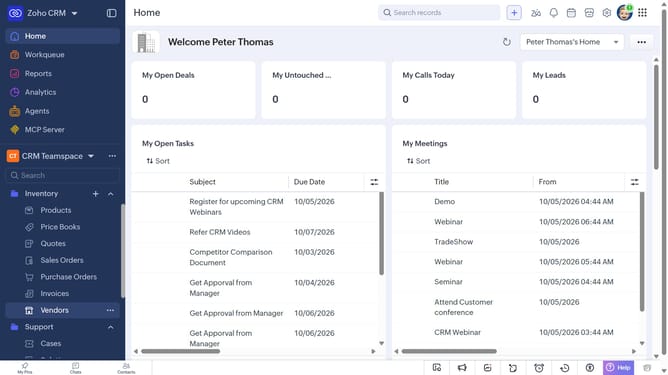
How to set the preferred distance unit to Kilometers (Km) on Zoho CRM
Here is how to set the preferred distance unit to kilometers (km) on zoho crm
- First click on the settings icon in the top right corner
- Click on "Personal Settings" under the "General" section
- Next, click on the pencil icon next to "Locale information"
- After that, click on the "Preferred Unit for Distance" dropdown
- Then, select "Kilometers (Km)" from the dropdown menu
- Finally click on the "Save" button
Why should you How to set the preferred distance unit to Kilometers (Km) on Zoho CRM
Zoho CRM, a leading customer relationship management platform, optimizes your business processes by streamlining customer interactions and data management.
Setting the preferred distance unit to Kilometers (Km) on Zoho CRM enhances the user experience, especially for businesses dealing with metrics or international clients. This feature allows you to align the CRM settings with global standards, providing consistency and clarity across your operations.
Using kilometers ensures seamless integration for teams operating in metric-centric regions, aiding in more precise reporting and analysis. This alignment not only simplifies internal processes but also facilitates better communication with global partners.
Last update